Share Your Mac's Internet
The hotel Wi-Fi charges per device, or your Mac has wired internet and your phone has nothing — and you need your other gadgets online now. Your Mac can share its internet connection, turning into a Wi-Fi hotspot for nearby devices. It is a lifesaver in hotels and dead zones, with a few setup steps and one security rule that matters.
TL;DR / Quick Fix
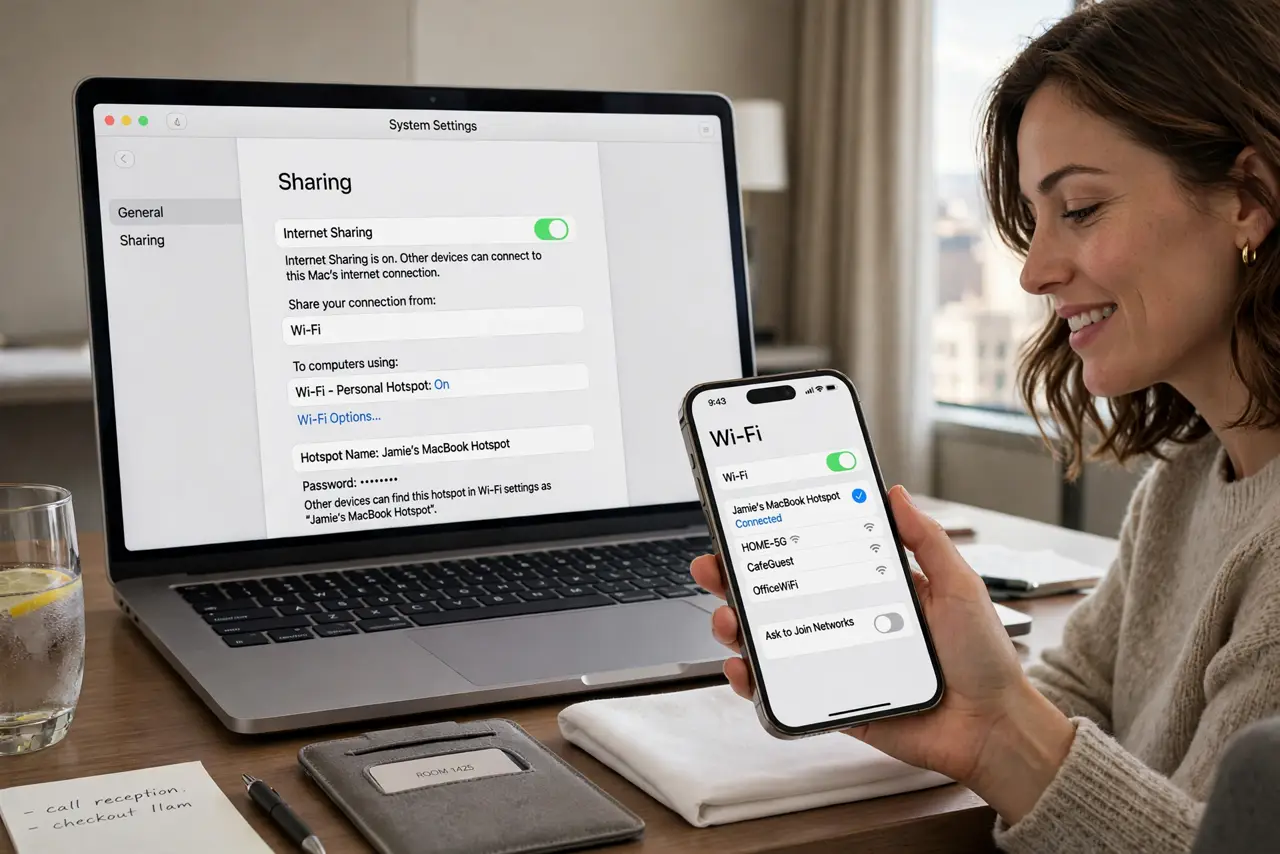
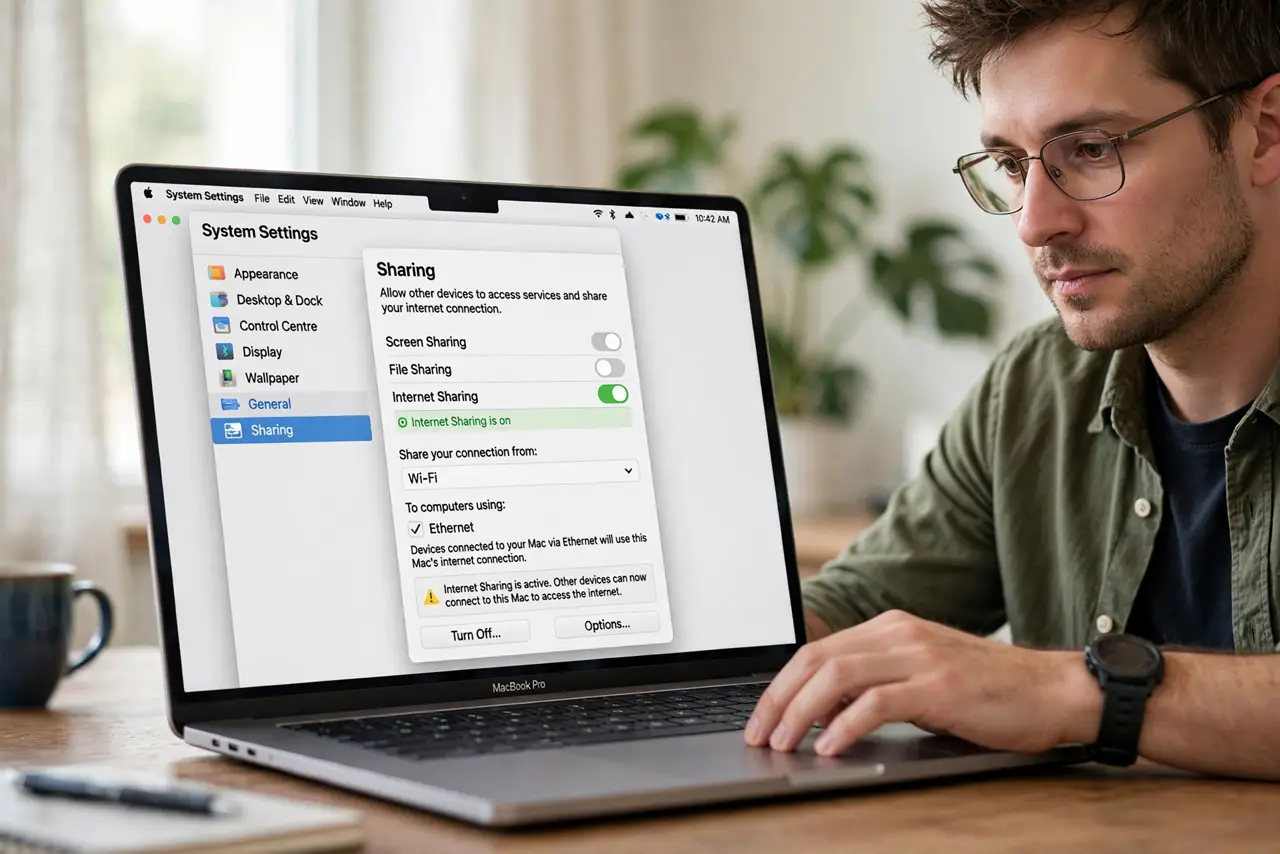
Quick fix: on the Mac open System Settings, go to General, then Sharing, turn on Internet Sharing, choose which connection to share and how (usually Wi-Fi), and set a strong Wi-Fi password. Other devices then join the Mac's network like any hotspot.
Follow these steps
- Open Internet Sharing. Go to System Settings, General, Sharing, and select Internet Sharing — do not toggle it on yet. Configure first, enable last.
- Choose the source connection. Pick which connection to share from — ethernet or an existing Wi-Fi connection. Sharing Wi-Fi to Wi-Fi works on modern Macs but is slower; wired-to-Wi-Fi is the ideal.
- Choose how to share it. Select Wi-Fi as the To devices using option. This turns the Mac into a wireless hotspot others can join.
- Set a strong Wi-Fi password. Click Wi-Fi Options and set a real password — WPA2 at minimum. An open shared connection in a hotel broadcasts your traffic to the room; see hotspot battery tradeoffs for the phone equivalent.
- Turn sharing on. Check the Internet Sharing box to enable it. Your other devices will now see the Mac's network name in their Wi-Fi lists.
- Turn it off when done. Disable Internet Sharing afterward — a forgotten hotspot keeps broadcasting and keeps the Mac awake. Hotel stays end; hotspots should too.
What NOT to do
- Do not share without a password. An open hotspot shares your connection — and potentially your traffic — with the whole hotel.
- Do not forget hotel terms. Some hotels prohibit sharing one paid connection across devices — check the fine print.
- Do not expect miracles on speed. The Mac splits its connection among all joined devices — fine for browsing, tight for video on many devices.
- Do not leave sharing on permanently. It drains battery, keeps the Mac awake, and advertises a network you no longer need.
Frequently asked questions
Can I share my iPhone's connection instead?
Yes — Personal Hotspot on the iPhone does the same job, often more conveniently. Use whichever device has the better connection.
Why is the shared Wi-Fi slow?
The Mac's connection is shared, not multiplied — and Wi-Fi-to-Wi-Fi sharing halves throughput. For speed, share a wired connection.
Does this work on public networks with login pages?
Usually yes after the Mac itself authenticates — the shared devices ride on the Mac's authenticated session. Some captive portals block it.