Shared Albums? Basics
Shared Albums let you pool photos with family and friends — everyone adds their pictures to one album, likes and comments, and nobody's iCloud storage takes the hit. They are separate from iCloud Photos sharing and perfect for trips, weddings, and kid photos. This guide shows how to create, share, and manage them.
TL;DR / Quick Fix
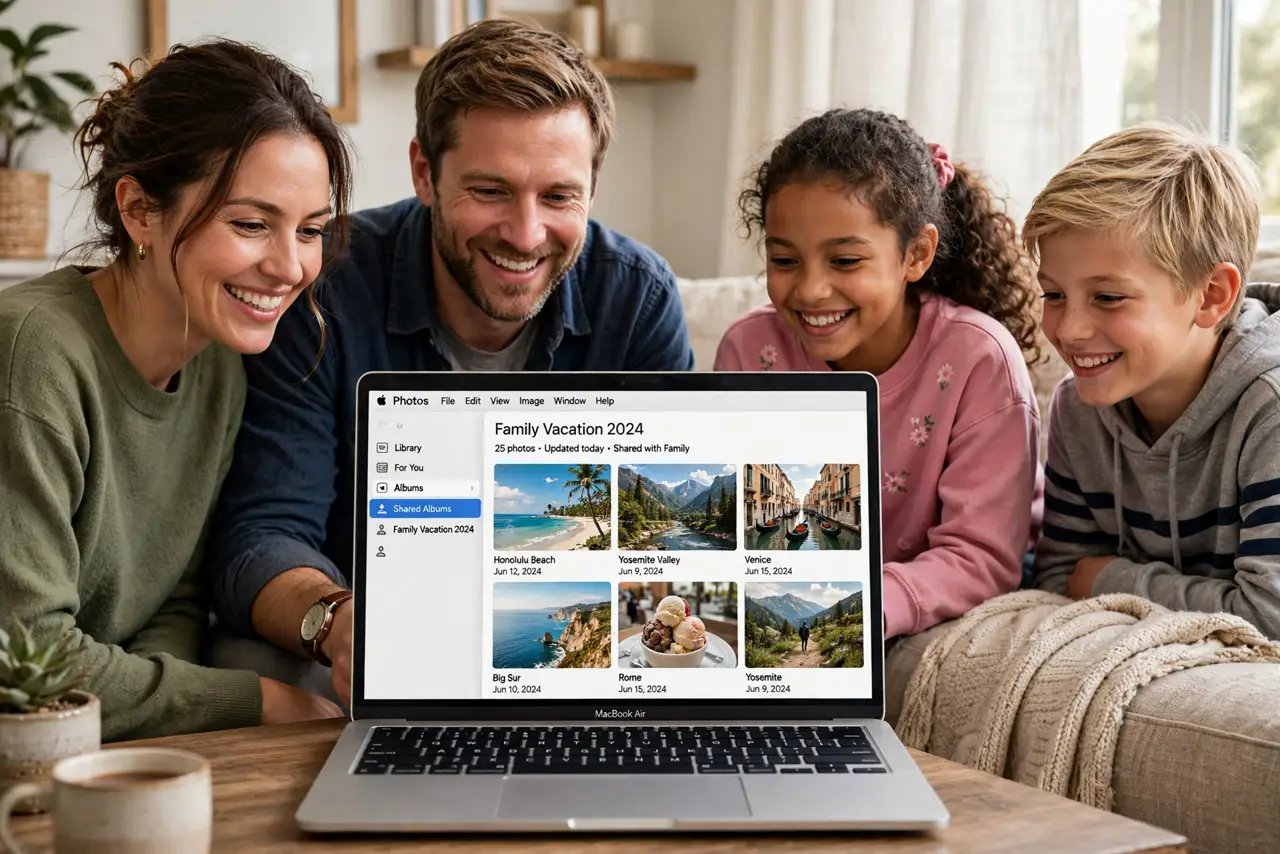
Quick fix: Shared Albums in Photos let you share pictures without using iCloud storage — create one in the Photos sidebar, add people, and drop photos in. Guests can add their own and comment. They do not count against anyone's storage. Photos are compressed, so keep originals elsewhere.
Follow these steps
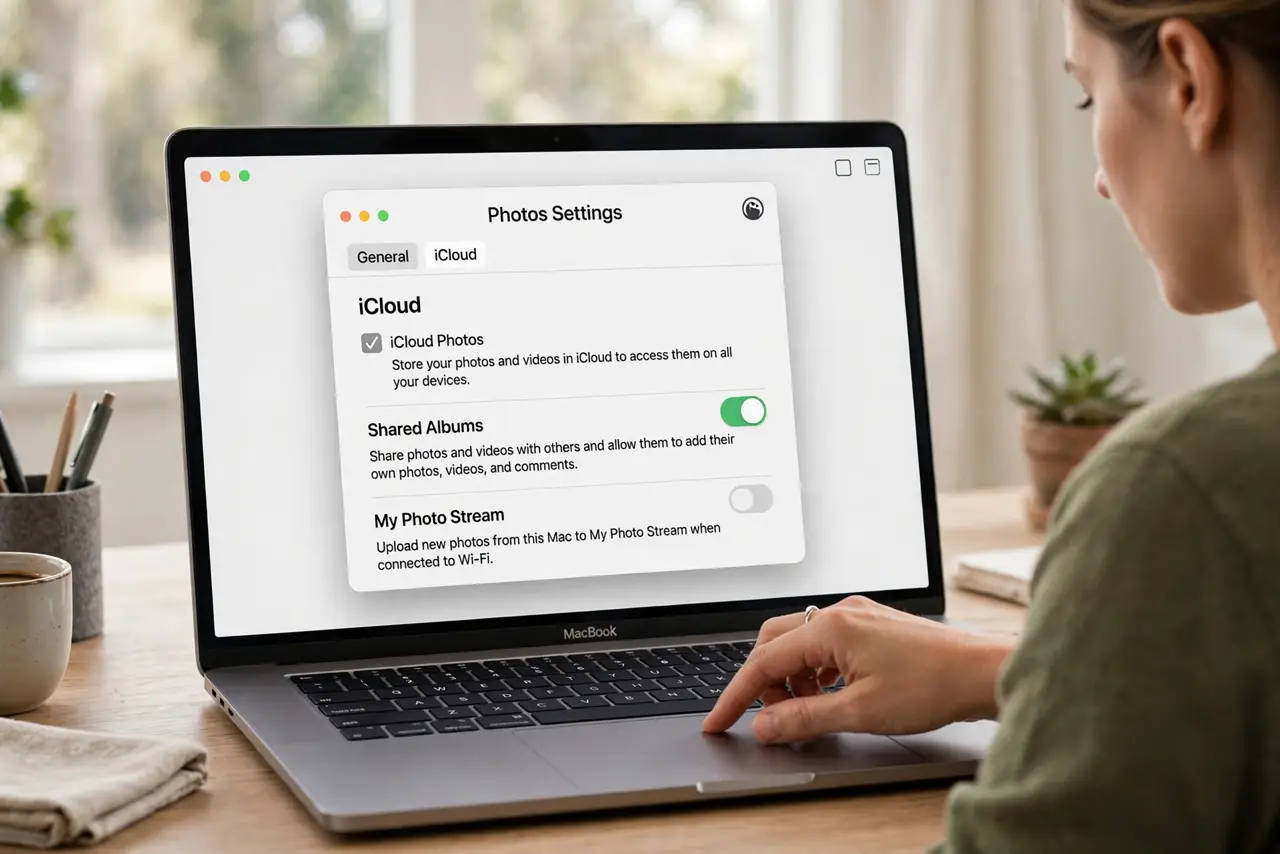
- Enable Shared Albums. Open Photos, Settings (or Preferences), iCloud, and confirm Shared Albums is on. Everyone participating needs it enabled on their device too.
- Create the album. In the Photos sidebar under Shared Albums, click the + to create one. Name it for the event — 'Beach Trip 2026' beats 'New Shared Album' when browsing later.
- Invite people. Add invitees by email or phone number. They get an invitation to view — and, if you allow it, to add their own photos and videos.
- Add photos and videos. Drag photos into the album or use the share button from any photo. Up to 5,000 items per album — plenty for even the most enthusiastic family photographer.
- Let guests contribute. In the album's People tab, allow subscribers to add photos. The best shared albums are collaborative — everyone's angle on the same trip.
- Fix sync hiccups. If new photos are not appearing for someone, check their internet and Shared Albums toggle. The shared album not updating guide covers the stubborn cases.
What NOT to do
- Do not expect full-resolution originals. Shared Albums compress photos — wonderful for sharing, not a backup. Keep originals in your main library.
- Do not share sensitive photos casually. Anyone invited can save and re-share the images — only invite people you trust with the content.
- Do not confuse with iCloud Shared Library. Shared Albums are invite-based collections; the iCloud Shared Library is a deeper merge for very close family — different features.
- Do not delete photos from the album lightly. Removing a photo removes it for everyone — check with the group before pruning shared memories.
Frequently asked questions
Do Shared Albums use my iCloud storage?
No — that is their superpower. Shared Albums do not count against anyone's iCloud storage, on either the creator's or the subscribers' side.
How many photos can a Shared Album hold?
Up to 5,000 photos and videos per album, and you can create up to 200 albums. Limits you will not hit casually.
Can Android users join?
Yes, via iCloud.com in a browser — they can view (and add, if allowed) without an Apple device. The experience is smoother on Apple devices, but it works.