Start with Mac Shortcuts
You do the same five taps every morning — open the news, start a playlist, text the family group. The Shortcuts app on your Mac turns those routines into one click or one voice command. It is Apples modern automation tool, and the starter gallery means you do not begin from a blank page.
TL;DR / Quick Fix
Quick fix: the Shortcuts app automates daily Mac routines — one click can open your morning apps, start a playlist, and message the family. Browse the built-in gallery first and adopt two or three ready-made shortcuts. Build your own only after the premade ones click. Start small; automation compounds.
Follow these steps
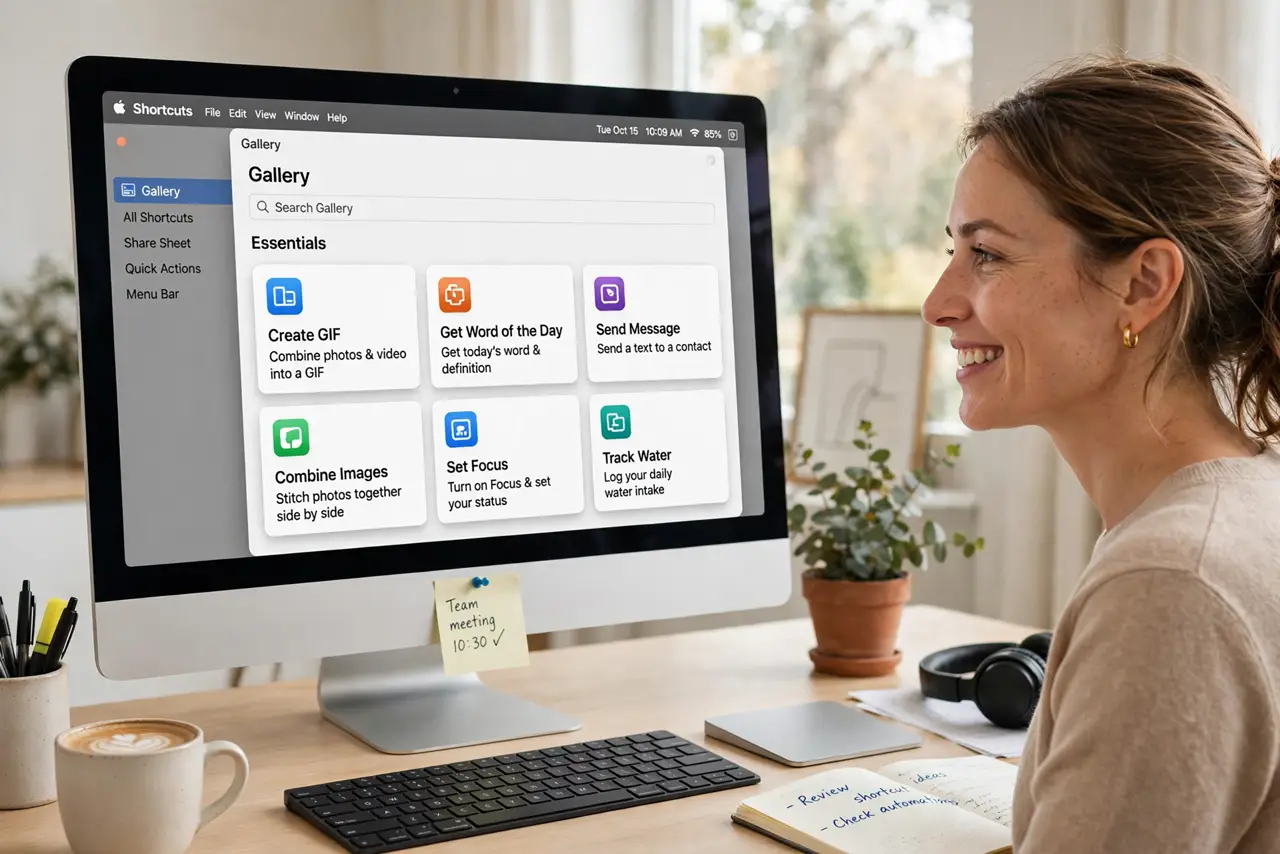
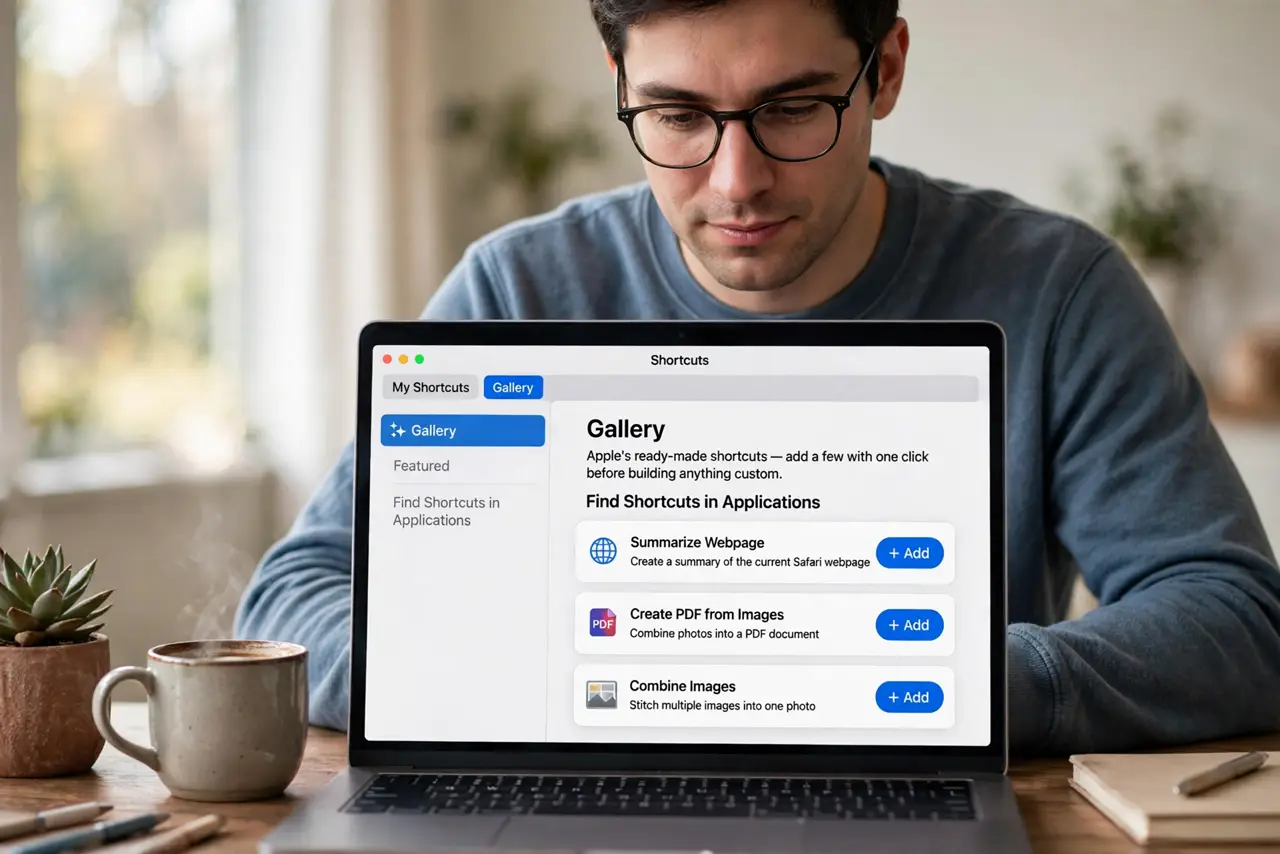
- Open Shortcuts and browse the gallery. Find Shortcuts in Applications. The Gallery tab holds Apples ready-made shortcuts — add a few with one click before building anything custom.
- Adopt two or three starter shortcuts. Pick routines you actually repeat: morning app launch, focus playlist, quick note. Living with premade ones teaches the building blocks faster than tutorials.
- Build your first simple shortcut. Click the plus button, add one action (like Open App), then a second. Run it from the menu bar. Two-action shortcuts that work beat ten-action dreams that do not.
- Add it to the menu bar or Dock. Pin finished shortcuts where you will tap them — menu bar for daily drivers, Dock for visual reminders. Automation you cannot reach might as well not exist.
- Try a voice trigger. Say the shortcuts name to Siri to run it hands-free. Morning routines and timers shine here — one phrase can open your whole day.
- Graduate to Finder chores. For file batch work, the older Automator Quick Actions still rule Finder right-click menus. Use Shortcuts for routines, Automator for file chores.
What NOT to do
- Do not automate a routine you have not done manually for a week. Automating chaos just produces faster chaos.
- Do not build ten shortcuts on day one. Adopt two, live with them, then expand.
- Do not grant every permission a shortcut asks for blindly. Read what data each action touches — convenience is not worth careless access.
- Do not expect iPhone shortcuts to behave identically on Mac. Most transfer; some actions are platform-specific.
Frequently asked questions
Are Shortcuts the same as Automator?
No — Shortcuts is Apples newer system, simpler and cross-device. Automator remains better for deep Finder file workflows.
Can shortcuts run automatically?
Yes — personal automations can trigger on time, location, or events like connecting to CarPlay, with or without asking first.
Do shortcuts sync to my iPhone?
Yes, via iCloud. Build on the Macs bigger screen, run from the phone in your pocket.