Siri Does Not Recognize a Shortcut Name
Siri fails on shortcut names that are hard to pronounce, too similar to other phrases, or phrased like a built-in command. The shortcut may work perfectly by hand while Siri simply cannot match your spoken words to its name.
TL;DR / Quick Fix
Quick fix: rename the shortcut to a short, distinct phrase with ordinary words, then test it by saying the exact new name. Avoid names that sound like system commands, and keep the name different from your other shortcuts. Test the fix, then keep the setting that works.
Follow these steps
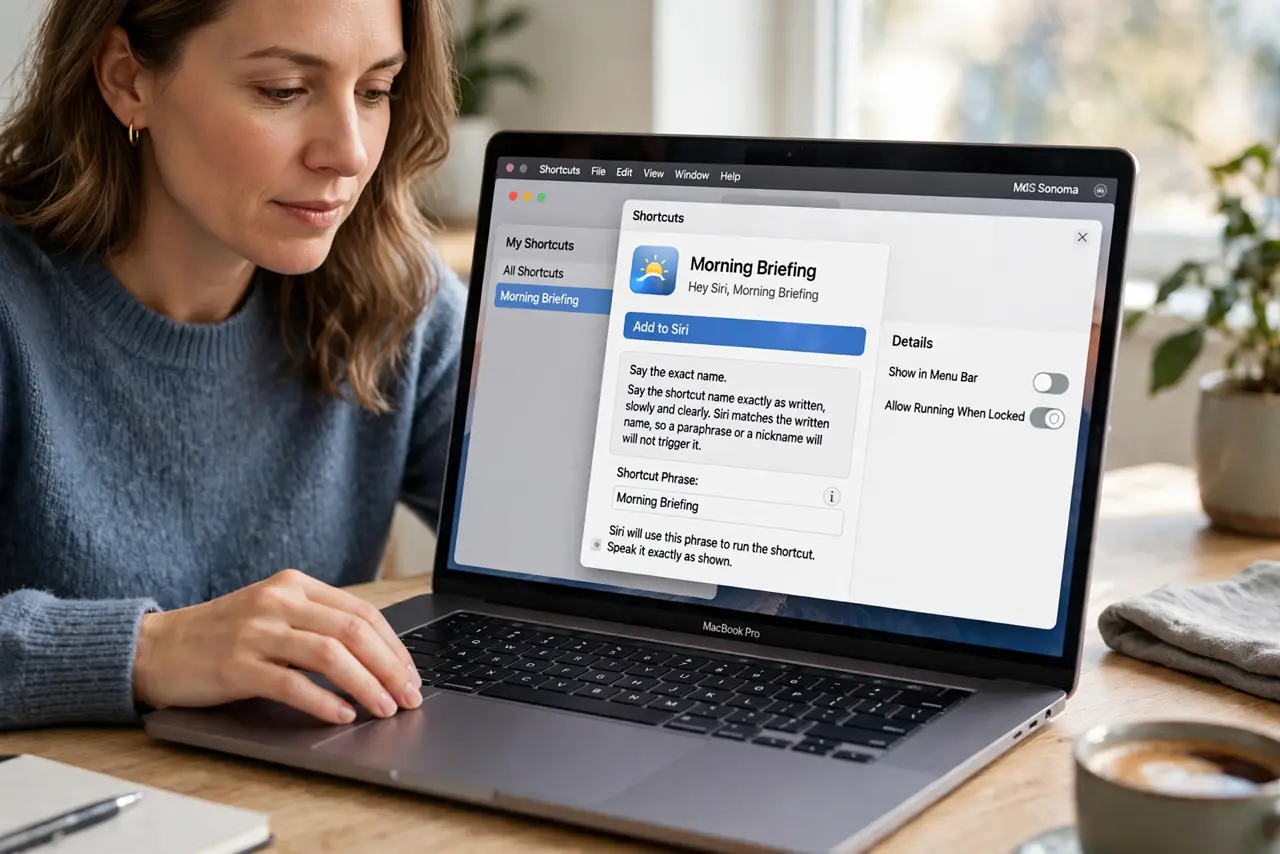
- Say the exact name. Say the shortcut name exactly as written, slowly and clearly. Siri matches the written name, so a paraphrase or a nickname will not trigger it.
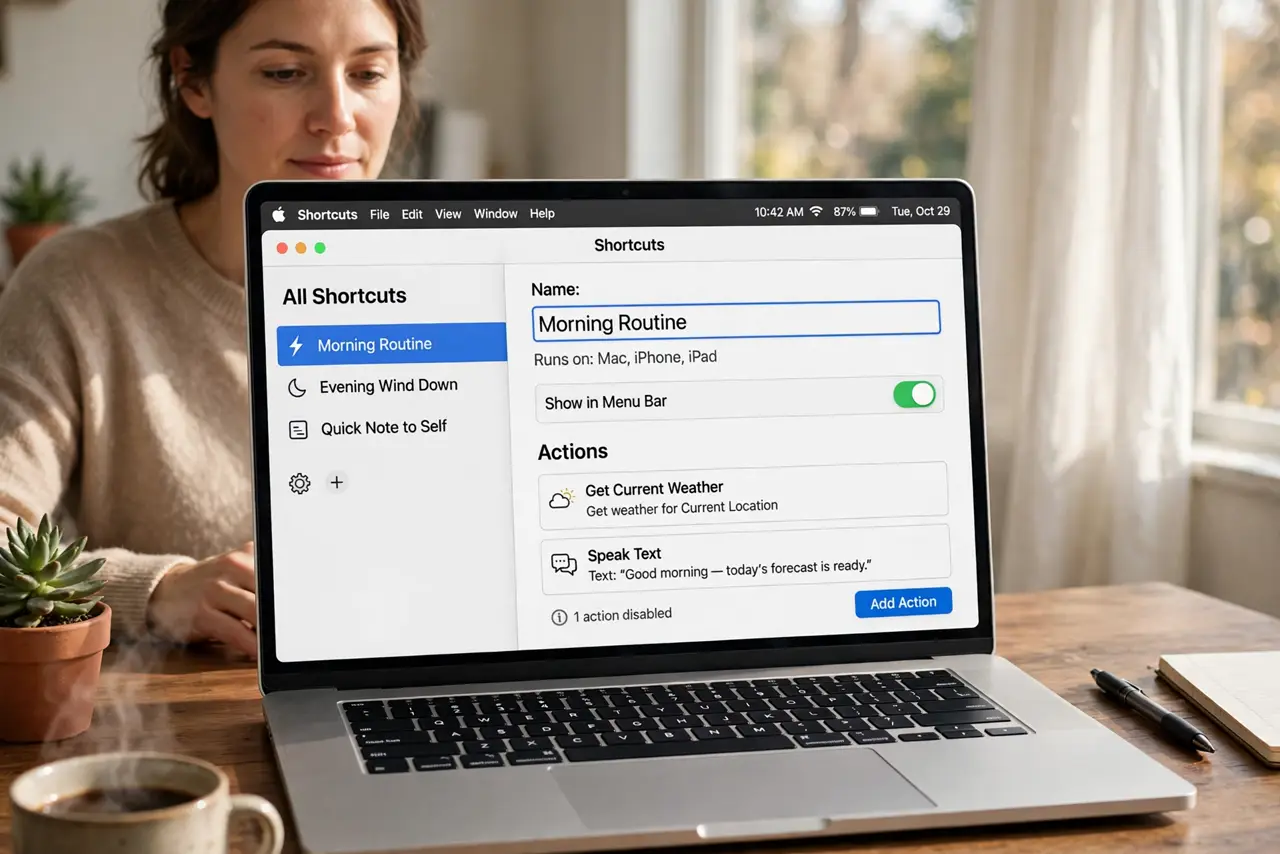
- Rename it simply. Rename the shortcut to a short phrase with common words, such as Morning List. Simple names are easier for Siri to recognize than clever or technical ones.
- Make it distinct. Confirm no other shortcut shares a similar name or phrase. Similar names confuse Siri, which may pick the wrong shortcut or none at all.
- Check Siri settings. Confirm Siri is enabled and listening on the Mac, and that the shortcut is available to Siri. A disabled Siri cannot recognize any shortcut name, however clear.
- Test in a quiet room. Try the phrase in a quiet room with the Mac nearby. Background noise causes recognition failures that look like name problems.
- Run it by hand first. Run the shortcut manually to confirm it works. If it works by hand but not by voice, the problem is the name or recognition, not the shortcut itself.
What NOT to do
- Do not rename the shortcut to a system command phrase. Names that sound like built-in commands get intercepted before Siri reaches your shortcut.
- Do not create five similar shortcuts and test them all by voice. Similar names guarantee confusion, so test one distinct name at a time.
- Do not shout at Siri when it fails. Speaking louder does not improve recognition, while speaking the exact name slowly usually does.
- Do not delete a working shortcut over a name failure. Rename it first, since the shortcut itself is fine and only its spoken name needs fixing.
Frequently asked questions
Why does Siri not recognize my shortcut?
Because the name is hard to pronounce, too similar to another phrase, or phrased like a built-in command Siri handles first.
What makes a good shortcut name?
A short, distinct phrase with ordinary words, different from your other shortcuts and from system command phrases.
Will renaming fix it?
Often yes. A clear, distinct name is the most common fix when a shortcut works by hand but not by voice.