Siri Won't Answer on Your Headphones
You say Hey Siri with your AirPods in and nothing happens on the Mac, though the same headphones work fine with the iPhone. The Mac's Siri listening settings and the headphone mic routing are separate things to check. This guide gets Siri listening again.
TL;DR / Quick Fix
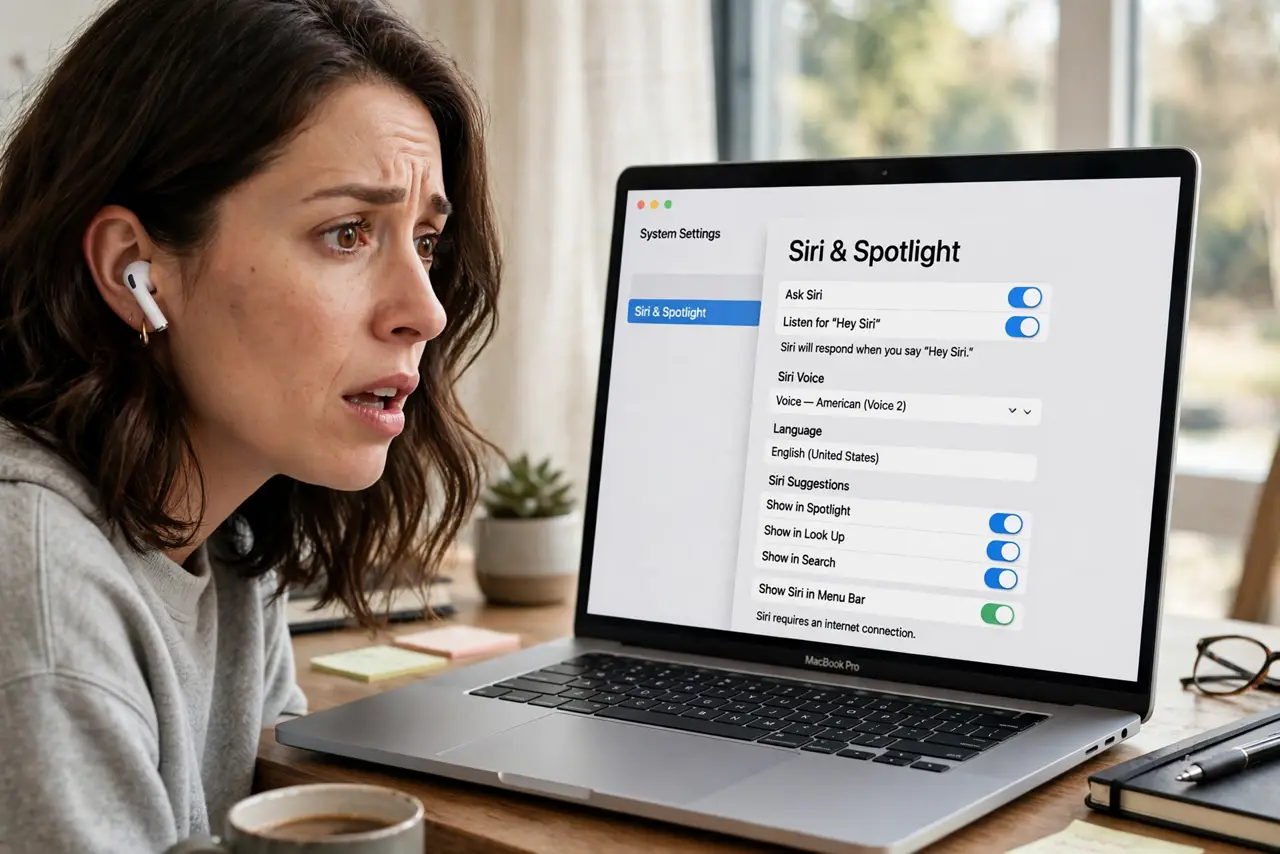
Quick fix: open System Settings, go to Siri, and confirm Listen for Hey Siri is on with the right microphone selected. Reconnect the headphones, check their mic works in Sound settings, and make sure the Mac is not muted or in Do Not Disturb.
Follow these steps
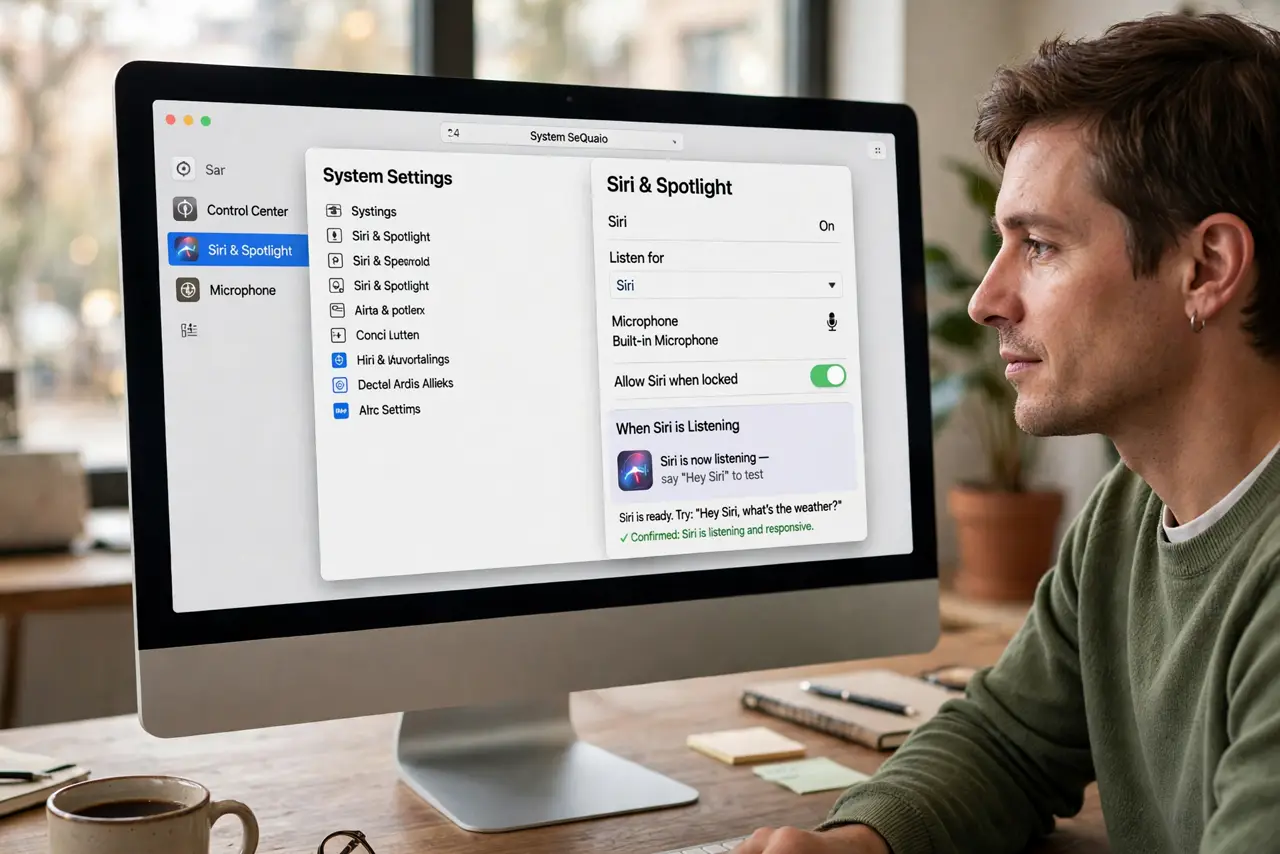
- Confirm Siri listens at all. Open System Settings, then Siri, and verify Listen for Hey Siri or the Siri phrase is enabled. If Siri is off entirely, no headphone trick can wake it.
- Check the microphone selection. In the Siri settings, confirm the microphone is set to your headphones, not the Mac's internal mic. A wrong mic choice means Siri listens to an empty room.
- Reconnect the headphones cleanly. Disconnect the headphones in Bluetooth settings and pair them again. A stale Bluetooth profile can route the mic nowhere, which also causes random AirPods switching.
- Test the mic in Sound settings. Open Sound settings and watch the input level while you talk. No movement means the mic path is broken before Siri ever gets involved.
- Check Do Not Disturb and mute. Siri stays quiet under some Focus modes, and a muted output makes a working Siri seem dead. Rule out both before deeper digging.
- Restart the Mac as a last step. A restart resets the audio and Siri services together. If Siri worked before and stopped for no reason, this alone often fixes it.
What NOT to do
- Do not shout at the headphones. The mic is centimeters from your mouth; volume was never the problem.
- Do not reset the headphones first. Check the Mac's Siri and mic settings before wiping the headphone pairing.
- Do not assume the headphones are broken. If they work with the iPhone, the hardware is fine and the Mac's routing is the issue.
- Do not disable Siri system-wide in frustration. The fix is in the listening and mic settings, not in turning Siri off.
Frequently asked questions
Why does Hey Siri work on iPhone but not Mac?
Each device has its own Siri listening setting and mic routing. The iPhone working proves the headphones are fine.
Can the Mac use the headphone mic for Siri?
Yes, when the headphones are the selected input. Check Siri's microphone setting to confirm.
Does Do Not Disturb block Siri?
It can suppress Siri's responses. Check your Focus mode if Siri seems to hear but never answers.