An Update Asks for Disk Space Twice
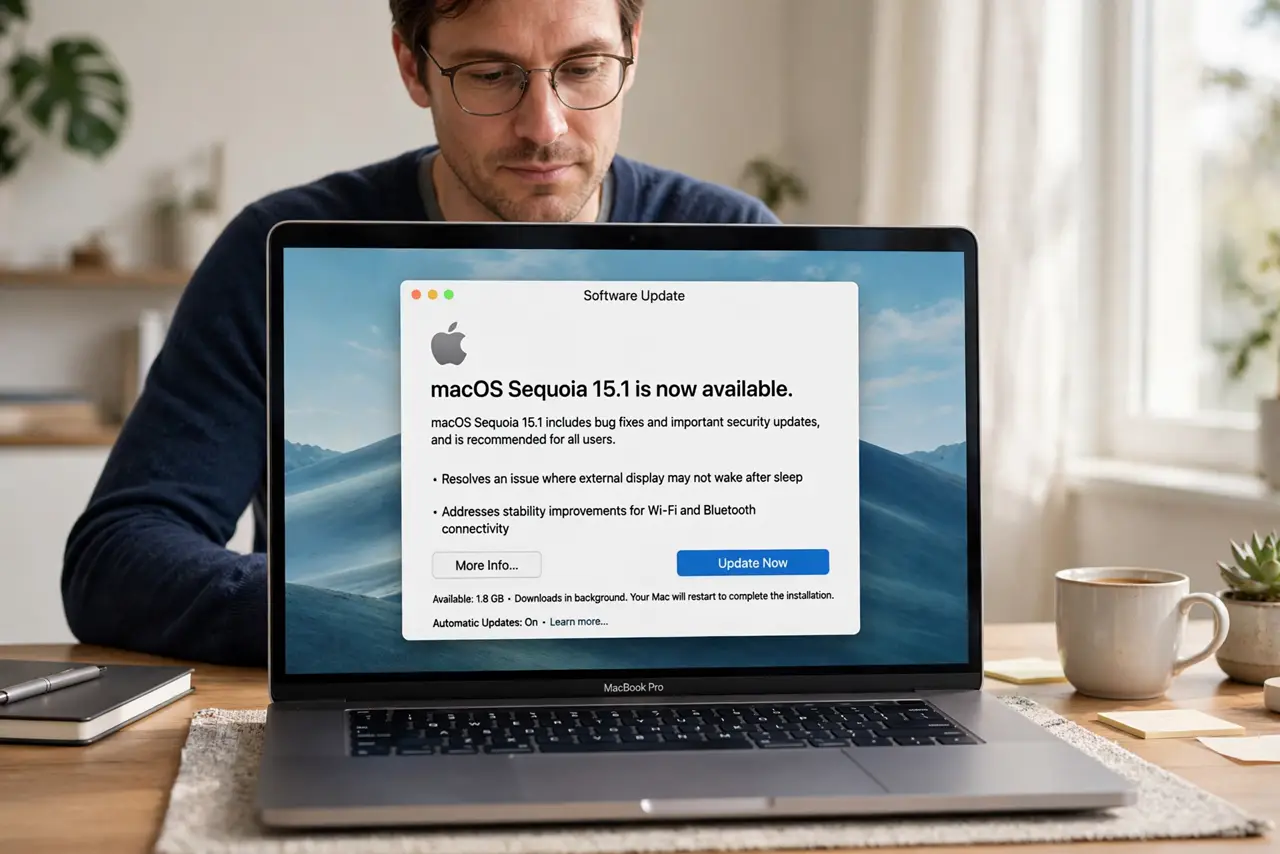
A Mac update asks for space, you free it, and then it asks again. That second ask usually covers the download plus room to install, not a mistake — and knowing the real total stops the loop.
TL;DR / Quick Fix
Quick fix: check how much free space the update actually needs, then free that full amount plus a little extra before you start. Delete large files you no longer need, empty the Trash, and run the update once before you start the update again.
Follow these steps
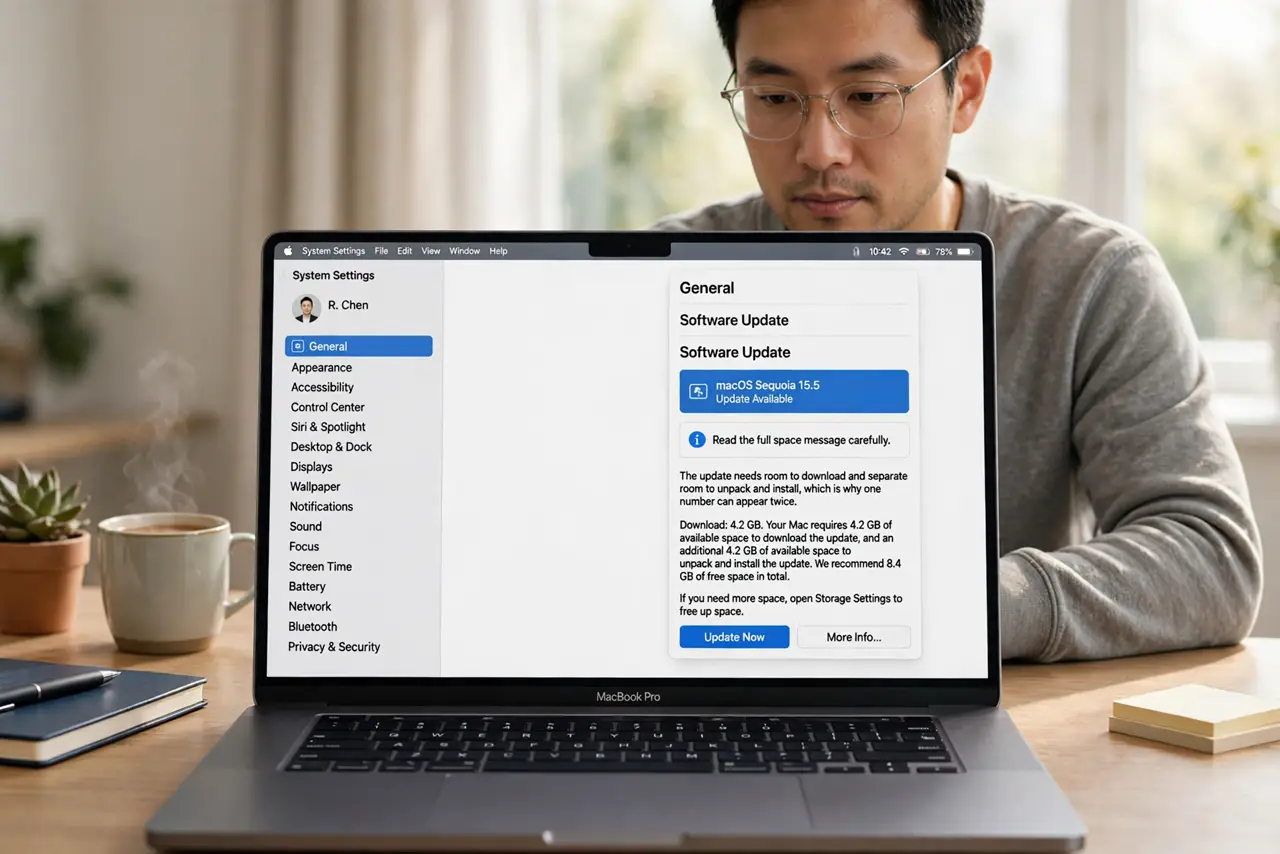
- Read the full space message carefully. Open System Settings, then General, then Software Update, and read the whole message. The update needs room to download and separate room to unpack and install, which is why one number can appear twice.
- Check your real free space. Open System Settings, then General, then Storage, and note the free space number. Compare it with the update's need, because a drive that looks full enough at a glance may still fall short.
- Free more than the minimum asked. Aim for the update's need plus several extra gigabytes. Updates also need working room during install, so freeing exactly the asked amount often triggers a second request.
- Empty the Trash after deleting files. Deleting files does not free space until you empty the Trash. Open the Trash, empty it, and then recheck Storage before retrying the update.
- Move large files off the drive first. Move big videos or installers to an external drive instead of deleting things you want to keep. That frees real space fast without losing anything you care about.
- Retry the update once space is truly free. With the extra space confirmed, return to Software Update and try again. If it still asks twice, restart the Mac once and retry, since a stuck check can repeat the message.
What NOT to do
- Do not delete system files to make room for an update. System files keep the Mac running, and deleting them can break the update you are trying to install.
- Do not free exactly the asked amount and hope it is enough. The install needs working room on top of the download, so a small margin prevents the second ask.
- Do not start the update on a nearly full drive and walk away. If space runs out mid-install, the update can fail and leave the Mac in an awkward state.
- Do not use a cleaner app that promises to free space instantly. It can delete caches the update needs, so free space by removing your own large files instead.
Frequently asked questions
Why does the update ask for space twice?
Because it needs room for the download and separate room to unpack and install, so the total is larger than one of those steps alone.
How much extra space should I free?
Free the asked amount plus several extra gigabytes, so the install has working room and does not ask again.
Does emptying the Trash really matter?
Yes. Deleted files still occupy space until the Trash is emptied, so Storage will not improve before that step.