Shrink Huge 'System Data' on Your Mac
System Data that suddenly takes up tens of gigabytes is alarming, but it is usually caches, logs, old backups, or temporary files, not a fault. Do not delete system folders by hand. Work through the safe cleanups first, and check the number after each one.
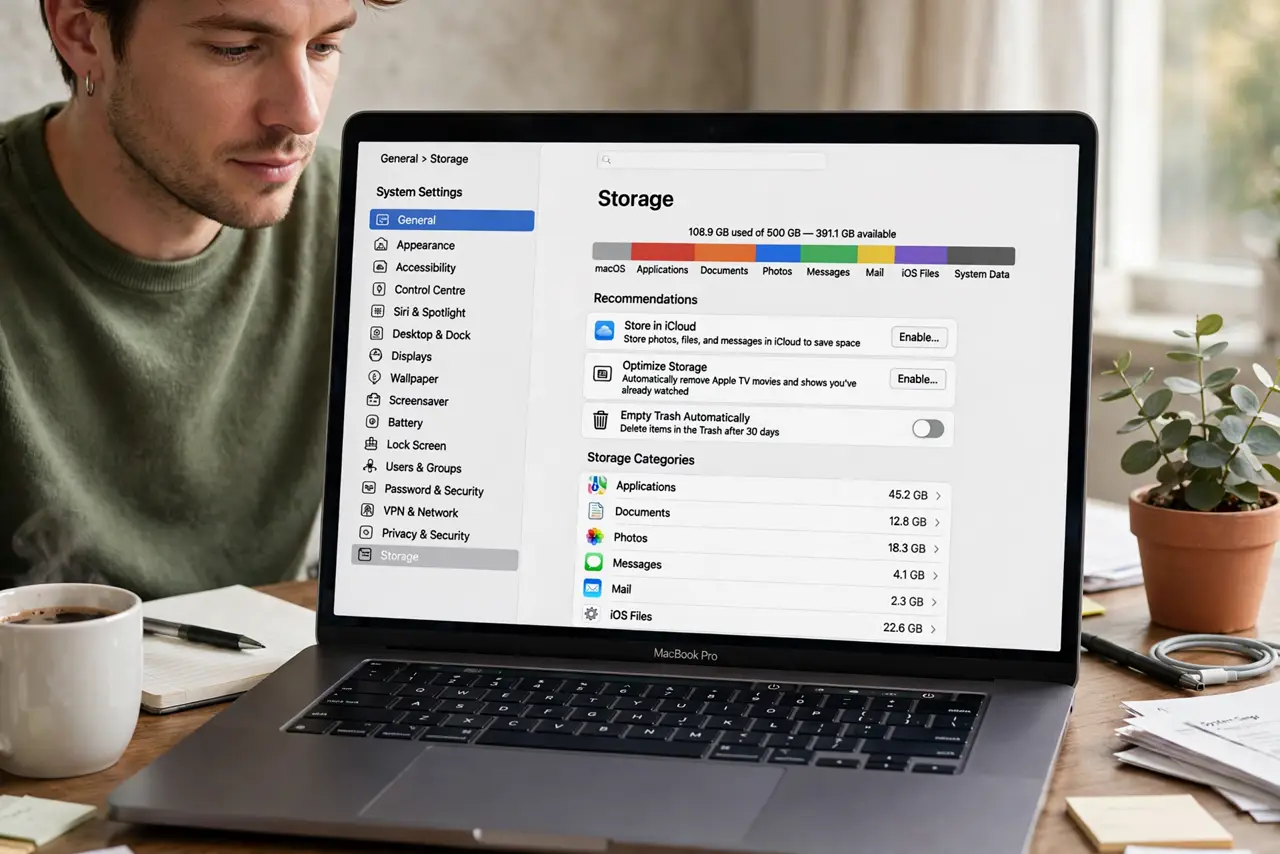
TL;DR / Quick Fix
Quick fix: restart the Mac, empty the trash, and check storage again. Then remove old downloads and large files you no longer need, clear browser caches from within each browser, and check for old local backups. Only then consider whether a macOS update helps.
Follow these steps
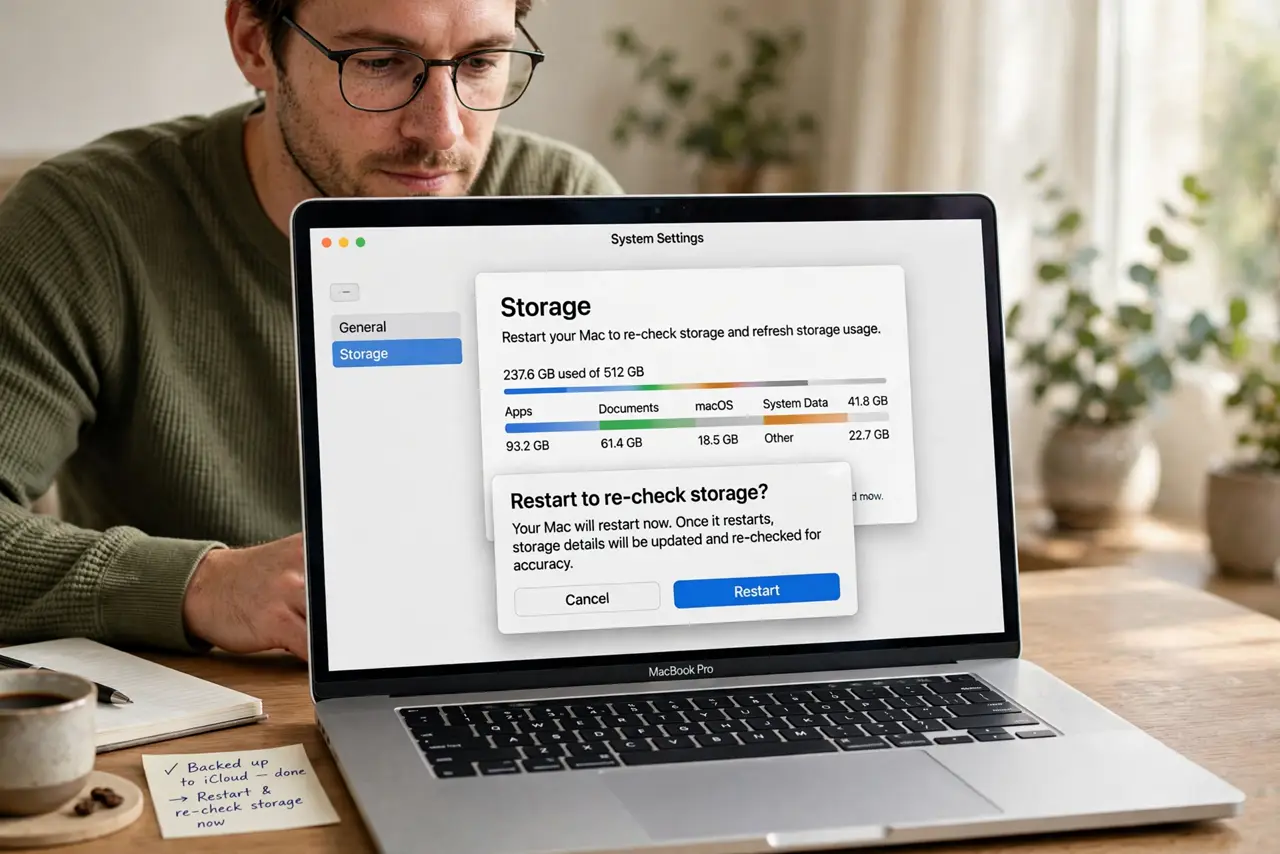
- Restart and re-check storage. Restart the Mac, then open System Settings, then General, then Storage, and wait for the calculation to finish. Temporary files cleared at restart can shrink System Data at once.
- Empty the trash. Open Trash and choose Empty Trash. Files in Trash still take up space, and a large Trash can inflate storage numbers.
- Remove large files you no longer need. In Storage settings, review large files and old downloads. Delete only files you recognize and no longer need, and keep anything you might still want.
- Clear browser caches from the browser. Open each browser you use and clear its cache from its own settings. Browser caches can grow large and sit inside System Data.
- Check for old local backups. If you use Time Machine with a laptop, local snapshots can take space until the next successful backup. Connect your backup drive and let a backup complete, then re-check storage.
- Update macOS if an update is offered. Install a macOS update from System Settings if one is available. Updates can fix a storage calculation bug that overstates System Data.
What NOT to do
- Do not delete system folders by hand. Deleting Library or System files can break macOS and is very hard to undo safely.
- Do not install a cleaner app that promises to free gigabytes in one click. These tools can delete files other apps still need.
- Do not empty caches constantly. Caches rebuild as you use apps, so clearing them daily gains little and can slow apps down.
- Do not delete files you do not recognize. If you are unsure what a large file is, leave it and check its location and app first.
Frequently asked questions
What is System Data on a Mac?
It is a catch-all category for caches, logs, temporary files, local backups, and other files that do not fit the main categories like Apps or Documents.
Why did System Data grow suddenly?
A failed backup, a large browser cache, or temporary files from an update can all inflate it quickly, then shrink again after a restart or a successful backup.
Will clearing caches free space permanently?
No. Caches rebuild as apps run, so clearing them helps only if a cache had grown unusually large or was stuck.