Sound Output Changes After Sleep on Mac
Your Mac wakes from sleep and the sound comes from the wrong place — laptop speakers instead of your headphones, or silence from a monitor with no speakers. macOS re-detects audio devices on wake and sometimes picks the wrong default. This guide locks in the right output.
TL;DR / Quick Fix
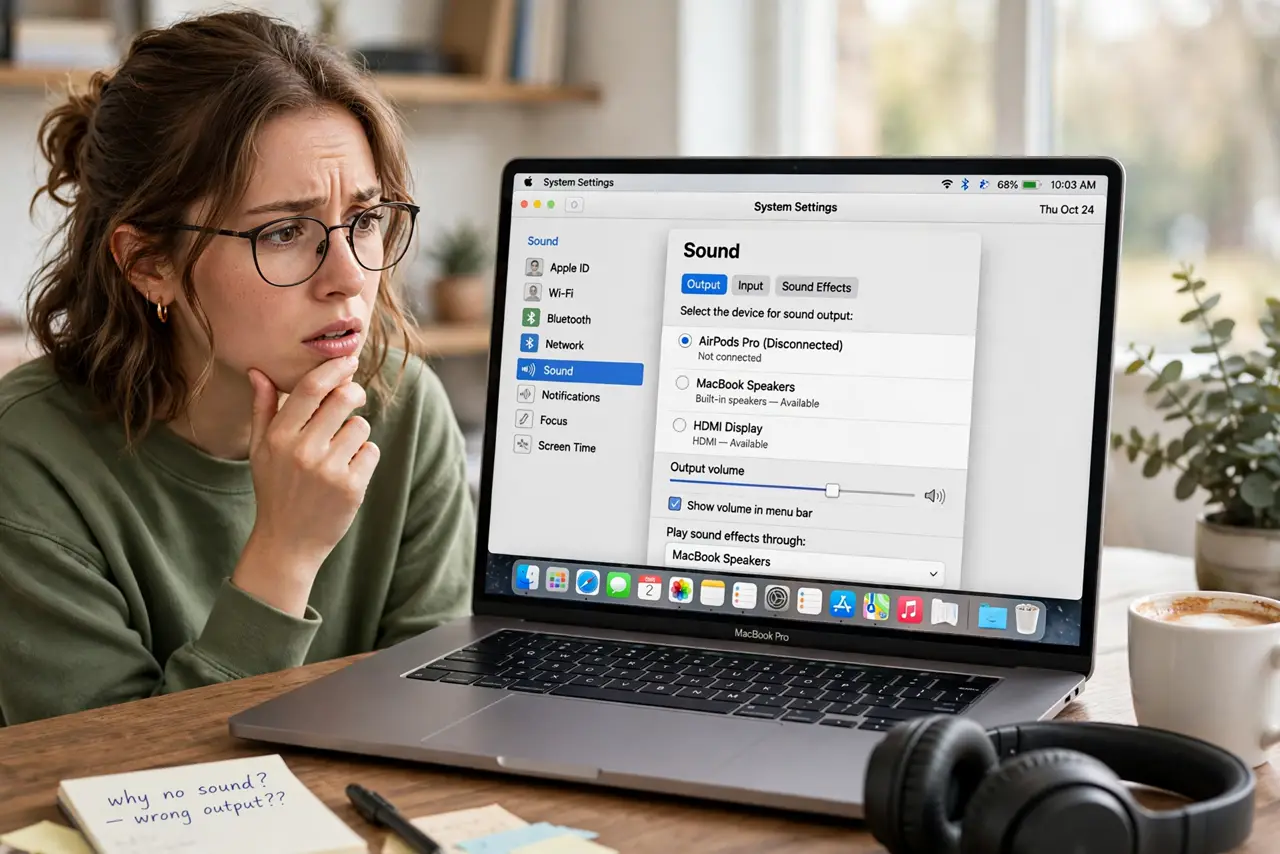
Quick fix: in System Settings > Sound > Output, explicitly select your preferred device, then test a sleep-wake cycle. Disconnect audio devices you never use, and disable auto-connect on Bluetooth headsets that steal the output on wake, and reset Core Audio if it still forgets.
Follow these steps
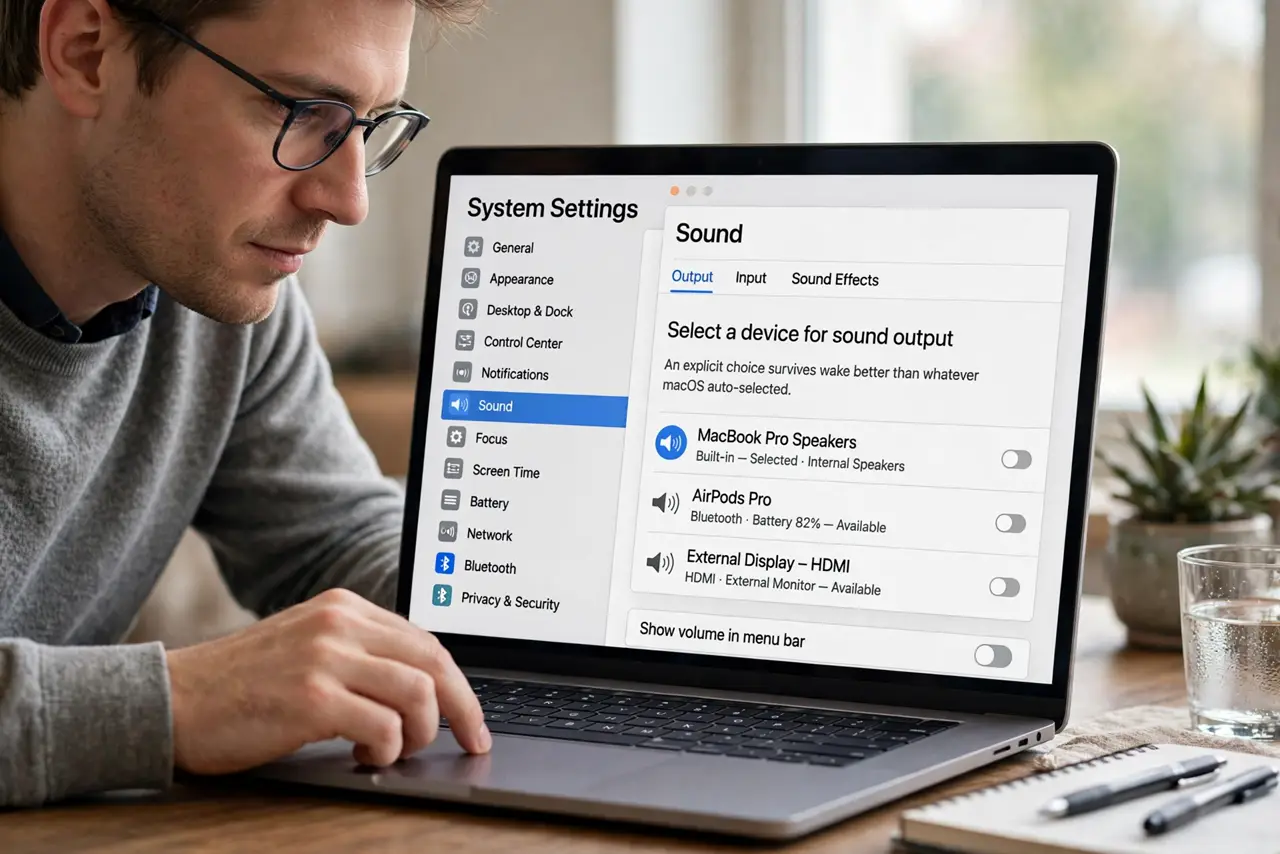
- Set the output explicitly. Go to System Settings > Sound > Output and click your preferred device. An explicit choice survives wake better than whatever macOS auto-selected.
- Remove unused audio devices. Disconnect or unpair speakers, docks, and Bluetooth headsets you no longer use. Fewer candidates means fewer wrong guesses on wake.
- Check Bluetooth auto-switching. For Bluetooth audio, set the device to connect only when last used, not automatically. Auto-connecting headphones steal the output on every wake.
- Test a sleep-wake cycle. Put the Mac to sleep for a minute, wake it, and play a sound. Confirm the output is still your device before calling it fixed.
- Check monitor audio over HDMI. Monitors connected by HDMI or USB-C appear as audio outputs. If the Mac picks the monitor, either select your real device or disable the monitor's audio in its own menu.
- Reset Core Audio as a last resort. In Activity Monitor, quit the coreaudiod process; macOS restarts it fresh. A stuck audio daemon forgets your preference until restarted.
What NOT to do
- Do not delete audio devices from Audio MIDI Setup casually. Removing the wrong aggregate device can silence everything until you rebuild it.
- Do not assume the headphones are broken. Output switching on wake is a macOS selection issue, not a headphone failure.
- Do not leave five audio devices connected 'just in case.' Every extra device is another wrong guess waiting on the next wake.
- Do not reinstall macOS over this. Output selection is a preference problem, fixed in settings in two minutes.
Frequently asked questions
Why does my Mac forget my headphones after sleep?
On wake, macOS re-enumerates audio devices and picks a default fresh — sometimes the speakers instead of your headphones.
Can I force one permanent default?
Mostly. An explicit selection plus removing unused devices keeps your choice stable across wakes.
Why is there no sound at all after wake?
The Mac likely selected a monitor or dock with no speakers. Open Sound settings and pick a real output.