Make Your Mac Read Text Aloud
Your eyes are done for the day but the reading isn't — wouldn't it be nice if the Mac just read it to you? Speak Selection does exactly that: highlight any text, press a shortcut, and macOS reads it aloud in a voice you choose. It's built in, free, and takes a minute to enable.
TL;DR / Quick Fix
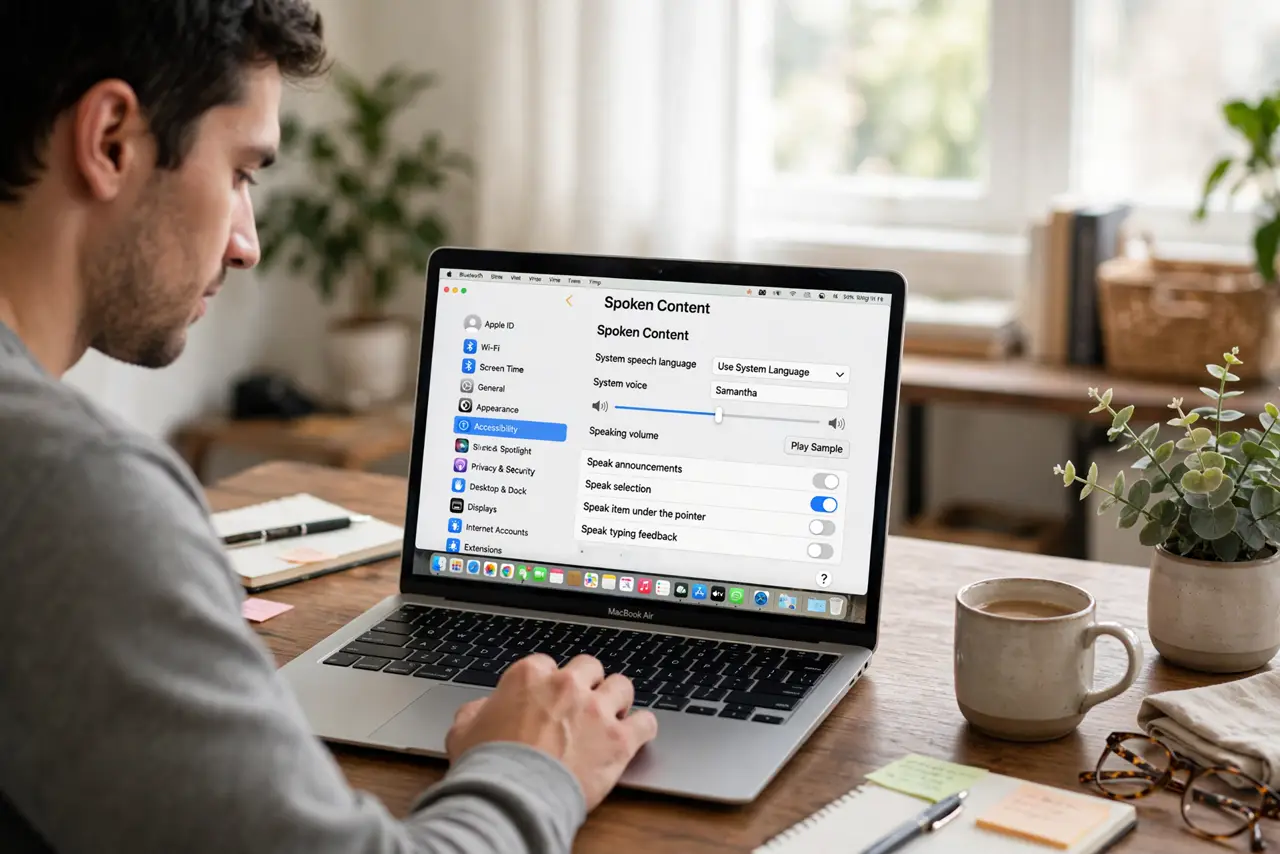
Quick fix: open System Settings, go to Accessibility, then Spoken Content, and turn on Speak Selection. Pick a keyboard shortcut, highlight any text, and press it — your Mac reads it aloud. Choose a voice and speed you like; a slightly slower rate is easier to follow for long passages.
Follow these steps
- Open System Settings to Accessibility. Apple menu, System Settings, then Accessibility in the sidebar. Spoken Content is where all the Mac's read-aloud features live.
- Turn on Speak Selection. In Spoken Content, enable Speak Selection. This is the highlight-and-read feature — distinct from VoiceOver, which narrates the whole interface.
- Choose a keyboard shortcut. Set the shortcut you'll press after highlighting text — the default is fine, or pick something your fingers remember. You'll use this constantly.
- Highlight text and press the shortcut. Select any text in almost any app, press your shortcut, and the Mac starts reading. Press it again to stop.
- Pick a voice and speed you like. Preview the voices in the same settings pane and set a comfortable rate. Slightly slower than default is easier to follow for long passages.
- Use it for proofreading too. Hearing your own writing read aloud catches errors eyes skip — see the listen-to-articles guide for the full read-aloud toolkit. It's the best free editor you'll ever have.
What NOT to do
- Do not confuse Speak Selection with VoiceOver. Speak Selection reads what you highlight; VoiceOver narrates the entire interface — different tools.
- Do not expect it in literally every app. It works in nearly all standard apps; a few with custom text engines may ignore the shortcut.
- Do not start at the fastest speed. Comprehension first — speed up gradually as your ears adapt, not on day one.
- Do not forget the shortcut. The feature is useless if you can't remember how to trigger it — pick something memorable.
Frequently asked questions
What's the default keyboard shortcut?
macOS offers a default you can keep or change in the Spoken Content settings — pick whatever your fingers will remember.
Can it read PDFs?
Yes, in Preview and most PDF readers — highlight the text and press your shortcut. Scanned image-PDFs need OCR first.
Which voice sounds most natural?
Preview them — taste varies. The newer neural voices are markedly better than the classic ones; try those first.