Split View? The Basics
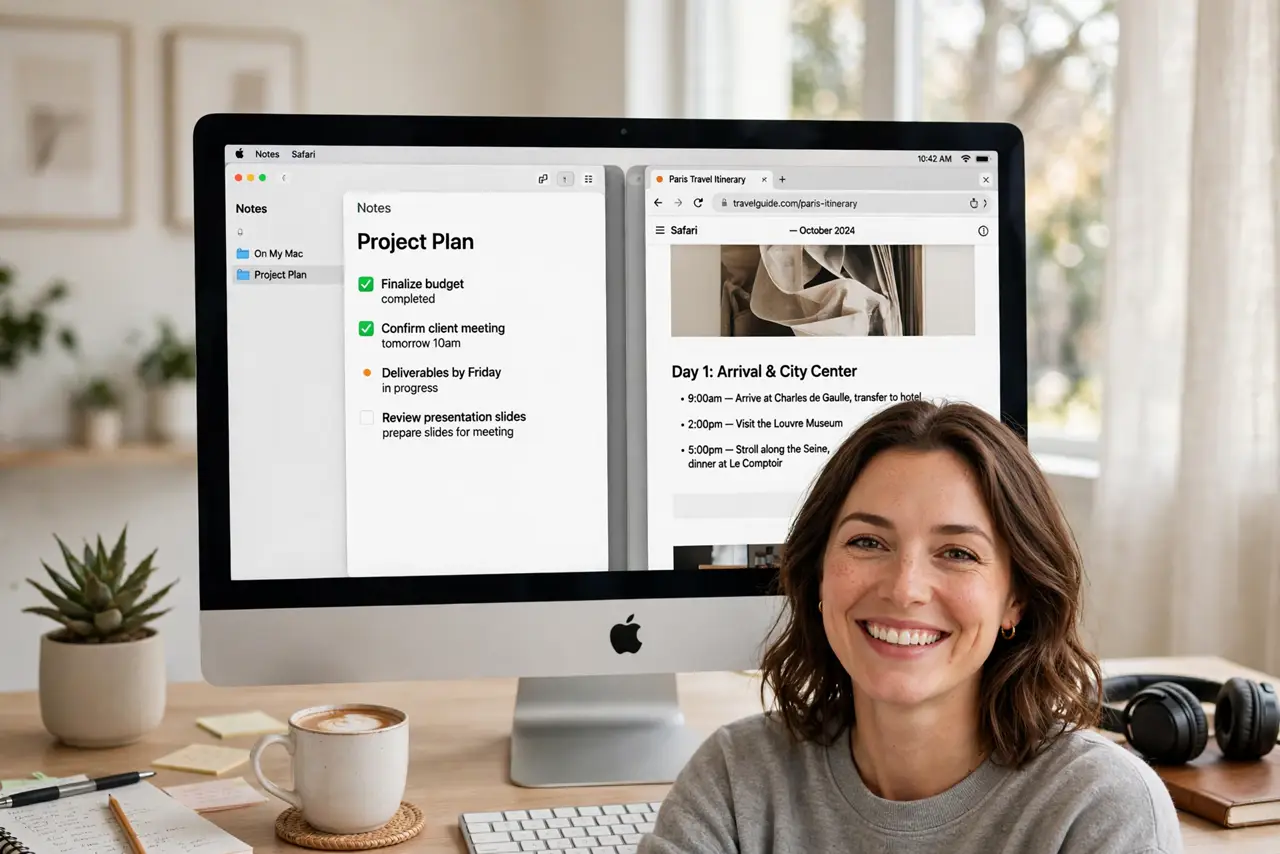
You're dragging windows around trying to view two apps side by side, and they keep overlapping or snapping weirdly. Split View is macOS's built-in answer: two apps, each with half the screen, in their own fullscreen Space. One gesture sets it up.
TL;DR / Quick Fix
Quick fix: hover over the green button on any window and choose 'Tile Window to Left of Screen,' then pick the second app. Drag the divider to resize. Press Esc or click the green button to exit Split View when done.
Follow these steps
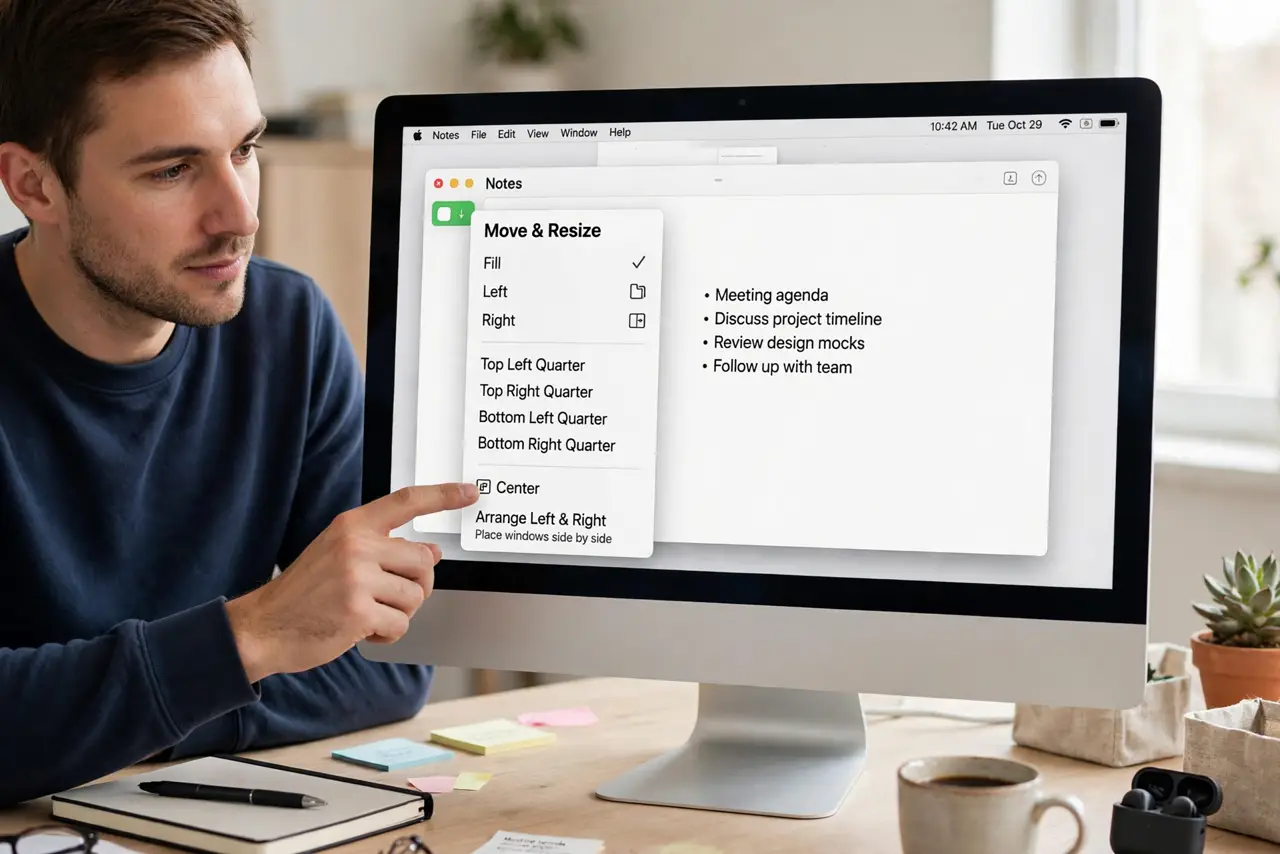
- Hover the green button. Hover (don't click) over any window's green traffic light. A menu appears with tiling options — this is the front door to Split View.
- Tile the first window. Choose 'Tile Window to Left of Screen' (or Right). The window docks to that half and the other side shows your open windows.
- Pick the second app. Click any window on the free side. Both apps now share the screen in a dedicated Split View Space.
- Adjust the divider. Drag the black divider between them to give one app more room. Each app remembers its share until you exit.
- Swap or replace an app. Drag a new window onto either side to replace it, or drag the divider fully to one edge to push an app out.
- Exit cleanly. Hover the top, click the green button on either app, or press Esc. Both windows return to the desktop intact. For more flexible arrangements, see window tiling and the fullscreen distinction.
What NOT to do
- Do not try Split View with apps that forbid it. Some apps (often games or old utilities) refuse tiling — that's the app, not your technique.
- Do not expect three apps in Split View. It's strictly two — for more, use free tiling or Spaces.
- Do not forget you're in a separate Space. Your other windows are one swipe away in Mission Control, not gone.
- Do not fight the minimum widths. Apps have minimum sizes; if one won't shrink further, the divider stops — by design.
Frequently asked questions
Why is 'Tile Window' grayed out?
The app doesn't support Split View, or the window is already fullscreen. Try another app to confirm the gesture works.
Can I use Split View on an external monitor?
Yes — it works on whichever display holds the window. Set it up per display independently.
How is this different from just resizing two windows?
Split View locks them into a dedicated Space with a shared divider — no overlaps, no accidental drags, and both stay visible through swipes.