Tidy Your Desktop with Stacks
Your Mac desktop is a archaeological dig — screenshots from March, installers from last year, a PDF whose name you don't recognize. Deleting feels risky, organizing feels endless. Stacks are the middle path: one click collapses the chaos into neat piles by kind, date, or tag, with nothing moved or deleted. Here is how to turn them on and make them work for you.

TL;DR / Quick Fix
Quick fix: Stacks turn a messy Mac desktop into piles grouped by kind, date, or tag. Right-click the desktop, choose Use Stacks, then choose a grouping. Click a stack to fan it open, drag new files in, and your desktop stays clean while everything remains one click away.
Follow these steps
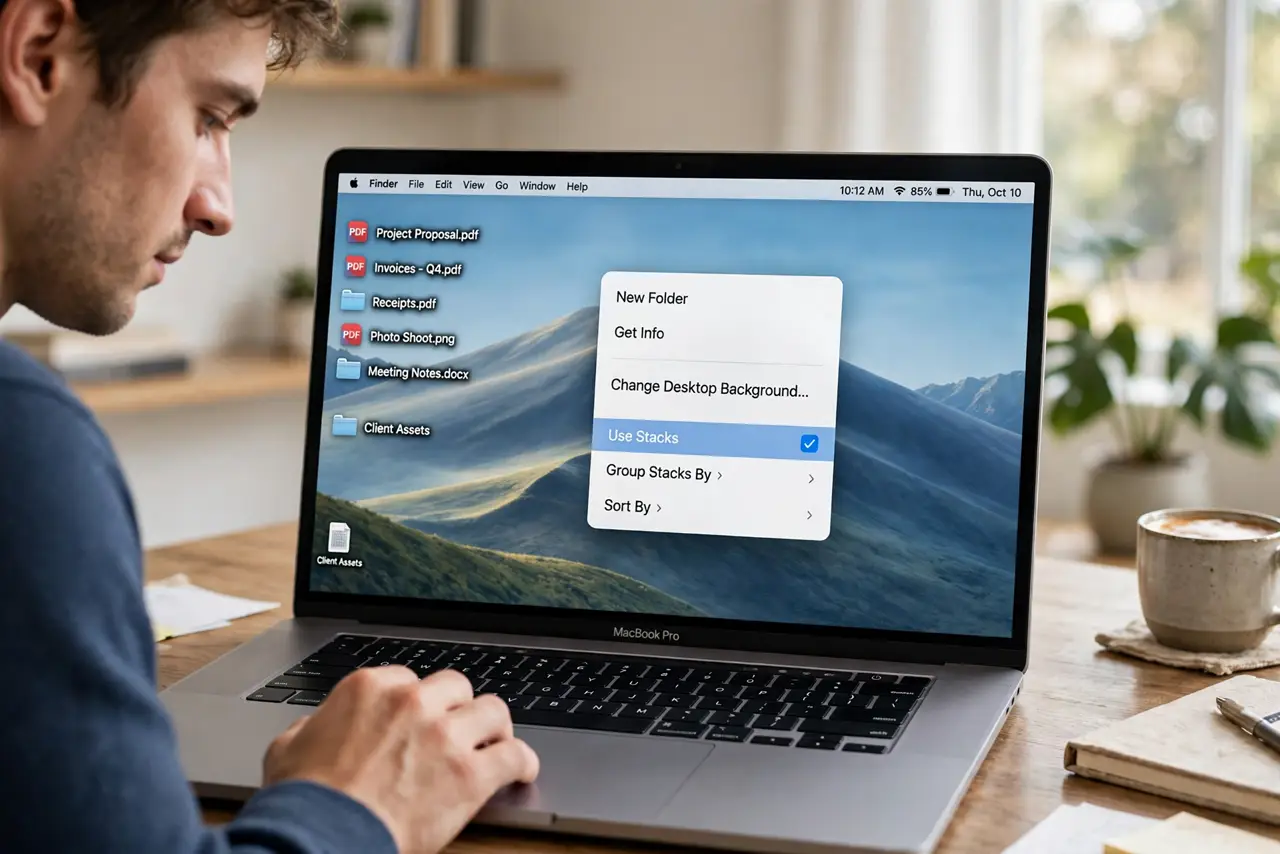
- Turn on Stacks. Right-click any empty spot on the desktop and choose Use Stacks. Instantly, every loose file collapses into piles. Nothing is deleted or moved to folders — it is purely a new view of the same desktop.
- Choose how to group them. Right-click again, go to Group Stacks By, and pick Kind, Date Last Opened, Date Added, or Tags. Kind is the best default — documents with documents, images with images. Date groupings suit people who think in 'recent stuff.'
- Open a stack when you need a file. Click a stack once to fan it out and see its files; click again to collapse. You can also scrub through a stack with two fingers on the trackpad. Files stay exactly where they were — Stacks never relocates anything.
- Drag new files straight into stacks. Drop a new screenshot onto the Images stack and it files itself. Stacks keep working as new files land, so the desktop never re-accumulates into chaos — as long as you keep dropping into the piles.
- Combine with tags for power sorting. Group Stacks By Tags if you already use Finder tags — project piles form automatically. Tags plus Stacks is the closest macOS gets to a self-organizing desktop.
- Know the odd behaviors. Sometimes stacks sort oddly or folders land in strange piles — the stacks sorting quirks are known and fixable. If a stack misbehaves, toggling Stacks off and on usually resets it.
What NOT to do
- Do not mistake Stacks for organization. They hide mess elegantly, but a desktop with 40 piles is still a mess — archive old files for real.
- Do not panic when files 'disappear.' They are in the stacks — click to expand. Nothing was deleted; the view just changed.
- Do not use Stacks as your filing system. Stacks are a desktop view, not folders. Important files still belong in real folders with backups.
- Do not forget the Downloads folder. Stacks only tidy the desktop — Downloads needs its own cleanup habit or it becomes the new junk drawer.
Frequently asked questions
Do Stacks delete or move my files?
Neither. Stacks are purely visual grouping — turn them off and every file sits exactly where it was. They are the safest 'cleanup' in computing.
Can I have Stacks on but keep some files loose?
No — it is all or nothing for the desktop. Files you want always visible belong in the Dock, the sidebar, or an open Finder window instead.
Why do my stacks sort strangely?
Grouping follows metadata, and odd dates or kinds produce odd piles. Check the file's info, fix the metadata, and the pile behaves.