Sync Text Replacements
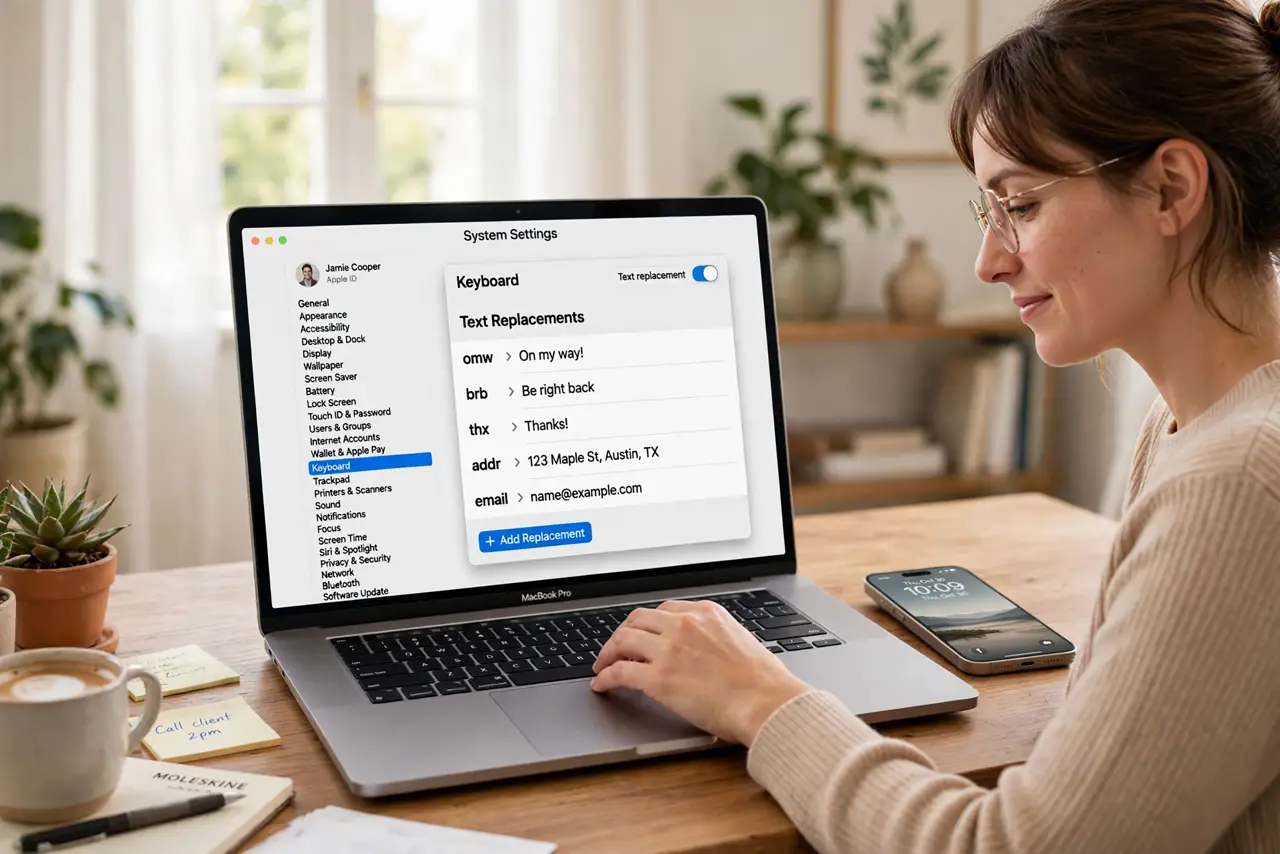
You set up brilliant text shortcuts on your Mac — 'omw' becomes 'On my way!' — then pick up your iPhone and they're gone. Text replacements are supposed to sync through iCloud, and when they don't, it's always one of a few boring causes. Here's how to get your shortcuts on every device without retyping them.
TL;DR / Quick Fix
Quick fix: Mac text replacements sync through iCloud — if shortcuts vanish, check you're signed into the same Apple ID everywhere and iCloud Drive is on. Toggle Text Replacements off and on in Keyboard settings to force a refresh. New shortcuts can take a few minutes to appear.
Follow these steps
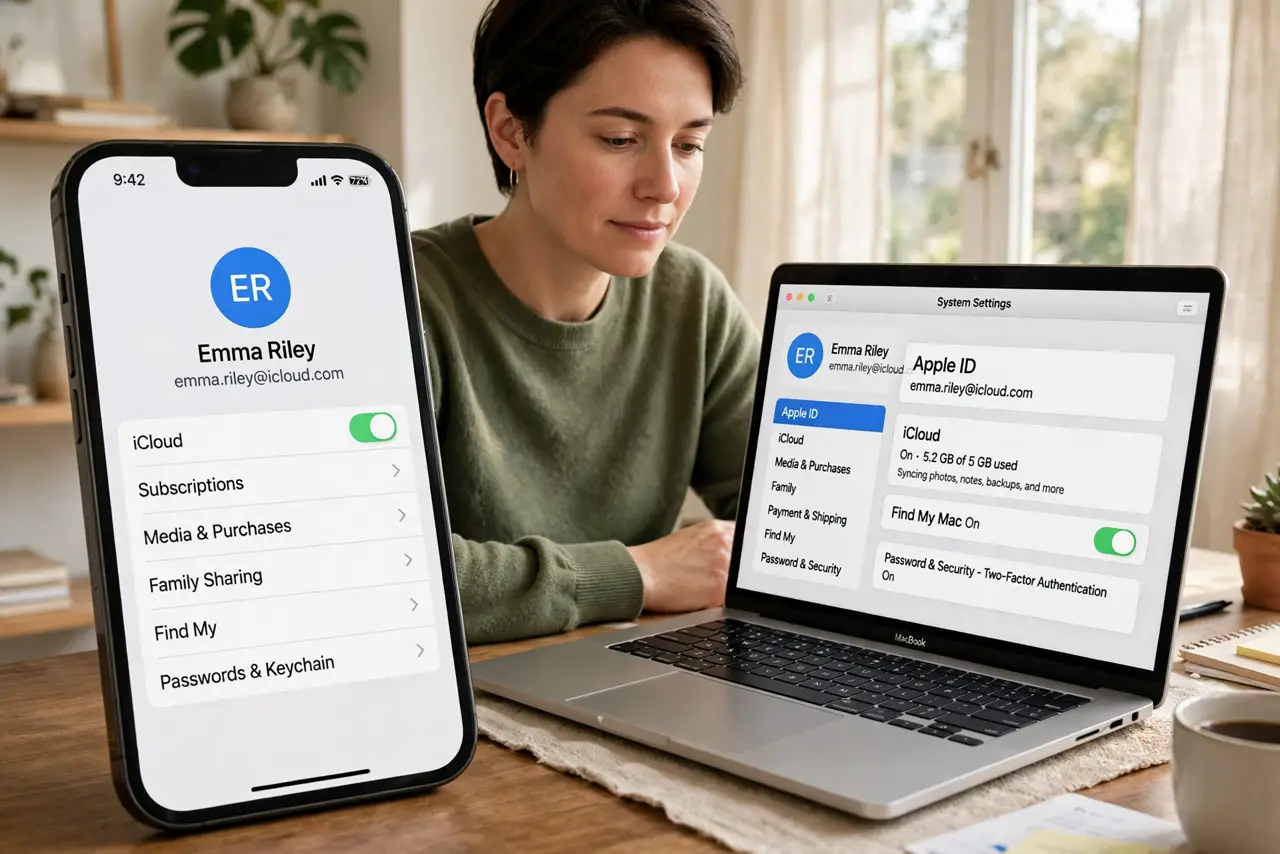
- Confirm the same Apple ID everywhere. Text replacements sync via iCloud, so every device must be signed into the same Apple ID. Check in System Settings > Apple ID on Mac and Settings > your name on iPhone. Different IDs — work vs personal — is the most common silent cause.
- Make sure iCloud Drive is on. On Mac: System Settings > Apple ID > iCloud > iCloud Drive must be enabled. The replacements ride along with iCloud Drive sync; with it off, shortcuts stay local to each device forever.
- Check the Text Input settings. On Mac, go to System Settings > Keyboard > Text Input > Text Replacements and confirm your list is actually there. If the Mac's own list is empty, there's nothing to sync — the problem is creation, not syncing.
- Toggle to force a refresh. Turn the Text Replacements sync off, wait a minute, turn it back on. This re-pushes the list to iCloud. Also try the reverse on the device that's missing them. For the not-syncing specifics, the toggle fixes most cases.
- Give it a few minutes. iCloud sync isn't instant — new shortcuts can take several minutes to appear on other devices, longer on a fresh sign-in. Add a test shortcut like 'tqq' and watch for it rather than assuming failure.
- Verify on iPhone too. On iPhone: Settings > General > Keyboard > Text Replacement. Your Mac shortcuts should appear here. iPhone replacements also sync back to Mac — it works both directions once iCloud is happy.
What NOT to do
- Do not re-create every shortcut on each device. That's the problem, not the fix — one iCloud-synced list beats three manual ones.
- Do not use different Apple IDs and expect sync. Work/personal ID splits are legitimate, but sync follows the ID — pick one for shortcuts.
- Do not disable iCloud Drive to 'save space' and wonder why sync broke. The shortcuts depend on it; the space they use is trivial.
- Do not panic if a brand-new shortcut doesn't appear instantly. iCloud needs minutes, not seconds — test, wait, then troubleshoot.
Frequently asked questions
Do text replacements sync to iPhone?
Yes — through the same iCloud mechanism. Check Settings > General > Keyboard > Text Replacement on the iPhone; Mac shortcuts appear there automatically.
Why did all my shortcuts disappear?
Usually a sign-out, an Apple ID change, or iCloud Drive toggled off. Re-enable the chain above and they typically return on their own.
Can I back up my text replacements?
They're included in iCloud sync and device backups. For extra safety, screenshot the list or export it before major OS upgrades.