Thunderbolt vs USB-C?
Every port on your Mac looks like the same little oval, yet some drive two 4K displays while others barely charge a phone. USB-C is the shape; Thunderbolt is a capability that can live inside that shape. Here is how to tell which ports do what on your Mac and stop guessing.

TL;DR / Quick Fix
Quick fix: USB-C describes the connector shape; Thunderbolt is a protocol that uses the same shape. On Macs, ports marked with a lightning bolt are Thunderbolt — they handle displays, docks, and fast drives at full speed. Plain USB-C ports do charging and data fine but cannot drive demanding docks.
Follow these steps
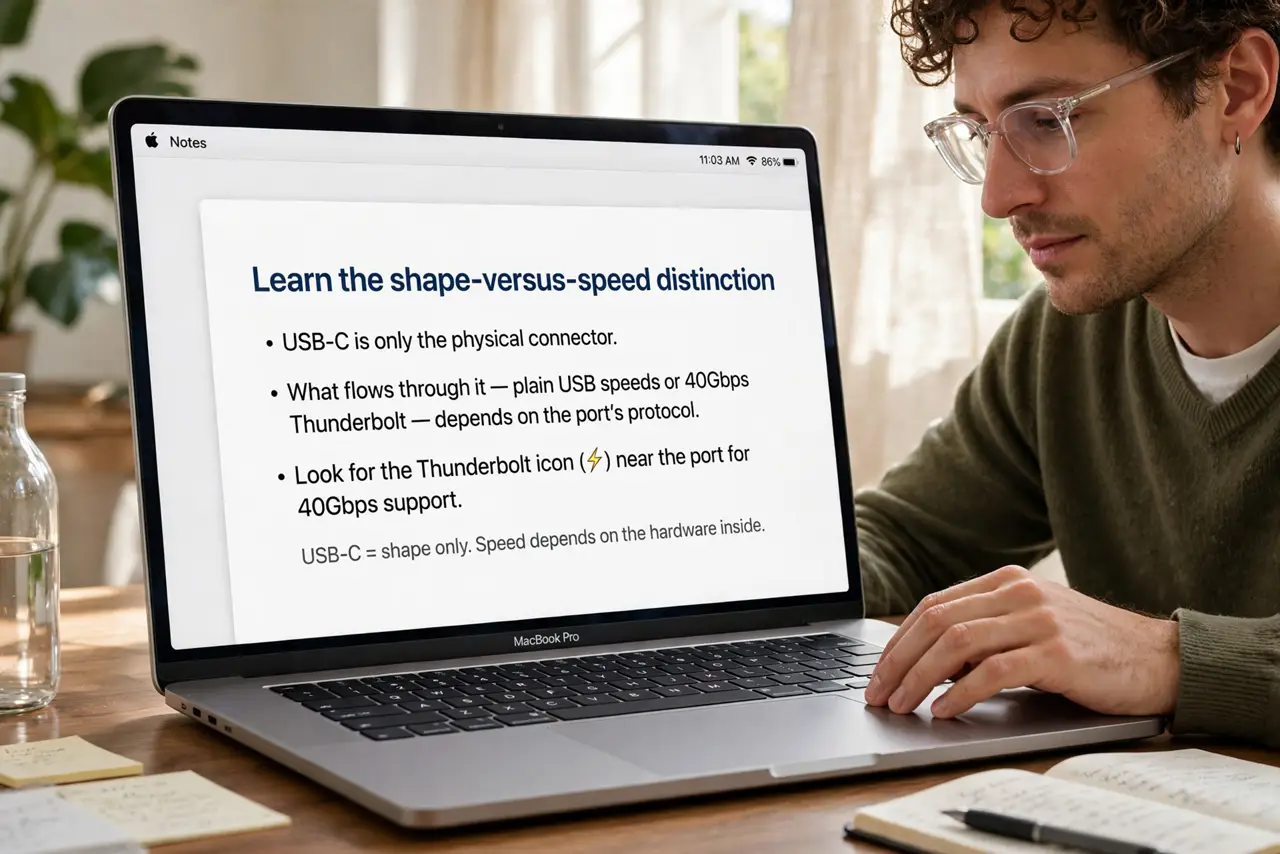
- Learn the shape-versus-speed distinction. USB-C is only the physical connector. What flows through it — plain USB speeds or 40Gbps Thunderbolt — depends on the port's electronics. Same shape, very different abilities.
- Find the lightning bolt on your Mac. Thunderbolt ports carry a small lightning-bolt icon beside them. On modern MacBooks all the oval ports are usually Thunderbolt; on some desktops and hubs they are mixed — check the markings.
- Know what each type can do. Thunderbolt: multiple 4K displays, full docks, 40Gbps drives. Plain USB-C: charging, single displays at lower specs, basic peripherals. Match the device to the port's ability.
- Check the cable too. A Thunderbolt port with a plain cable still runs at plain speeds — the cable identification matters as much as the port. Both ends of the chain must be Thunderbolt-capable.
- Read the spec, not the shape. Apple's tech specs list each port as 'Thunderbolt 4 (USB-C)' or similar. When comparing Macs or docks, that line — not the photo — tells you the truth.
- Understand the version ladder. Thunderbolt 3, 4, and 5 all use the USB-C shape with rising speeds and display support. The version guide covers which Mac has which and what changes.
What to avoid
- Do not assume every oval port is equal. On mixed devices, plugging a dock into the plain USB-C port instead of the Thunderbolt one causes mysterious half-working setups.
- Do not buy a Thunderbolt dock for a plain USB-C port. The dock will limp along at reduced function — match dock to port capability.
- Do not confuse Thunderbolt with USB4. They overlap heavily and share the connector, but they are distinct specs — check both when buying accessories.
- Do not ignore the cable. The most common 'Thunderbolt not working' cause is a plain USB-C cable in a Thunderbolt chain — identify your cables first.
Frequently asked questions
Are all MacBook ports Thunderbolt?
On Apple-silicon MacBooks, yes — every USB-C port is Thunderbolt-capable. Some Intel Macs and accessories mix types, so check markings there.
Can I plug USB-C devices into Thunderbolt ports?
Yes, always — Thunderbolt ports accept all USB-C devices and fall back to USB speeds gracefully. The reverse is where limits appear.
Does Thunderbolt charge faster?
Not inherently — charging speed depends on wattage, not the Thunderbolt label. A Thunderbolt port with a weak brick charges slowly like any other.