Fix a Time Machine Backup That Keeps Failing
A Time Machine backup that fails again and again leaves your files unprotected, so it deserves a careful fix rather than repeated retries. The cause is often the drive, its connection, or a lack of space. Check those before erasing anything.
TL;DR / Quick Fix
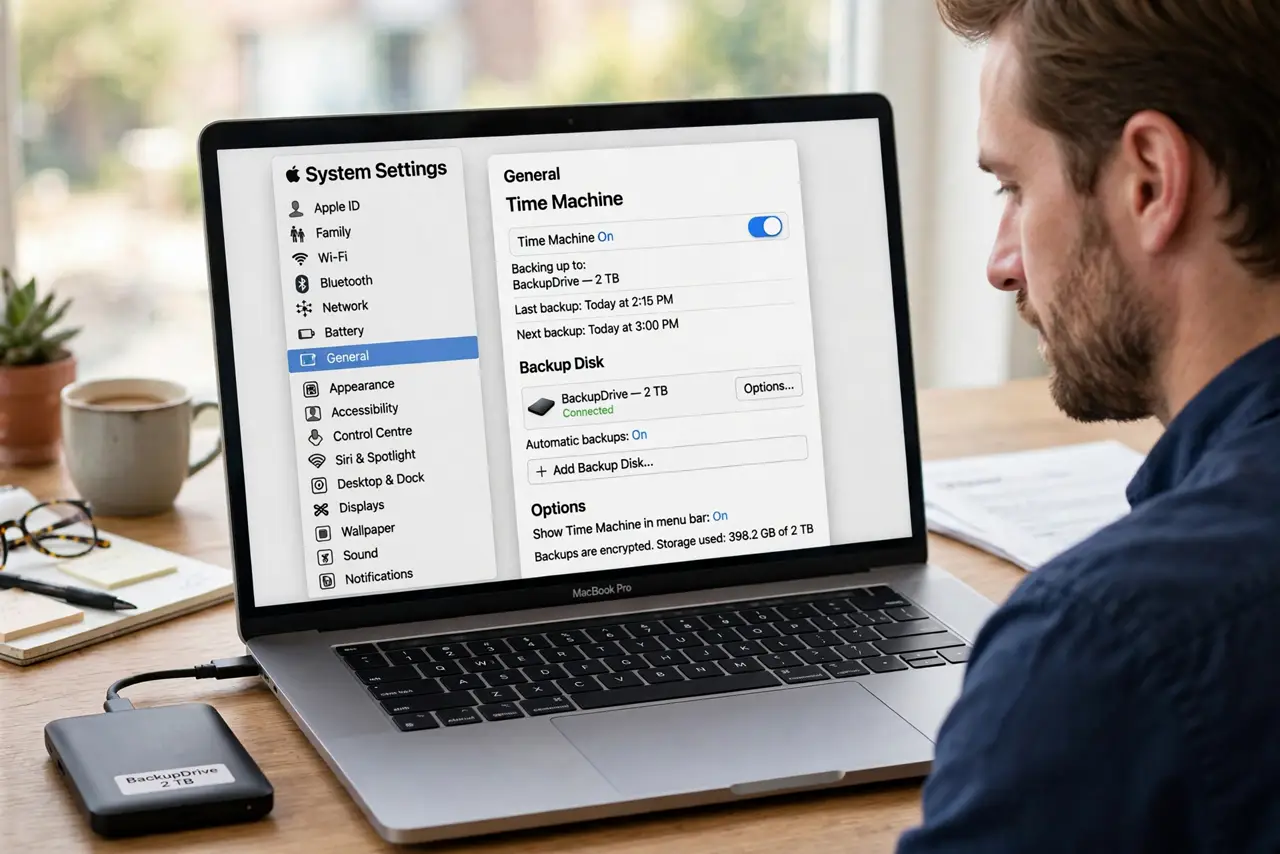
Quick fix: check that the backup drive is connected, powered, and has free space. Then open System Settings, then Time Machine, and try Back Up Now once. If it fails again, note the exact error message before changing disks or settings.
Follow these steps
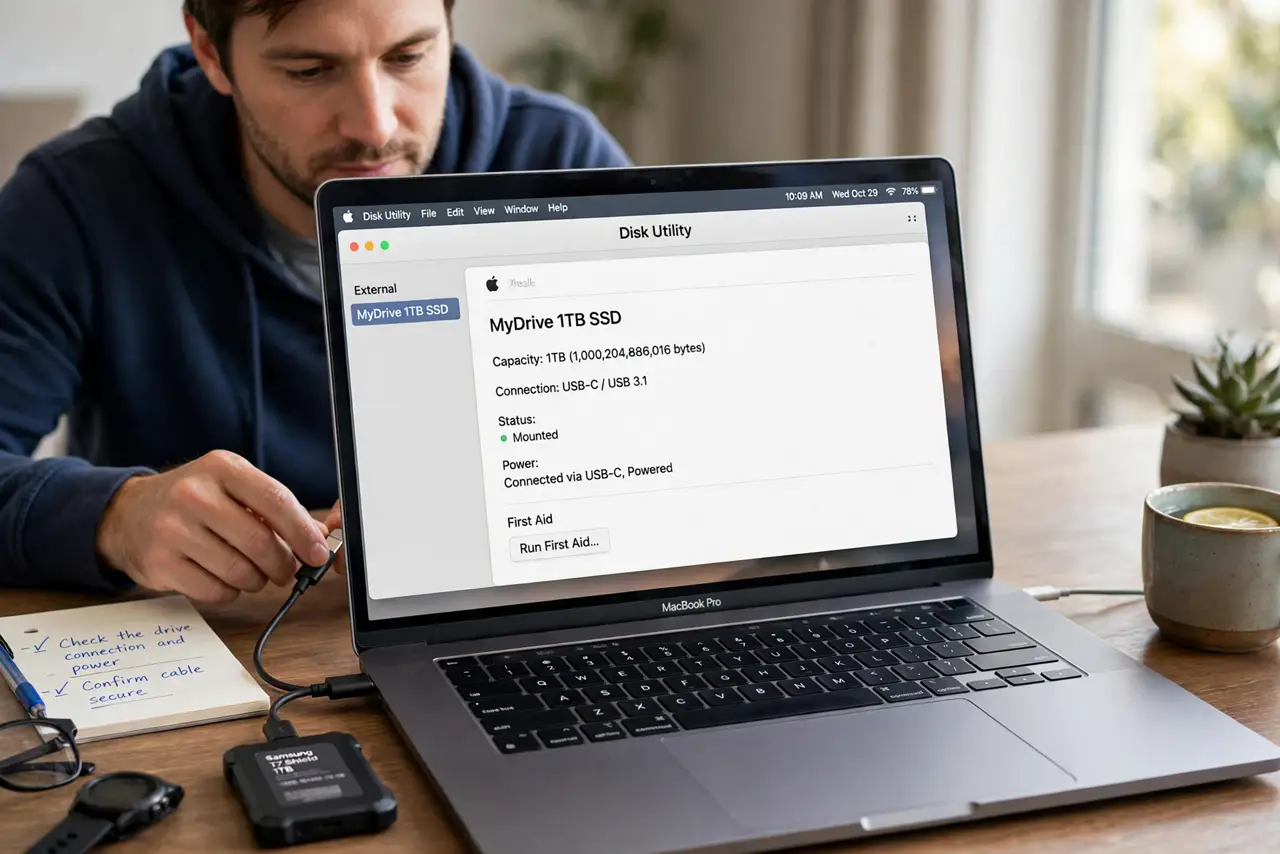
- Check the drive connection and power. Make sure the backup drive is firmly connected and powered on. For a network backup, confirm the Mac is on the same network as the backup disk.
- Check free space on the backup drive. Open Finder, select the backup drive, and check its available space. Time Machine needs room for new changes, and a full drive will fail backups.
- Try Back Up Now once. Open System Settings, then Time Machine, and choose Back Up Now. Watch for the exact error message, since it points to the real cause.
- Restart the Mac and the drive. Eject the drive safely, restart the Mac, reconnect the drive, and try again. A restart clears a stuck backup process that repeated retries will not fix.
- Check the backup disk selection. In Time Machine settings, confirm the correct disk is selected. If the old disk is gone or renamed, Time Machine may keep failing against a disk that no longer exists.
- Verify the drive before erasing anything. Use Disk Utility to check the backup drive for errors. Only consider erasing or replacing the drive if errors persist and your important files are backed up elsewhere too.
What NOT to do
- Do not erase the backup drive as a first step. Erasing deletes your backup history, and you may need those older copies.
- Do not keep clicking Back Up Now rapidly. Repeated failed attempts can leave partial backups that make the next attempt harder.
- Do not disconnect the drive during a backup. Pulling the cable mid-backup can corrupt the backup and force a much longer repair.
- Do not ignore a failing backup for weeks. If it fails twice, work through the drive, space, and connection checks promptly, while your files are still safe.
Frequently asked questions
Why does Time Machine fail without a clear reason?
Check the exact error in Time Machine settings. Common causes are a disconnected drive, a full drive, or a network interruption.
How much free space does Time Machine need?
It needs room for new and changed files. If the drive is nearly full, it cannot complete a backup, so free space or use a larger drive.
Should I erase the drive if backups keep failing?
Only as a last step, and only if your important files exist somewhere else too. Check the drive and its connection first.