Trackpad Gestures Worth Learning
The Mac trackpad is the best in the business, and most owners use about ten percent of it — click, scroll, done. The gestures underneath turn window juggling, desktop switching, and navigation into one-finger flicks. Learning five of them will change how the Mac feels every single day. Here are the ones worth your muscle memory.
TL;DR / Quick Fix
Quick fix: the Mac trackpad's best gestures are three-finger swipe up for Mission Control, three-finger swipe sideways to switch desktops, and pinch to zoom. Find them all under System Settings, then Trackpad, with video demos. Turn on tap-to-click first — it makes everything easier.
Follow these steps
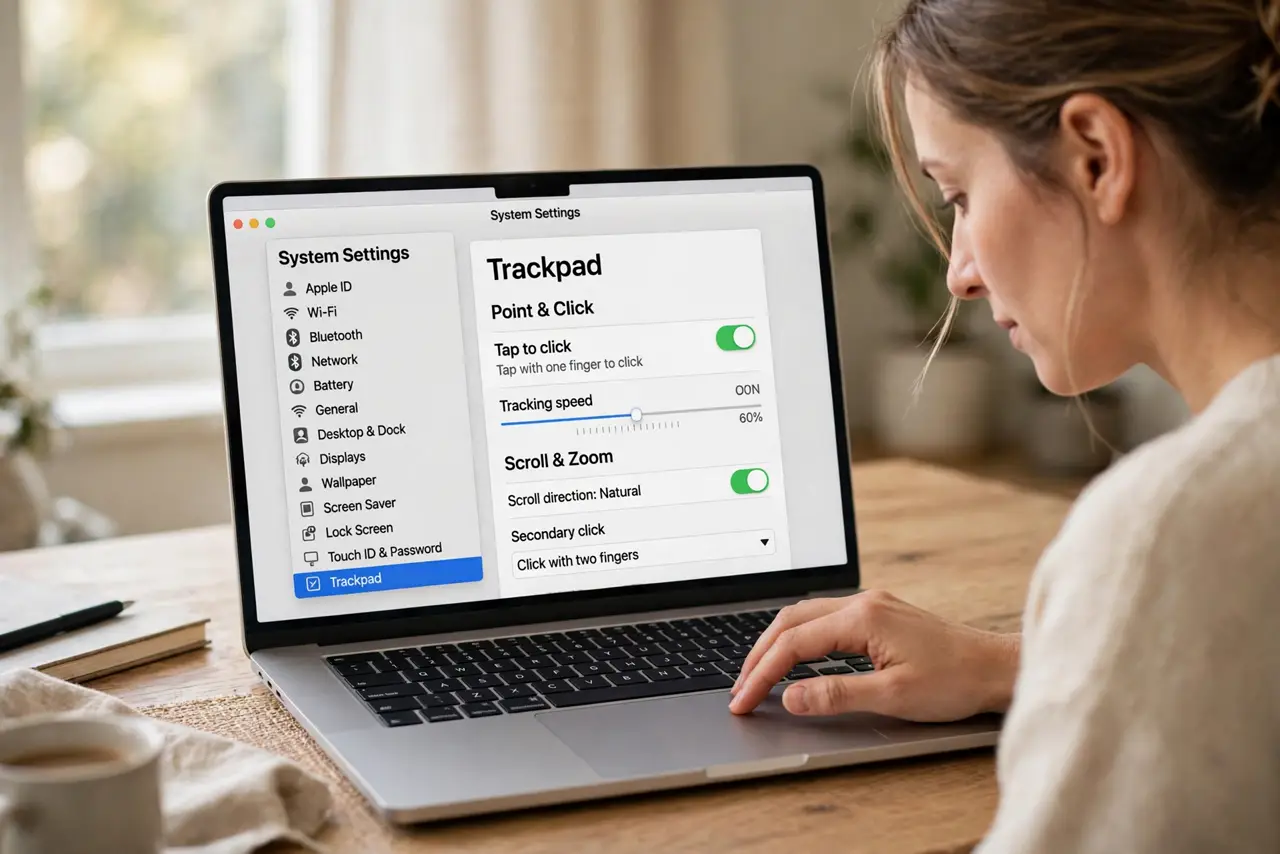
- Enable tap to click first. In System Settings, Trackpad, turn on 'Tap to click.' Clicking by tapping instead of pressing transforms every gesture — your fingers stay light and fast.
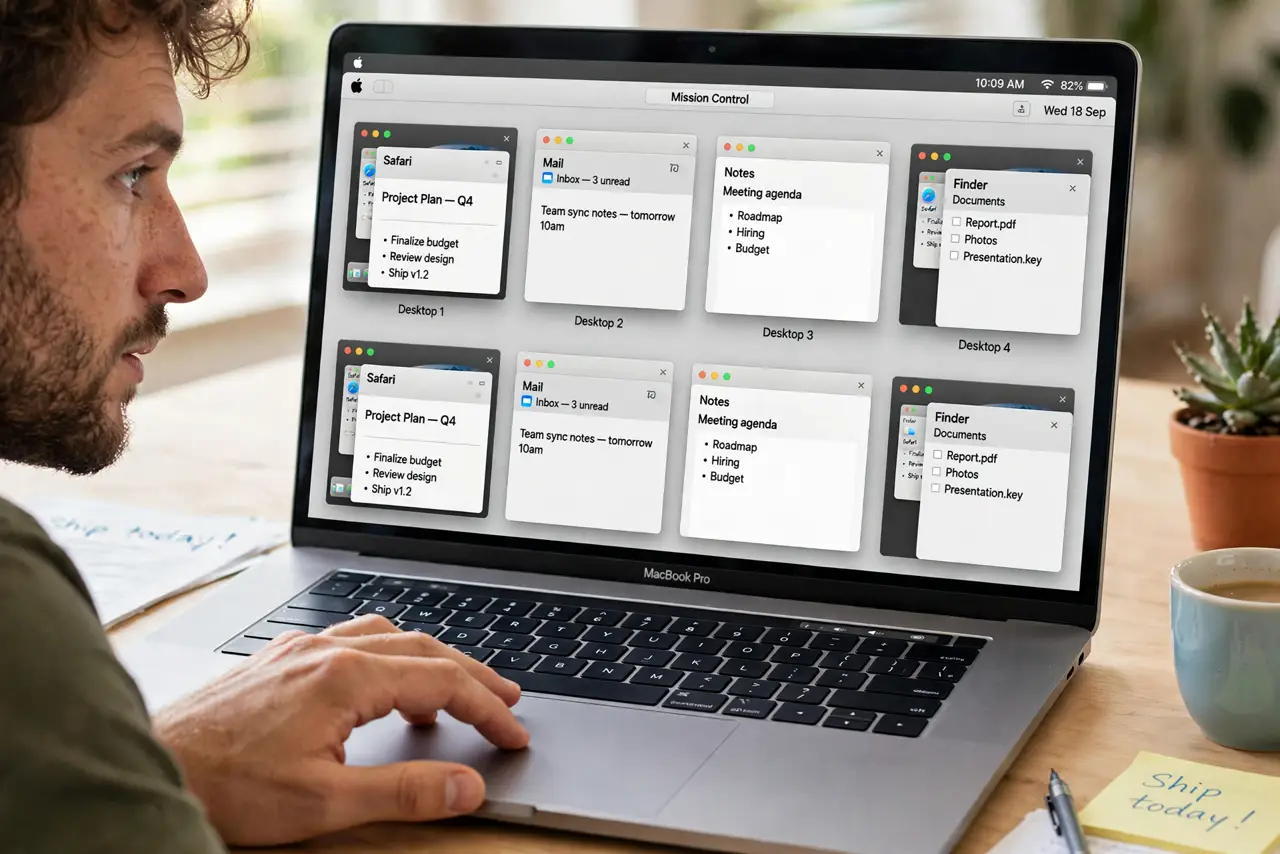
- Learn Mission Control: three fingers up. Swipe up with three fingers to see all open windows at once. This single gesture replaces frantic Command-Tabbing for most people.
- Switch desktops: three fingers sideways. Swipe left or right with three fingers to glide between full-screen apps and desktops. It is the fastest navigation on the Mac, full stop.
- Go back and forward: two fingers. Swipe left or right with two fingers in Safari and Finder to go back and forward. Your browser history becomes a flick.
- Pinch and smart zoom. Pinch with two fingers to zoom in Maps and Photos; double-tap with two fingers for smart zoom in Safari. The lookup tap guide covers the delightful three-finger word lookup too.
- Customize in Trackpad settings. Every gesture has a toggle and many have direction options in System Settings, Trackpad — with short video demos. If a gesture misfires, check its direction setting before blaming your fingers. When clicks feel wrong, the click troubleshooting sorts it out.
What NOT to do
- Do not try to learn all gestures in one day. Master three — Mission Control, desktop switching, back/forward — and add more when those are automatic.
- Do not fight the default directions. Natural scroll direction feels wrong for about a day, then your brain flips — give it that day.
- Do not press hard. The trackpad responds to light touches; mashing it makes gestures misfire and tires your fingers.
- Do not assume a misfiring gesture means broken hardware. Nine times out of ten it is a direction setting or a conflicting app shortcut.
Frequently asked questions
Why do gestures work in some apps but not others?
Apps opt into gesture support individually. System apps support the full set; some third-party apps only honor a few — check the app's own trackpad settings.
Can I change what a gesture does?
Partly — System Settings lets you flip directions and toggle gestures, and tools like BetterTouchTool unlock full remapping for power users.
My three-finger drag stopped working. Why?
Three-finger drag lives under Accessibility, Pointer Control, Trackpad Options — not the main Trackpad pane. macOS updates sometimes reset it; re-enable it there.