Uninstall Apps Completely
Dragging an app to the Trash feels like uninstalling — but gigabytes of preferences, caches, and helper files stay behind, scattered through the Library folder. Over years, these leftovers pile up. A complete uninstall removes the app and its debris, and it is only slightly more work than the drag.
TL;DR / Quick Fix
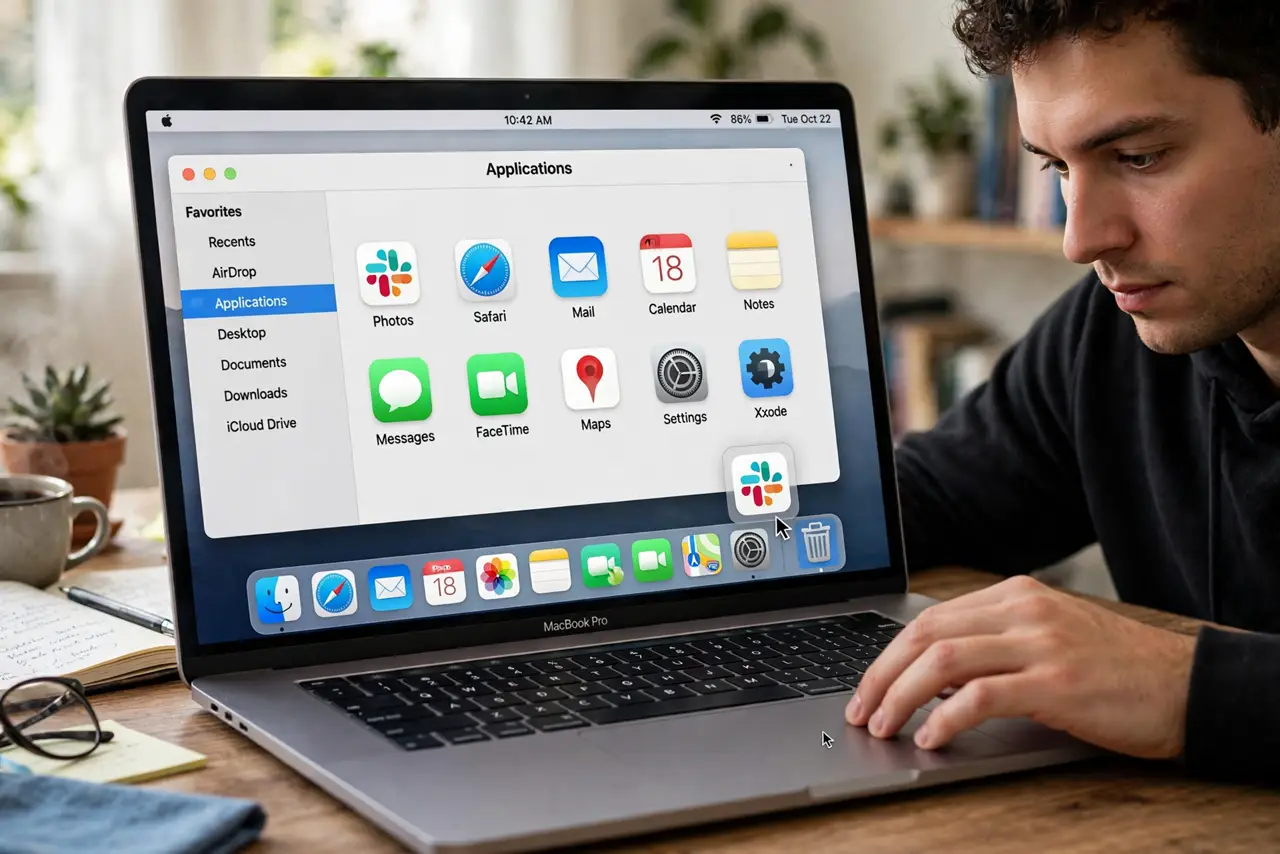
Quick fix: drag the app from Applications to the Trash, then hunt down its leftovers in the Library folder — preferences and caches hide in Application Support and Preferences. Empty the Trash to finish. App Store apps uninstall cleanly this way; complex suites may need their own uninstaller.
Follow these steps
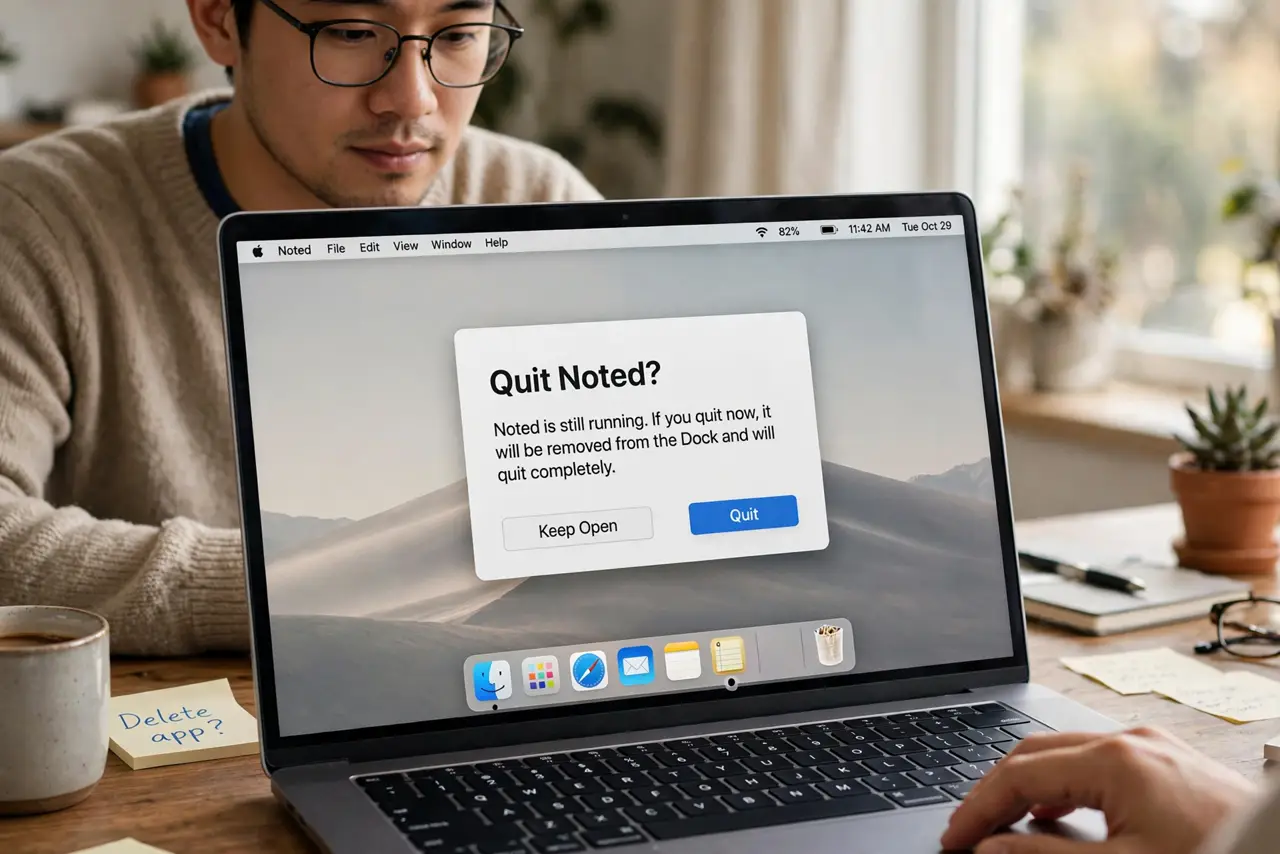
- Quit the app first. Running apps resist deletion and leave locked files. Quit fully — check the Dock for the dot indicator.
- Drag the app to the Trash. Open the Applications folder, drag the app to the Trash. For App Store apps, this alone is usually a complete uninstall.
- Open the Library folder. In Finder, hold Option, click Go, and choose Library. This hidden folder holds the leftovers.
- Remove Application Support data. In Library, open Application Support and delete the folder named for the app. This is where the bulk of leftover data lives.
- Clear Preferences and Caches. Delete the app's .plist files in Preferences and its folder in Caches. These are small but numerous.
- Empty the Trash and verify. Empty the Trash, then search Spotlight for the app's name — no results means a truly clean uninstall.
What NOT to do
- Do not use 'cleaner' apps that promise one-click uninstalls. Many are junkware themselves — the manual method is safe and free.
- Do not delete Library folders blindly. Remove only folders clearly named for the app you are uninstalling — the Library holds every app's data.
- Do not forget login items. In System Settings under General, check Login Items for the app's helpers and remove them.
- Do not uninstall system apps. macOS protects them for a reason — removing built-in apps breaks updates and system functions.
Frequently asked questions
Why do leftovers matter?
A few megabytes per app add up over years, and stale preferences can haunt reinstalls with old bugs. Clean uninstalls keep the system tidy.
Do I need an uninstaller app?
For App Store apps, no. For big suites like Adobe or Microsoft, yes — use the developer's own uninstaller, which knows every file location.
Can I reinstall after a full uninstall?
Yes — and it will behave like a brand-new install, since no old preferences survive. That is often the point.