Universal Control Keyboard Lags? Fix It
When Universal Control keyboard typing lags across devices, letters appear seconds late, or in bursts, and typing feels broken. The lag usually comes from a weak wireless link, interference, or a busy device, not from the keyboard itself. Improving the link and reducing load usually restores smooth typing.
TL;DR / Quick Fix
Quick fix: move the Mac and iPad closer together, turn Wi-Fi and Bluetooth off and back on, on both devices, then move the cursor across the boundary again and type a test sentence. If typing is smooth, the link, not the keyboard, was the problem.
Follow these steps
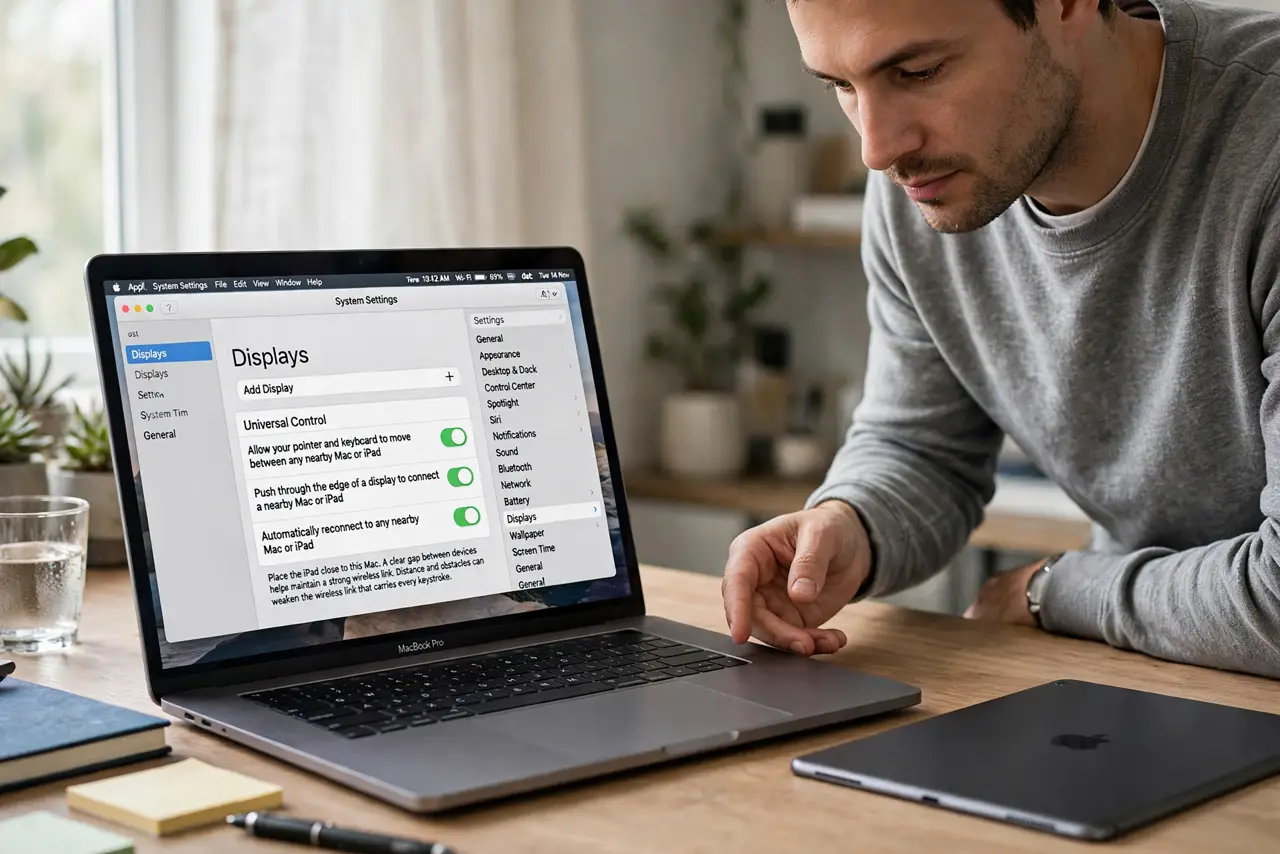
- Move the devices closer. Place the iPad close to the Mac, with a clear gap between them. Distance and obstacles weaken the wireless link that carries every keystroke.
- Restart Wi-Fi and Bluetooth on both. Turn Wi-Fi and Bluetooth off and back on, on both devices. A fresh wireless link clears a degraded connection that causes lag and bursts.
- Close heavy apps on both devices. Close video, games, and other heavy apps you do not need. A busy device processes keystrokes more slowly, which feels exactly like connection lag.
- Test typing in a simple app. Open a plain notes app on the second device and type a test sentence. If typing is smooth there but lags in a heavy app, the app, not Universal Control, is the bottleneck.
- Move the cursor across and back. Move the cursor across the device boundary and back, then type again. Re-establishing the boundary link can clear a lag state that persists after the first connection.
- Restart both devices if lag remains. Restart the Mac and the iPad, then reconnect Universal Control and test typing again. A restart on both sides clears a lag state that wireless toggles alone may not fix.
What NOT to do
- Do not buy a new keyboard because typing lags across devices. The keyboard sends keystrokes normally, and the wireless link or device load causes the delay.
- Do not type faster to catch up with lag. Fast typing during lag creates bursts and errors, while a pause and a retest shows whether the link recovered.
- Do not turn off Universal Control permanently after one laggy session. A closer placement and a wireless restart usually restore smooth typing without losing the feature.
- Do not change network settings on your router to fix Universal Control lag. The link is local between devices, and router changes will not improve it, while they can break other connections.
Frequently asked questions
Why does typing lag but the mouse feels fine?
Because typing sends many small events that queue up during a weak link, while mouse movement can hide small delays. A weak link shows in typing first.
Does Universal Control need the internet?
No. It needs Wi-Fi and Bluetooth on for discovery and a local link, but typing itself travels directly between the devices.
What if only one direction lags?
Test typing on each device in turn. If one direction always lags, that device is likely busy or farther away, so close its heavy apps and move it closer.