Control iPad With Your Mac's Keyboard
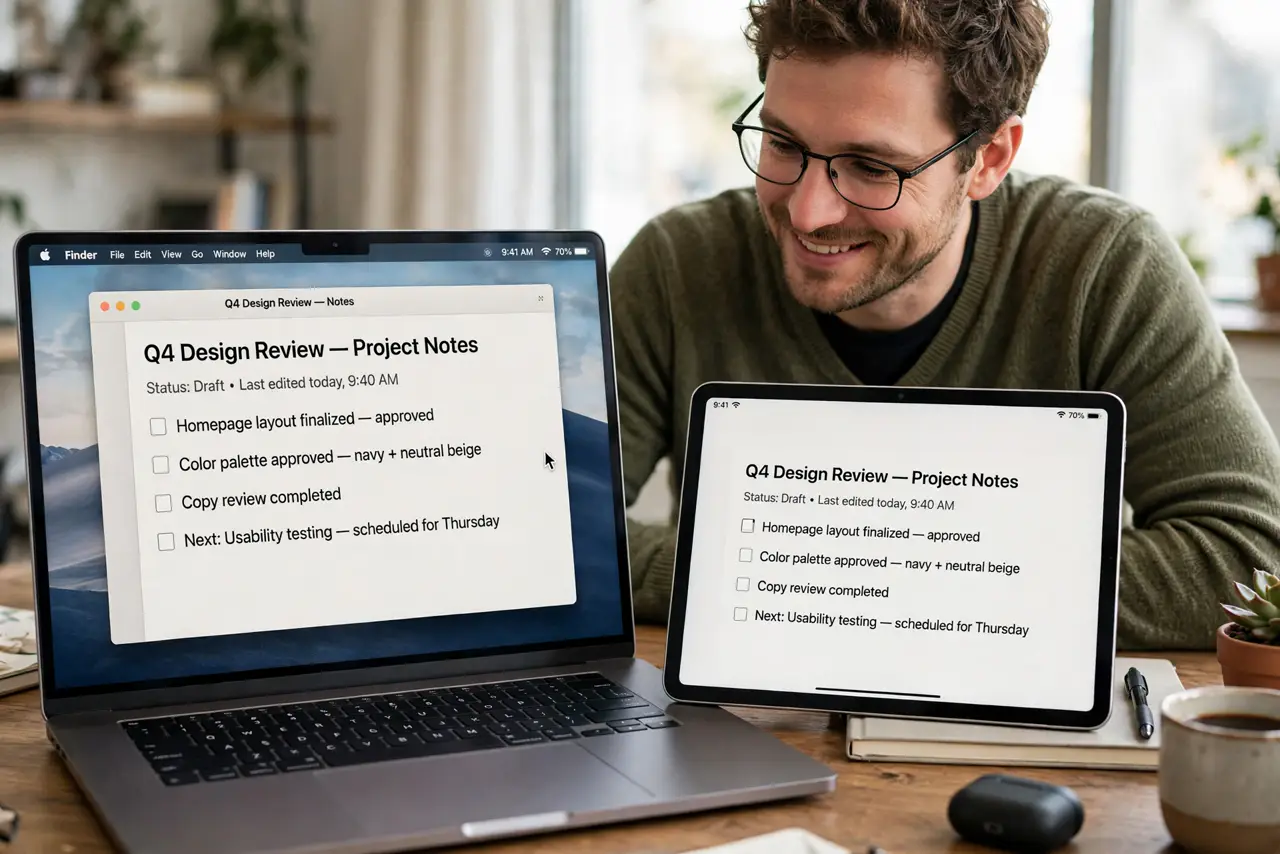
One keyboard and trackpad gliding from your Mac onto your iPad — no extra hardware, no pairing dance, no dongle. That is Universal Control, and when it works it feels like magic. When it does not, it is almost always four quiet requirements: the right software, the same Apple ID, and two radios switched on. Here is the setup order that gets it right the first time.
TL;DR / Quick Fix
Quick fix: update the Mac to macOS 12.3 or later and the iPad to iPadOS 15.4 or later, sign both into the same Apple ID, then turn on Wi-Fi, Bluetooth, and Handoff on both. On the Mac, open System Settings > General > AirDrop & Handoff and enable Universal Control.
Follow these steps
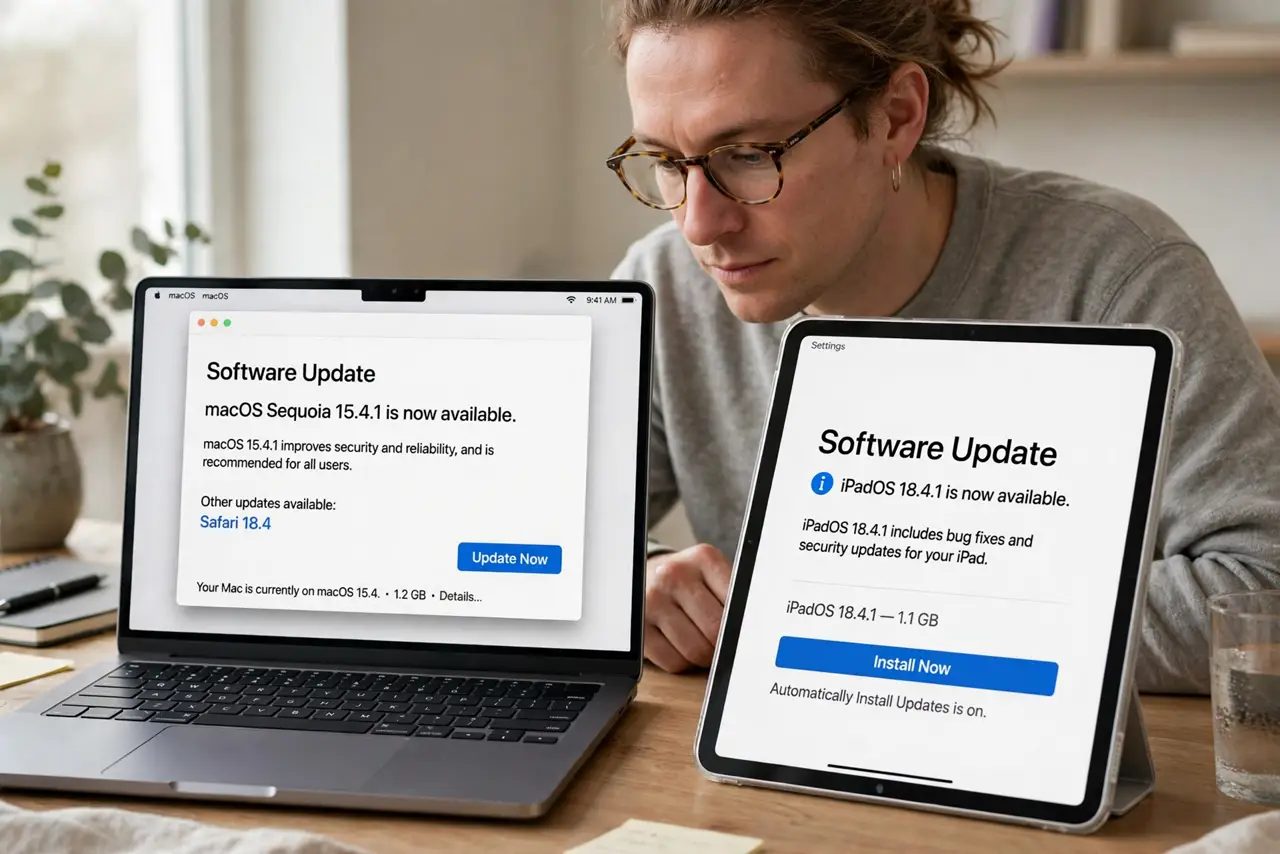
- Update both devices first. Universal Control needs macOS Monterey 12.3 or later and iPadOS 15.4 or later. Run Software Update on the Mac and the iPad — older software silently refuses to connect.
- Sign into the same Apple ID. Both devices must use the same Apple ID with two-factor authentication turned on. This is the trust anchor; nothing connects across different accounts.
- Turn on Wi-Fi and Bluetooth on both. The devices find each other over Bluetooth and move data over Wi-Fi. They do not need to join a network — both radios on is enough — and they must stay within about 30 feet.
- Turn on Handoff on both devices. On the Mac: System Settings > General > AirDrop & Handoff, turn on Handoff and allow Handoff between this Mac and iCloud devices. On the iPad: Settings > General > AirPlay & Handoff > Handoff.
- Flip the Universal Control switch. In the same AirDrop & Handoff pane on the Mac, turn on allowing the cursor and keyboard to move between any nearby Mac or iPad. This is the master switch — without it, nothing crosses.
- Push through the screen edge. Move the cursor to the Mac screen edge facing the iPad and keep pushing — it slides across after a beat. If it refuses, see cursor stuck at the edge for the arrangement fix.
What NOT to do
- Do not expect it to work across different Apple IDs. The same account on both sides is non-negotiable.
- Do not turn Bluetooth off to save battery while using it. Discovery depends on Bluetooth — killing the radio kills the connection.
- Do not leave a VPN running on either device during setup. VPNs can block the local discovery traffic Universal Control needs.
- Do not sign out of iCloud to 'reset' things. You will break far more than Universal Control and spend an hour signing back in.
Frequently asked questions
Does Universal Control work with a Windows PC?
No — it is an Apple-only feature for Macs and iPads signed into the same Apple ID. There is no Windows equivalent built in.
Why does the connection drop after a few minutes?
Usually Bluetooth interference or the devices drifting too far apart. If typing feels delayed before the drop, the keyboard lag notes cover that too.
How many devices can I chain together?
One Mac can drive up to two other Macs or iPads. The cursor passes through them in the order you set in System Settings > Displays.