See Which Apps Drain Battery
The battery was fine yesterday and dead by lunch today — and you barely used the Mac. Some app is almost certainly burning energy in the background, and macOS will name it for you. Two built-in tools show exactly which apps are draining the battery, no downloads needed.
TL;DR / Quick Fix
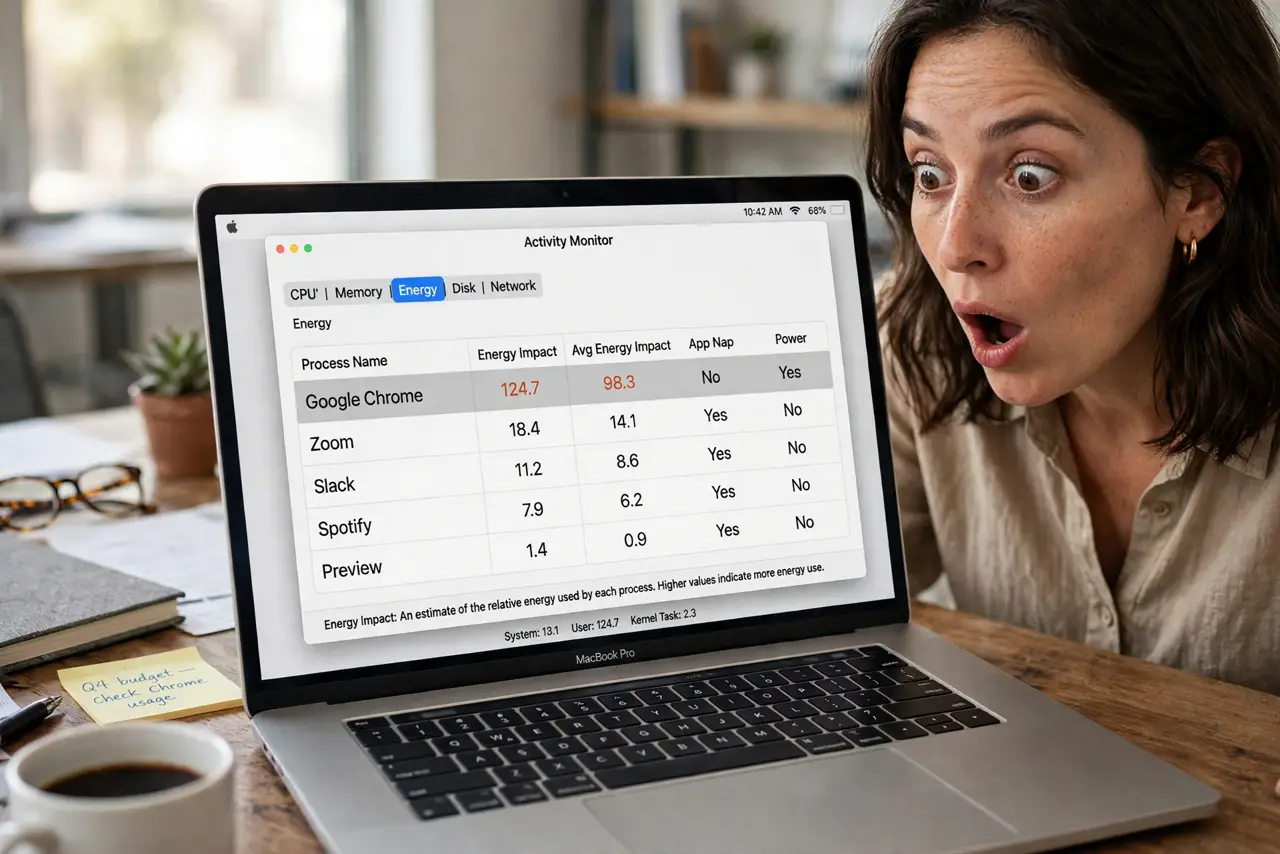
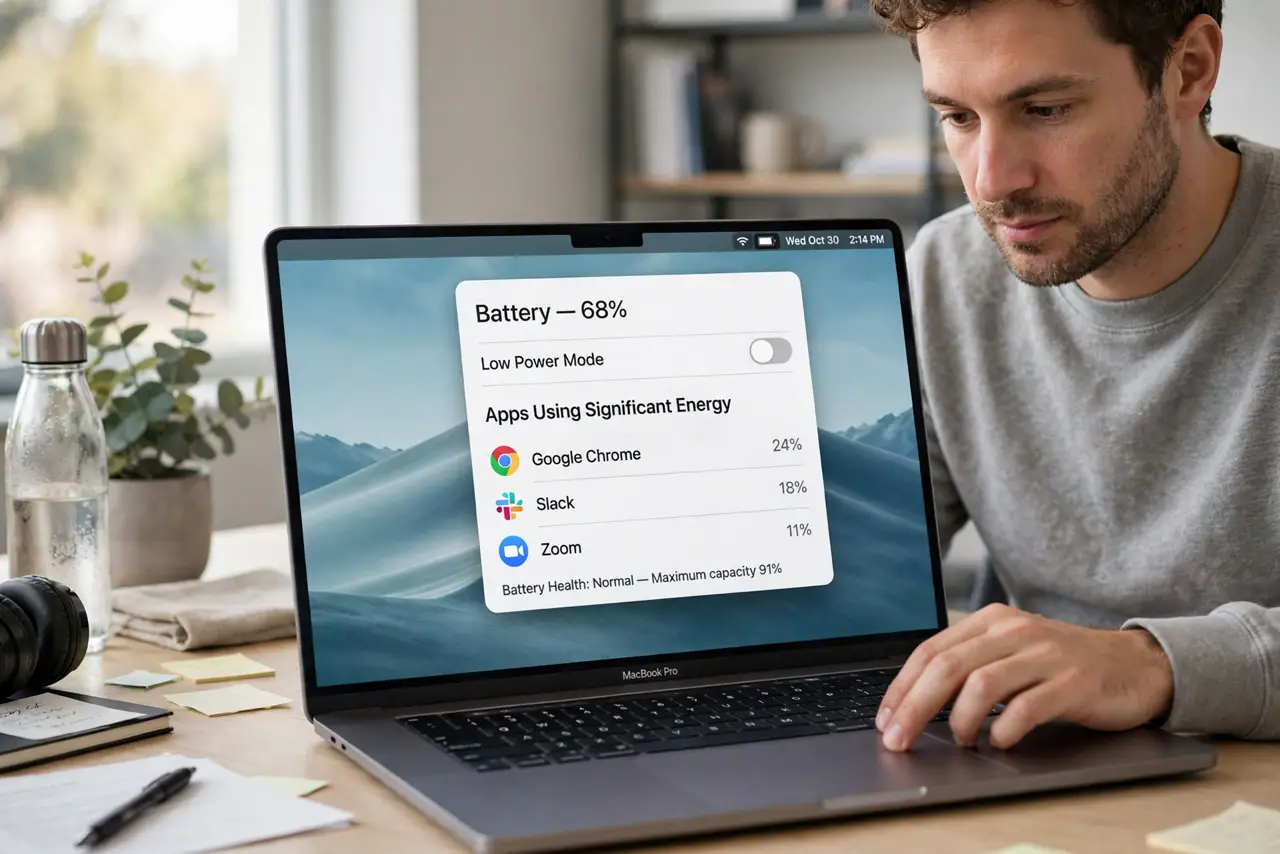
Quick fix: click the battery icon in the menu bar to see which apps are using significant energy right now. For a longer view, open Activity Monitor and sort the Energy tab by impact. Quit or update the worst offenders — a single runaway app often explains a dying battery.
Follow these steps
- Check the battery menu first. Click the battery icon in the menu bar. macOS lists apps 'using significant energy' right there — the fastest diagnosis there is.
- Open Activity Monitor for detail. Find it in Applications, then Utilities. The Energy tab ranks every running app by its 12-hour power impact.
- Sort by Energy Impact. Click the column header to sort. The worst offenders float to the top — often a browser tab, a stuck sync, or an app that never sleeps.
- Quit or update the culprit. Quit runaway apps outright. If a normally innocent app misbehaves, update it — energy bugs get fixed in updates.
- Check login items for repeat offenders. Some drainers relaunch every boot. In System Settings under General, then Login Items, remove what you do not need.
- Watch for a pattern, not a moment. One spike means little. An app topping the list day after day is the real target — consider a lighter alternative.
What NOT to do
- Do not force-quit everything in sight. Quitting and relaunching apps costs more energy than letting idle ones sleep.
- Do not blame the battery first. A sudden drain is far more often a software hog than a dying cell — check the cycle count only after ruling apps out.
- Do not install a 'battery booster' app. macOS already reports energy use accurately; third-party boosters add their own drain.
- Do not ignore the browser. A single tab with auto-playing video or crypto miner can out-drain every other app combined.
Frequently asked questions
Why does an app I am not using drain battery?
Background refresh, sync, notifications, and location checks keep apps alive. An app does not need a window open to burn energy.
Is the Energy tab accurate?
Accurate enough for triage — it reflects real measured power over 12 hours. Use it to find suspects, not to publish benchmarks.
My browser is always the top drain — normal?
Browsers are genuinely hungry, especially with many tabs. It is normal for the browser to lead; it is not normal for it to dwarf everything else tenfold.