Wi-Fi Details in the Menu Bar?
The Wi-Fi icon in your Mac's menu bar is more than a signal meter — hold the right key and it reveals a hidden diagnostic panel with network names, signal strength, noise levels, and channel data. It is the fastest way to answer 'is it my Wi-Fi or my internet?' Here is how to read it.
TL;DR / Quick Fix
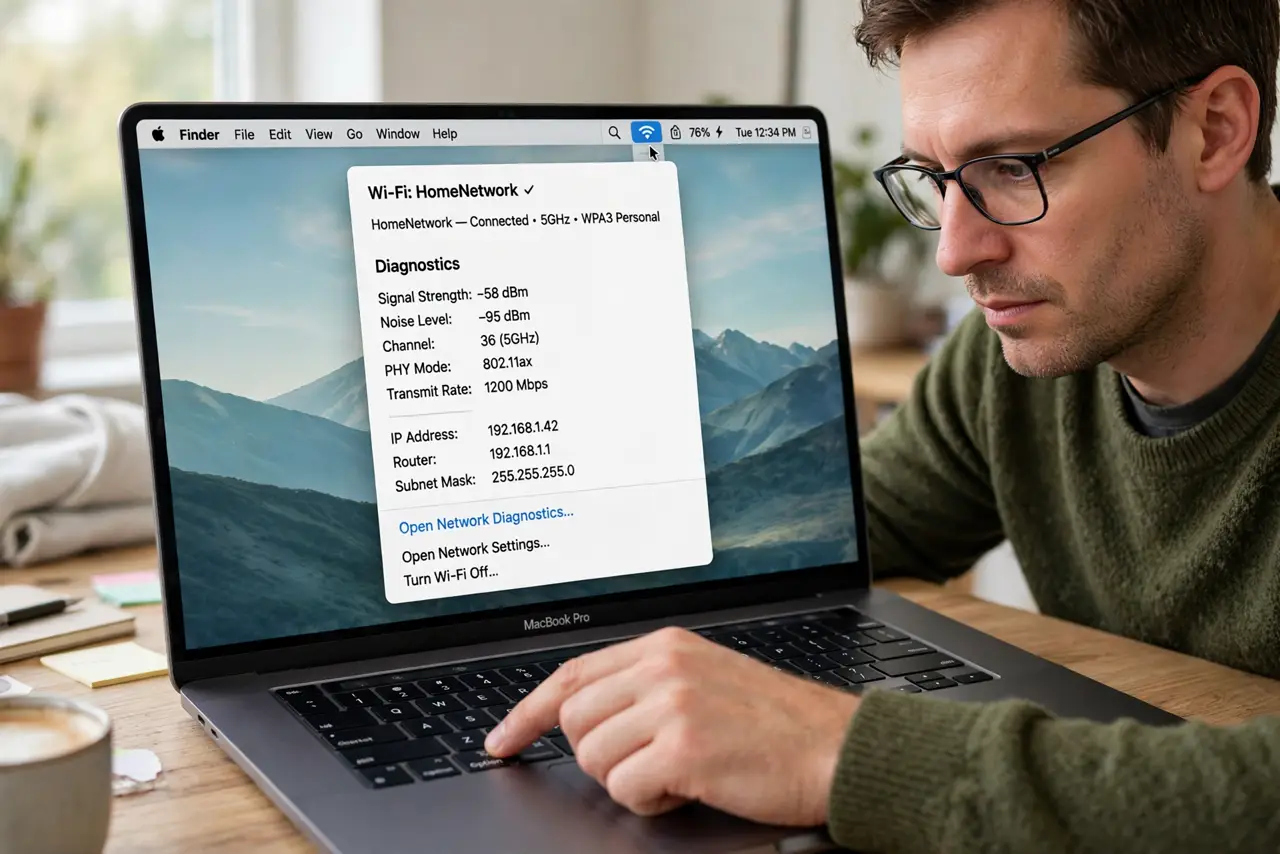
Quick fix: hold the Option key and click the Mac's Wi-Fi menu-bar icon to reveal signal strength (RSSI), noise, channel, and data rate. RSSI above -60 is excellent; below -75 means move closer or fix the network. This hidden panel diagnoses most Wi-Fi complaints in seconds.
Follow these steps
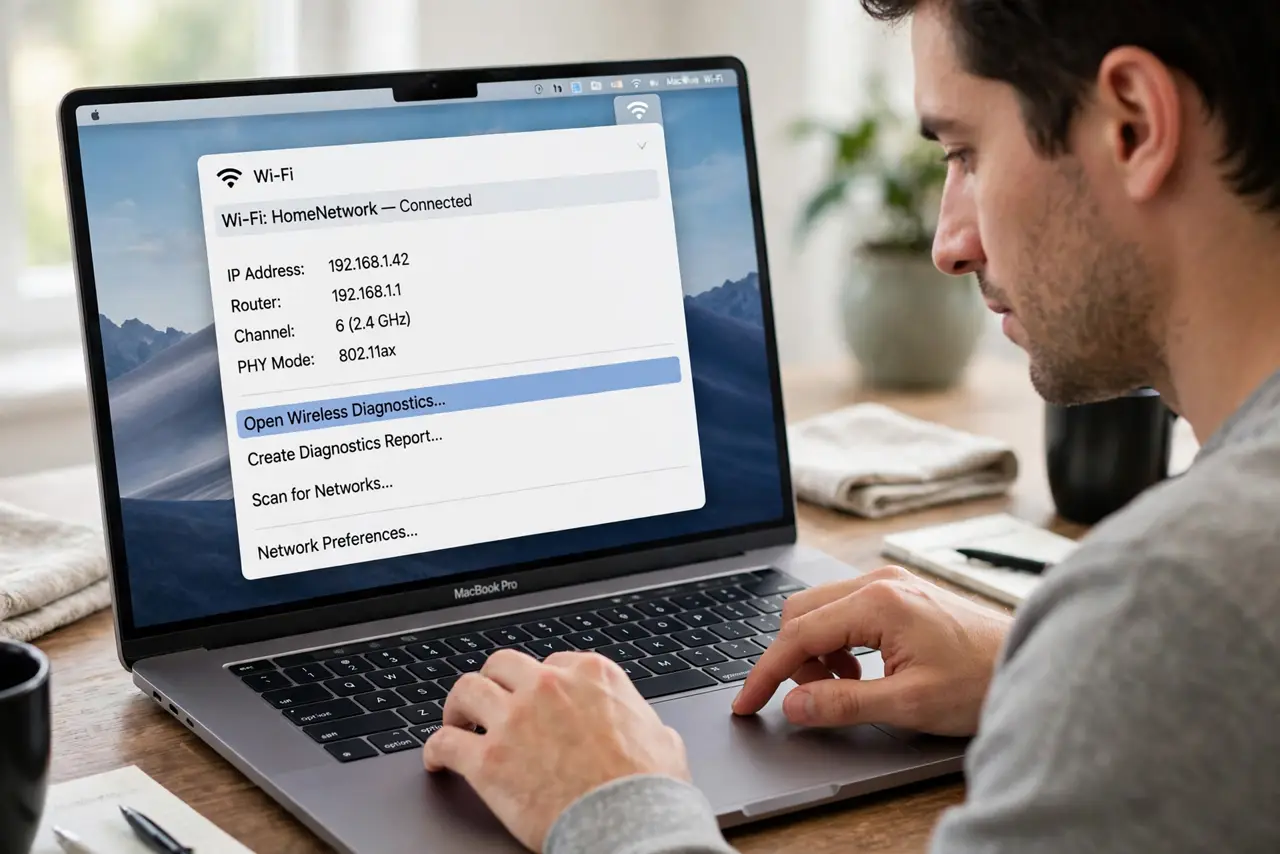
- Open the hidden details. Hold Option and click the Wi-Fi icon — the menu expands with your IP address, router, DNS, and radio diagnostics. This is the single most useful hidden Mac feature for network troubleshooting.
- Read the RSSI number. RSSI is signal strength in dBm: -50s are excellent, -60s good, -70s weak, -80s barely usable. If your number is bad, the problem is distance or obstacles — not your provider.
- Check the noise level. Noise near -90 is clean; noise in the -70s means interference — neighbors' networks, microwaves, baby monitors. High noise plus weak signal is the classic slow-Wi-Fi recipe.
- Note the channel and band. The panel shows whether you are on crowded 2.4 GHz or roomy 5 GHz, and which channel. Congested channels explain evening slowdowns — your router's auto setting usually handles it.
- Check the transmit rate. The PHY mode and data rate show what the radio negotiated — if it is far below your plan's speed, the Wi-Fi link itself is the bottleneck. Compare with the Bluetooth menu diagnostics since the radios share space.
- Use it before calling support. Quote the RSSI and noise numbers when reporting issues — 'RSSI -82, noise -88' tells a technician instantly that it is a signal problem, not a line problem. See the Wi-Fi drop fixes for the common cures.
What NOT to do
- Do not confuse RSSI with internet speed. RSSI measures the Wi-Fi link to your router — your plan's speed is a separate thing.
- Do not ignore the noise number. Weak signal gets the blame, but high noise is the silent killer of Wi-Fi quality.
- Do not forget Option-click. The plain click shows almost nothing — the diagnostics need the Option key held down.
- Do not troubleshoot the provider first. Check these numbers before calling — most 'internet problems' are Wi-Fi problems.
Frequently asked questions
What is a good RSSI value?
Above -60 dBm is great, -60 to -70 is usable, below -75 is trouble. Walls and distance are the usual culprits for bad numbers.
Why does my transmit rate keep changing?
Wi-Fi adapts speed to conditions constantly — interference, distance, and congestion all move it. Wild swings mean an unstable radio environment.
Can I see which band I'm on?
Yes — the Option-click panel shows the channel and band directly. If you are stuck on 2.4 GHz near the router, something is off.