Mail App Shows Old Emails Only? Refresh Your Inbox
Your mail app shows old emails but nothing new, even though you know messages arrived. Sync may be paused, the account may need attention, or a filter may be hiding new mail. Check sync first, then the account.
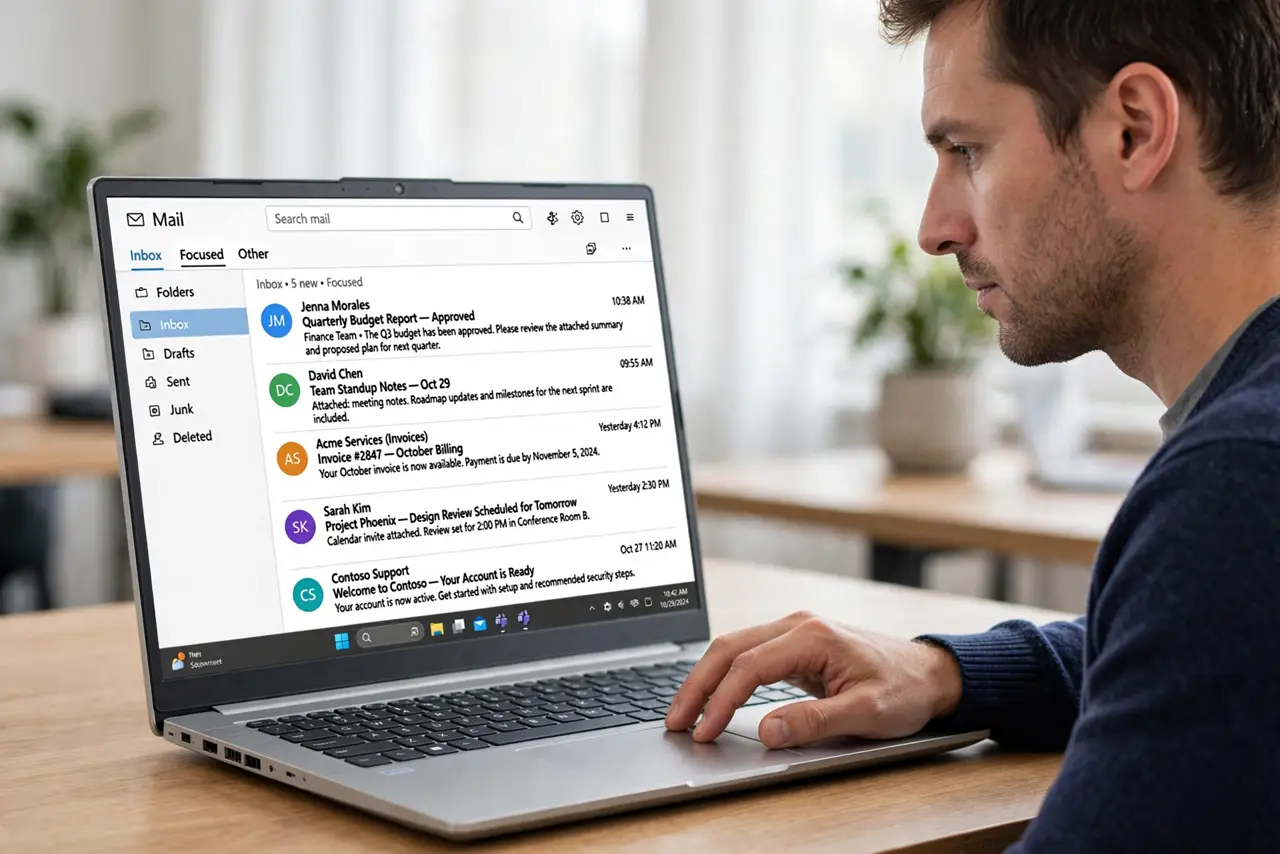
TL;DR / Quick Fix
Quick fix: open the mail app, pull down or click Sync, and wait for it to finish. If nothing new appears, check the account for a sign-in prompt, turn sync back on, and check filters that may hide new messages from the inbox view.
Follow these steps
- Sync the mailbox manually. Open the mail app, find the Sync option, and run it, then wait for it to finish. A manual sync forces a fresh check instead of waiting for the next automatic one.
- Check for an account sign-in prompt. Look for a banner asking you to sign in again or fix the account. An account needing attention stops syncing new mail while old mail stays visible.
- Confirm sync is turned on. Open the account settings in the mail app and confirm sync is on for mail. A sync switch turned off freezes the inbox at the last successful sync.
- Check filters and folders. Look in other folders and check whether a filter or focused view is hiding new mail from the inbox. New messages in another folder mean sync works and the view is the problem.
- Check the connection. Open a web page to confirm the internet works, then sync again. A dropped connection can leave the inbox frozen at old mail without any error banner.
- Restart the mail app. Close the mail app fully, reopen it, and sync once more. A restart clears a stuck sync state that manual sync alone could not move.
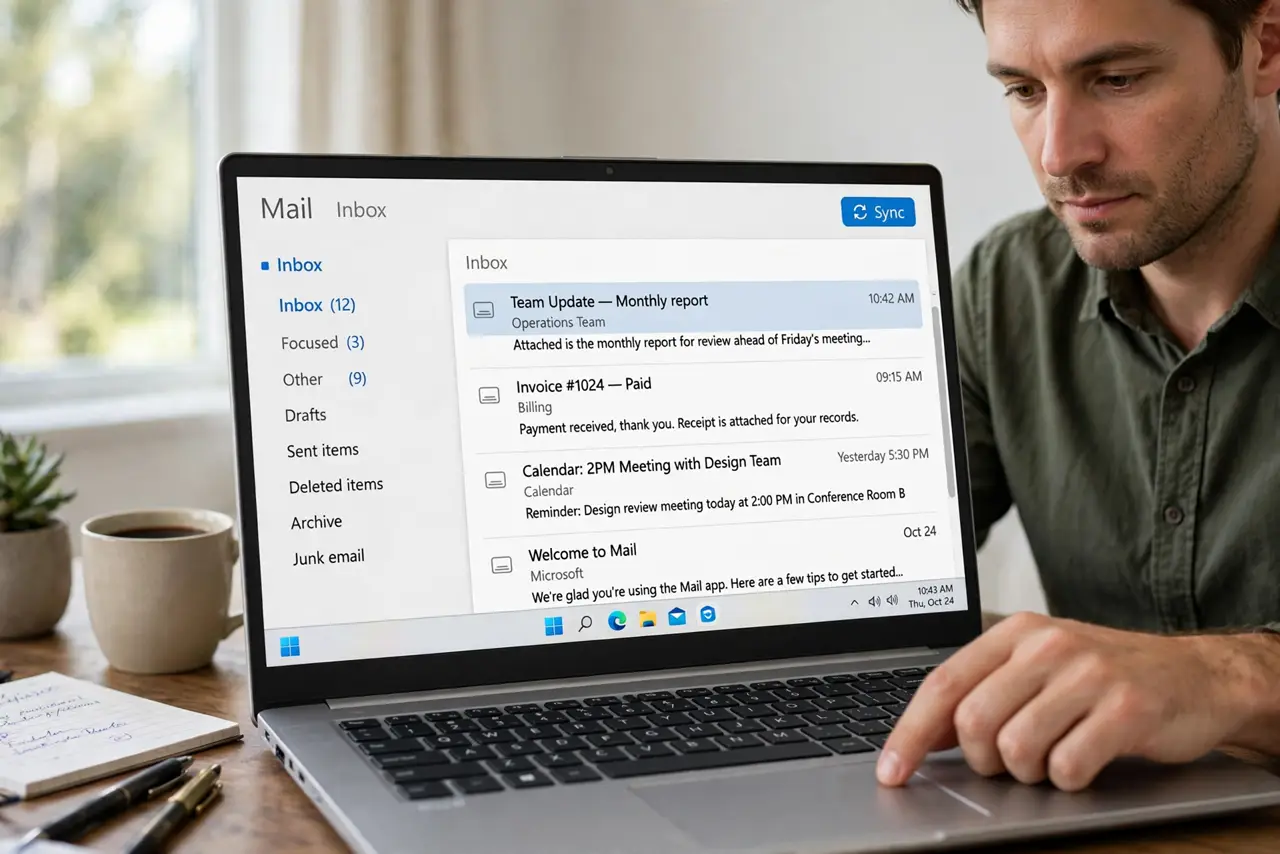
What NOT to do
- Do not delete and re-add the account as a first step. A manual sync and a sign-in check fix most frozen inboxes without rebuilding the account.
- Do not assume no new mail arrived because the app shows old mail. Check webmail or another device first to confirm whether new messages actually exist.
- Do not keep pressing sync rapidly. Give each sync time to finish, or you will interrupt the very download you are waiting for.
- Do not ignore a sign-in banner. An account needing attention will stay frozen until you sign in again, no matter how often you sync.
Frequently asked questions
Why does the app show old mail but no new mail?
Sync may be paused, the account may need sign-in, or a filter hides new mail. Old mail stays visible because it was already downloaded.
Is my new mail lost?
Usually not. New mail waits on the mail server until sync resumes, so it appears once the account and sync are fixed.
What if webmail shows new mail but the app does not?
The app sync or account is the problem, not the mailbox. Fix sign-in and sync in the app, then sync again.