Fix Meet Audio
You join the Google Meet and nobody can hear you — or you cannot hear them, or everyone sounds like robots. Meet audio problems are almost always about one wrong device selection or a browser permission, not broken hardware. This guide runs the checks in order and gets sound flowing both ways. For understanding speech better once audio works, enable translated captions.
TL;DR / Quick Fix
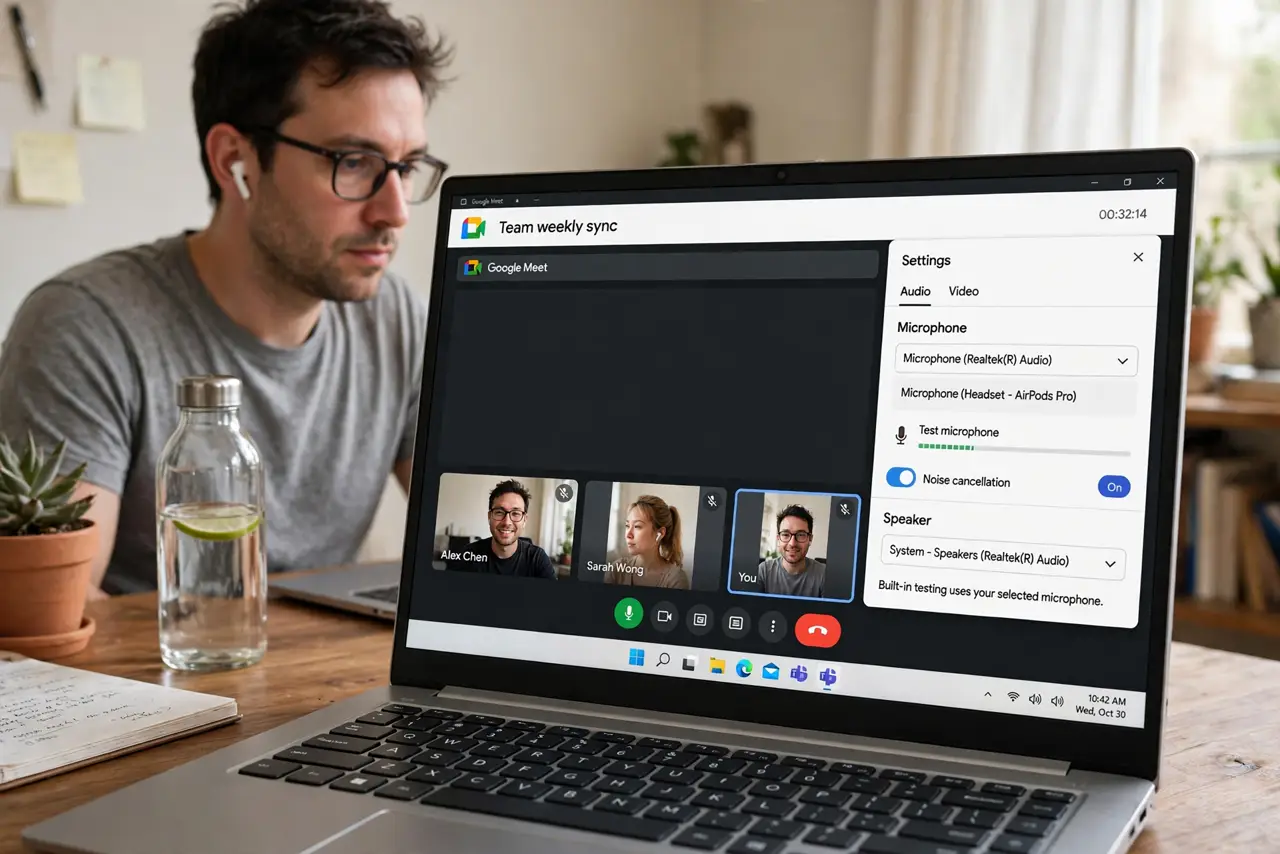
Quick fix: in the Meet call, open Settings, then Audio, and confirm the right microphone and speaker are selected — the number one cause is the wrong device. Check the browser's microphone permission and unmute at both the Meet and system level. Test with the green level meter.
Follow these steps
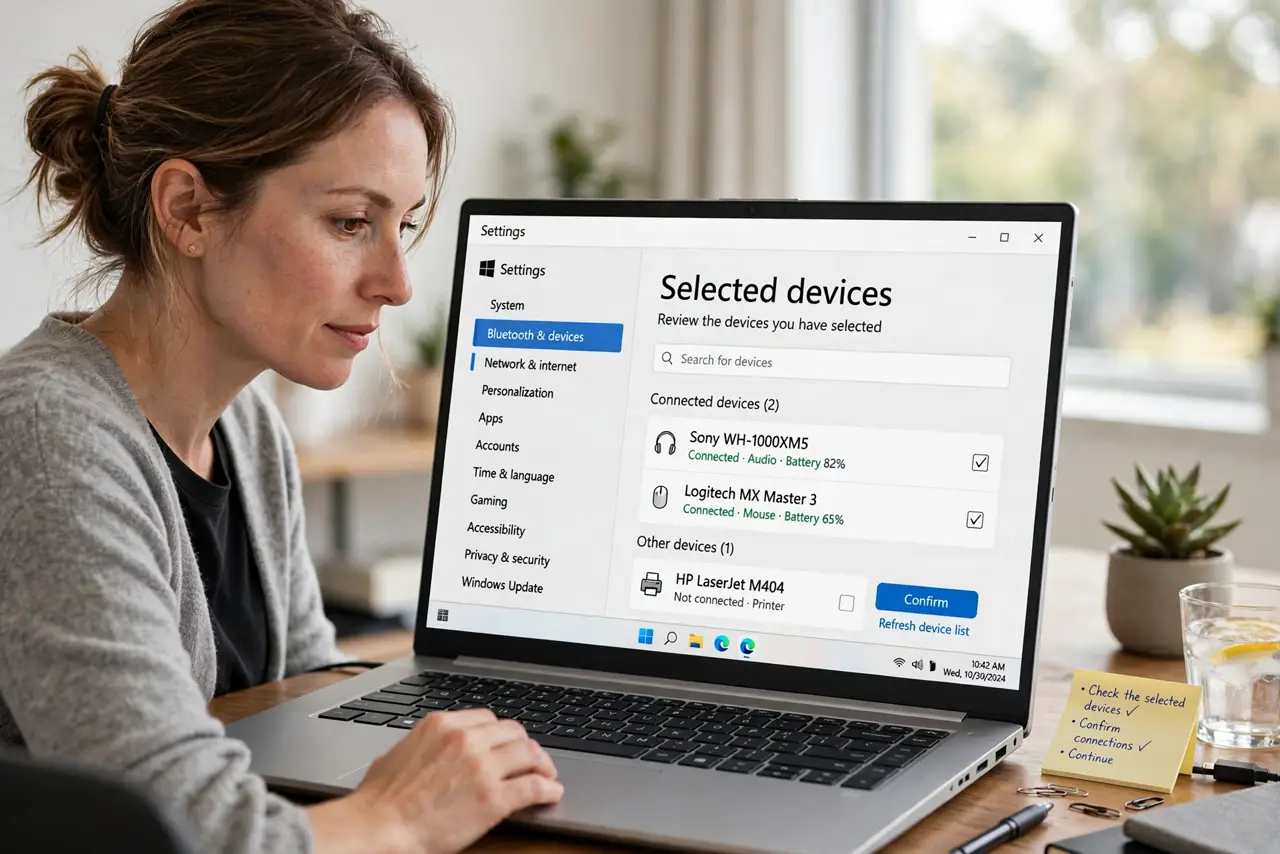
- Check the selected devices. In Meet, open Settings then Audio. Confirm the microphone and speaker match the hardware you are actually using — Bluetooth earbuds paired but not selected is the classic failure.
- Verify browser permission. The browser must have microphone permission for the Meet site. Check the address bar's permission icon — a blocked mic looks exactly like a broken one.
- Unmute everywhere. Check three mutes: the Meet mute button, the system volume/mute, and any physical mute switch on the headset. One forgotten mute silences everything.
- Watch the level meter. Speak and watch the microphone level indicator in Meet settings. Movement means the mic hears you — no movement means the wrong device or a dead mic.
- Switch to a wired option. If Bluetooth audio misbehaves, plug in wired earbuds. Bluetooth adds a whole layer of failure modes; wired just works.
- Rejoin as the last resort. Leave and rejoin the call. Rejoining renegotiates the audio cleanly and fixes a surprising number of mysterious one-way-audio cases.
What NOT to do
- Do not assume the hardware is broken first. Nine times out of ten it is device selection or permissions — check those before shopping.
- Do not ignore the browser permission prompt. Dismissing it once blocks the mic until you re-allow it in site settings.
- Do not use speakers and mic in the same room as another participant. The echo loop this creates is miserable for everyone — use earbuds.
- Do not forget system-level mute. The OS mute button overrides everything Meet does — check it when all else looks right.
Frequently asked questions
Why do I sound like a robot?
Usually a struggling connection or Bluetooth codec issue. Wired earbuds and a stronger signal fix most robotic audio.
Can I test audio before joining?
Yes — Meet's pre-join screen has a device check with mic, speaker, and camera tests. Use it before important calls.
Why does Meet use the wrong mic every time?
Browsers remember per-site device choices. Set it correctly once in the call settings and it should stick.