Live Captions in Meet?
Google Meet can caption the meeting live — every word appearing as text at the bottom of the screen, in real time. It is essential for deaf and hard-of-hearing participants, brilliant for noisy environments, and quietly useful for anyone whose attention drifts. It takes one click to enable, and most meetings never do. Here is how.
TL;DR / Quick Fix
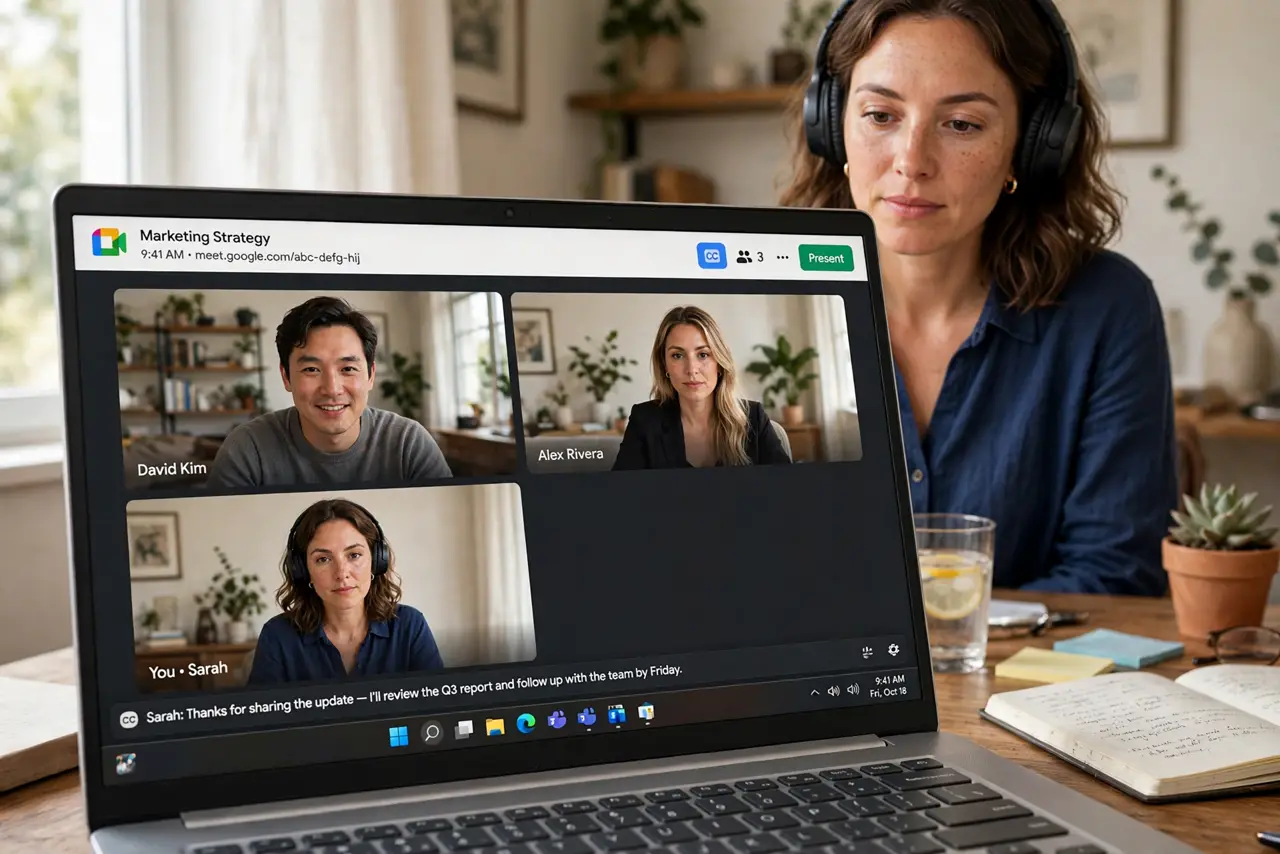
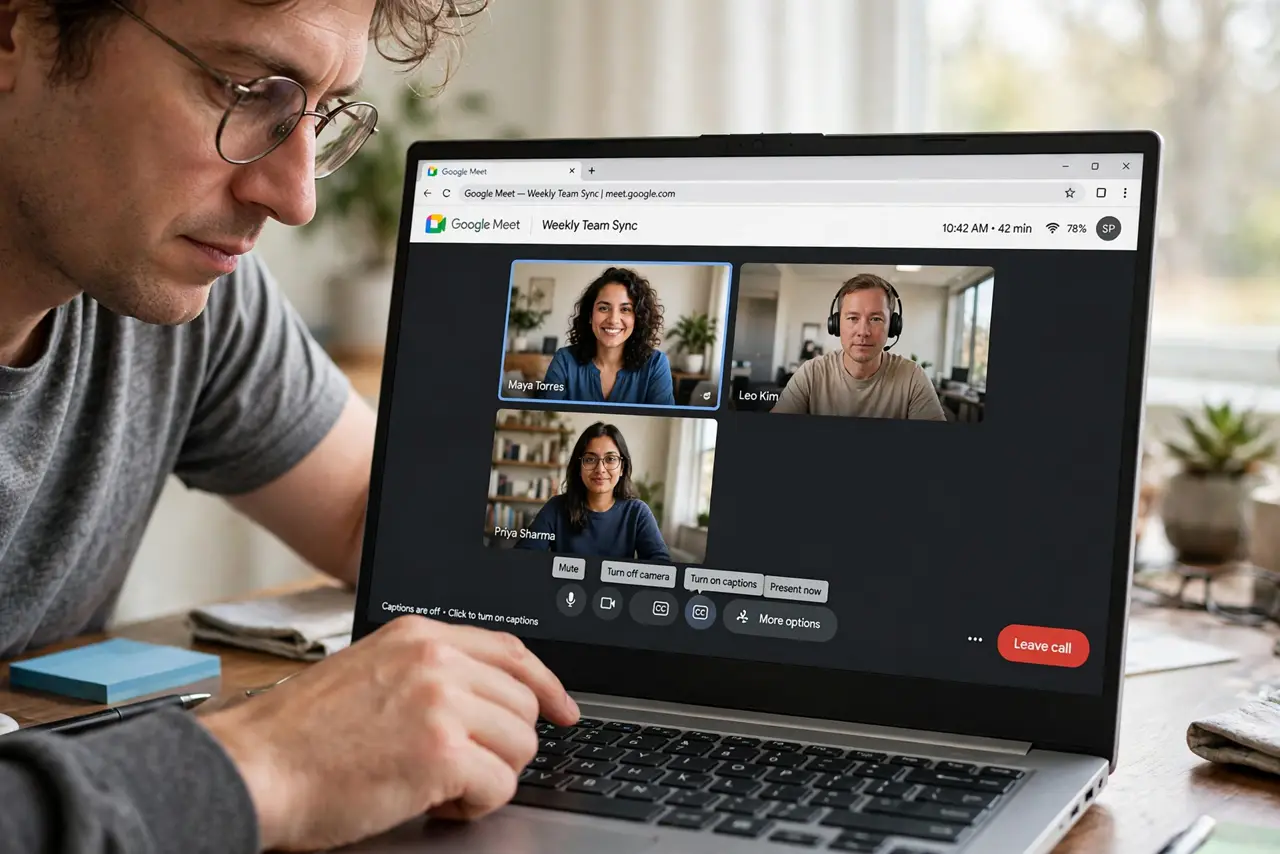
Quick fix: in a Google Meet call, click the CC button at the bottom to turn on live captions. They appear in real time and only you see them unless others enable their own. Captions need a decent microphone on the speaker's side to stay accurate.
Follow these steps
- Turn captions on. In the Meet call, click the CC (closed captions) button in the bottom toolbar. Captions start immediately — no settings dive, no admin approval, one click.
- Know who sees them. Captions are per-person: turning them on shows them only to you. Every participant enables their own — you cannot force captions onto someone else's screen.
- Speak caption-friendly. Captions transcribe what the microphone hears. Speakers should talk at a normal pace, avoid talking over each other, and stay near their mic — caption quality is audio quality.
- Fix the audio when captions garble. Garbled captions mean garbled audio. Ask the speaker to move closer to their mic or enable noise cancellation — the noise guide covers Meet's built-in cleanup.
- Use them beyond accessibility. Noisy cafe, sleeping baby in the next room, a speaker with a thick accent — captions are a general comprehension tool, not just an accessibility feature. Normalize using them.
- Check the language setting. Meet captions follow the spoken language setting. If captions come out as confident nonsense, the language may be set wrong — check the caption settings menu.
What NOT to do
- Do not assume captions are a transcript. They are live, imperfect, and not saved by default — record the meeting if you need a real record.
- Do not read captions instead of listening entirely. They lag a few seconds and miss tone — use them as support, not replacement.
- Do not blame captions for bad audio. Garbled text is a symptom; the disease is a bad microphone or a noisy room — fix the source.
- Do not forget participants must enable their own. Telling the group 'captions are on' is wrong — each person clicks CC themselves.
Frequently asked questions
Can the host turn on captions for everyone?
No — captions are individual. A host can remind everyone to enable them, but each participant clicks their own CC button.
Are Meet captions accurate?
Surprisingly good with clear audio — less so with accents, jargon, or crosstalk. Treat them as a strong aid, not a court record.
Do captions work on phone calls?
Yes — the Meet mobile app has the same CC button. Small screen, same live text.