Translate Captions in Meet
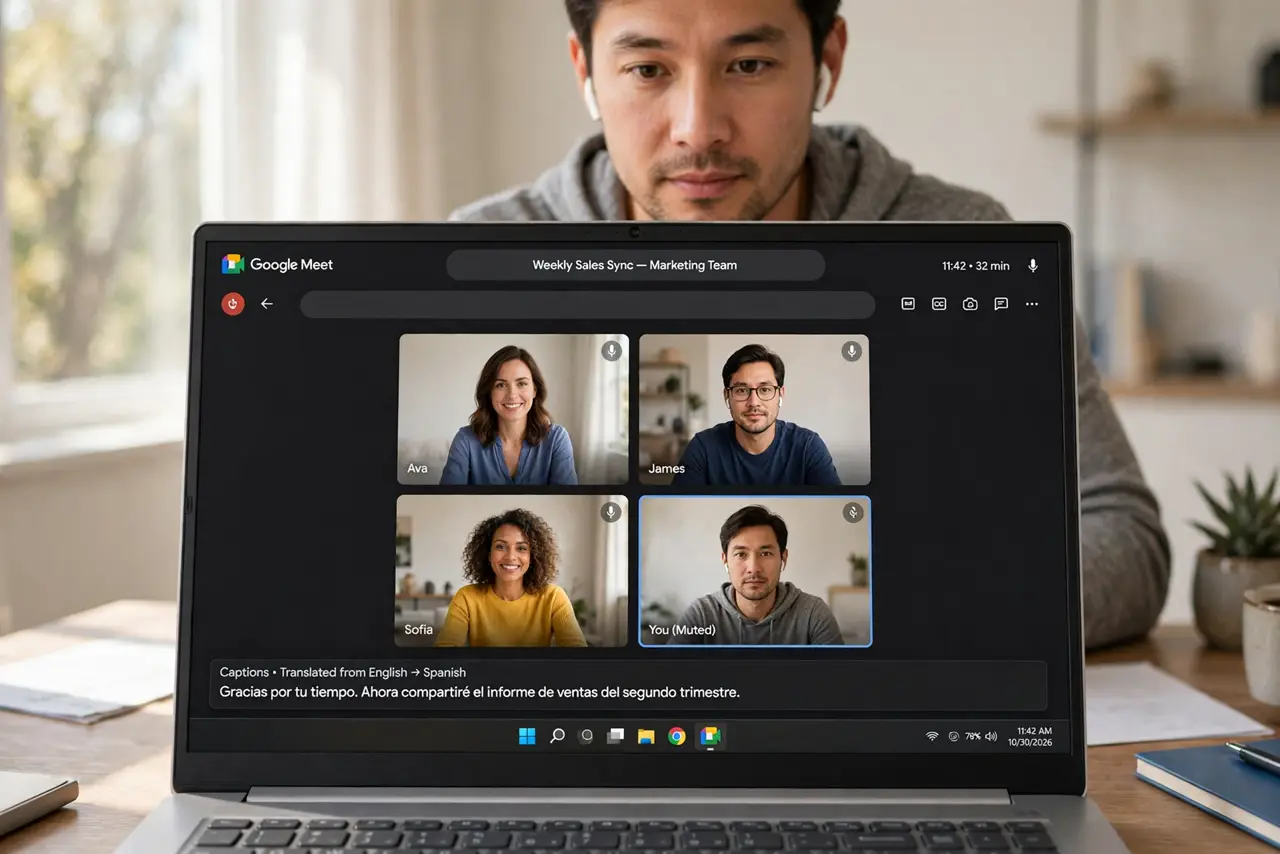
The meeting is in Spanish, your Portuguese is rusty, and the slides are in English — a normal Tuesday in global teams. Google Meet can translate captions live, turning spoken words into readable subtitles in your language as people talk. This guide enables translated captions, picks the language pair, and knows the accuracy limits. For the same idea in Teams, see captions in Teams.
TL;DR / Quick Fix
Quick fix: in a Meet call, click the captions button, open caption settings, and turn on Translated captions — choose your language. It works best with clear, steady speech and one speaker at a time. Treat it as a comprehension aid, not a certified translation.
Follow these steps
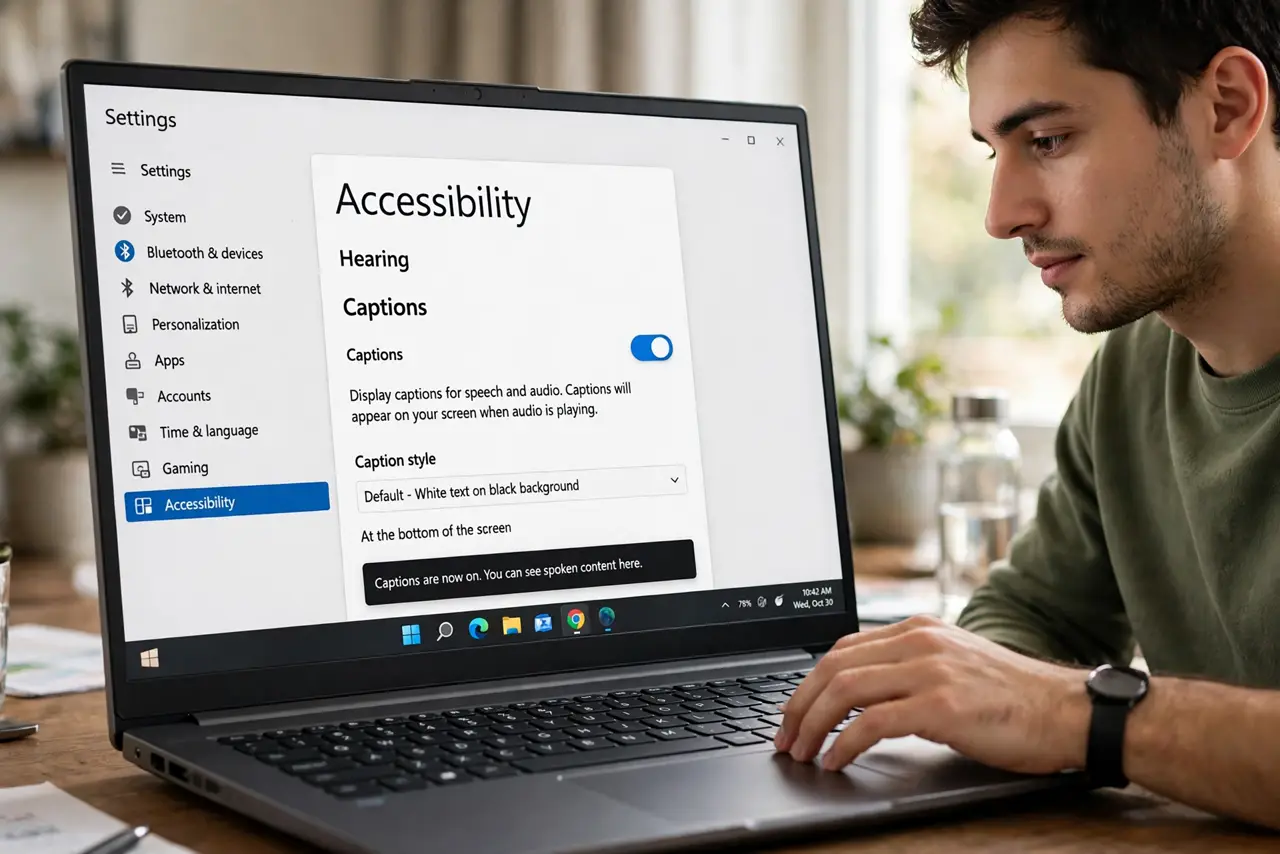
- Turn on captions. In the Meet call, click the CC button to enable captions. Standard captions in the spoken language appear first — translation builds on them.
- Enable translated captions. Open the caption settings (the gear on the captions) and turn on Translated captions, then pick your language. The spoken words now render in your chosen tongue.
- Set expectations on accuracy. Clear speech in a quiet room translates well; crosstalk, slang, and heavy accents degrade it fast. It is a comprehension aid, not a legal translator.
- One speaker at a time. Translation quality collapses when people talk over each other. The meeting norm that helps humans helps the translator too.
- Use it for the gist, verify the details. Numbers, names, and commitments deserve confirmation in a shared language or in writing. The translation gets you 90 percent there — verify the last 10 percent.
- Know the plan limits. Translated captions availability varies by Google Workspace plan. If the option is missing, the admin or the plan is the reason — check both.
What NOT to do
- Do not trust translated numbers blindly. Figures, dates, and amounts need explicit confirmation — translation errors love digits.
- Do not enable it silently for sensitive talks. Participants should know the conversation is being transcribed and translated.
- Do not expect rare languages to work well. Major languages translate best; coverage thins out fast beyond them.
- Do not skip the human check for decisions. 'We agreed' needs a written summary in a shared language, not just translated captions.
Frequently asked questions
Which languages are supported?
Google supports dozens of language pairs, with the best quality on major languages. Check Meet's help pages for the current list.
Does it work on the free Meet plan?
Translated captions have plan restrictions — the basic captions work everywhere, translation depends on the Workspace tier.
Can I save the translated transcript?
Where transcripts are available, they save in the spoken language. The translation itself is a live aid, not a saved document.