Stop Your Mic Picking Up Fan Noise
If everyone on your calls hears your computer fan more than your voice, the microphone is probably too sensitive, too close to the vent, or picking up a fan working too hard. You do not need a new microphone to fix most of this. Change one setting at a time and test with a short recording.
TL;DR / Quick Fix
Quick fix: move the microphone away from the computer vent and lower its input volume. Then turn on noise suppression in Windows or your calling app, close heavy programs that spin the fan up, and test with a short voice recording before your next call.
Follow these steps
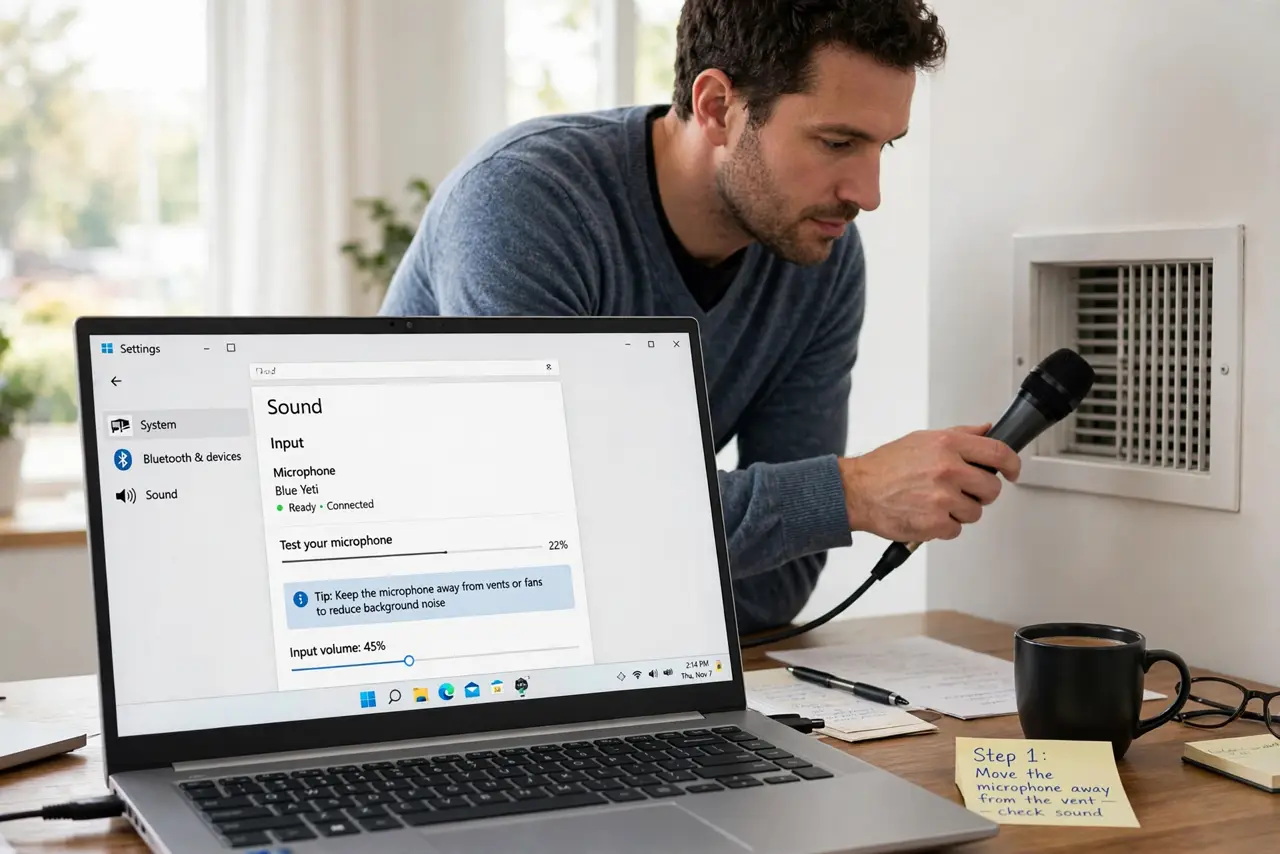
- Move the microphone away from the vent. Put the microphone on the opposite side from the exhaust vent, or move the laptop so the vent does not blow toward it. Even a small move can cut fan noise a lot.
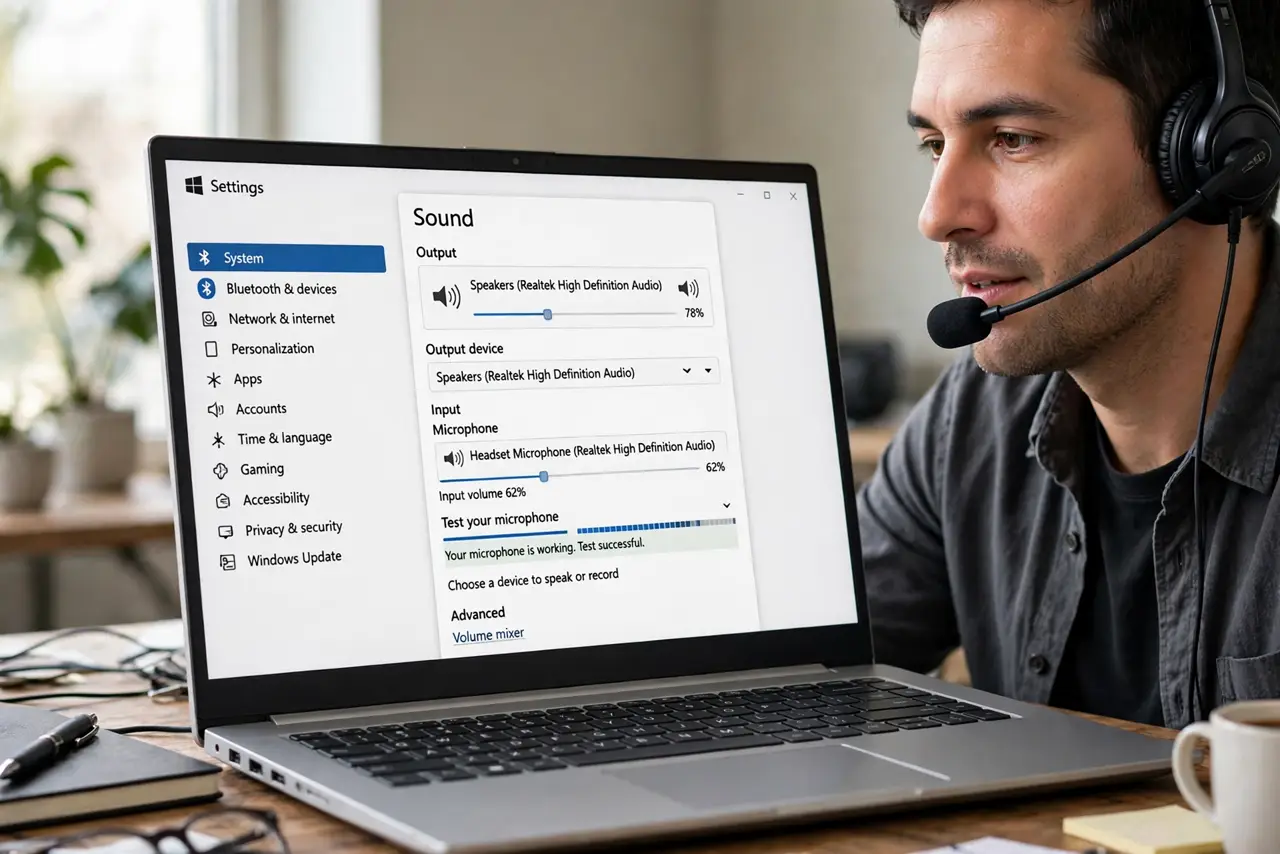
- Lower the microphone input volume. Open Settings, then System, then Sound, select your microphone, and lower the input volume until your voice is clear but background noise drops. Test with a recording after each change.
- Turn on noise suppression. In Windows sound settings or in your calling app, turn on noise suppression or noise removal if offered. This filters steady sounds like fans while keeping your voice.
- Close heavy programs before calls. Close games, video editors, and dozens of browser tabs before a call. Less work means less heat, a slower fan, and less noise for the microphone to pick up.
- Clear dust from vents with care. With the computer off and unplugged, clear visible dust from vents with short bursts of compressed air held upright. Do not open the computer case unless you know how to do it safely.
- Test with a short recording. Record ten seconds of speech in the quiet room you will use for calls. If you still hear the fan clearly, lower the input volume a little more and record again.
What NOT to do
- Do not turn the microphone volume to maximum. That raises fan noise just as much as your voice and makes the problem worse.
- Do not cover the vents to silence the fan. Blocked vents cause overheating, which makes the fan run harder and can damage the computer.
- Do not buy an expensive microphone first. Placement, input volume, and noise suppression fix most fan noise without new hardware.
- Do not mute and unmute constantly during calls as a workaround. Fix the input level once, so you sound clear for the whole call.
Frequently asked questions
Why does the fan sound louder to others than to me?
Your microphone sits close to the computer, so it hears the fan far more clearly than you do across the room.
Does noise suppression change how I sound?
It can slightly soften your voice, so test a recording and use the lowest suppression level that removes the fan noise.
What if the fan is always loud, even with no programs open?
Check Task Manager for a stuck program using the processor, and clear blocked vents. If it stays loud, the cooling may need professional attention.