Mobile Hotspot Turns Off by Itself? Stop the Drop
You turn the hotspot on, and a short while later it is off again, cutting off the phone or tablet that was using it. Windows often turns it off to save power, or because no device is connected. Both causes have a setting.
TL;DR / Quick Fix
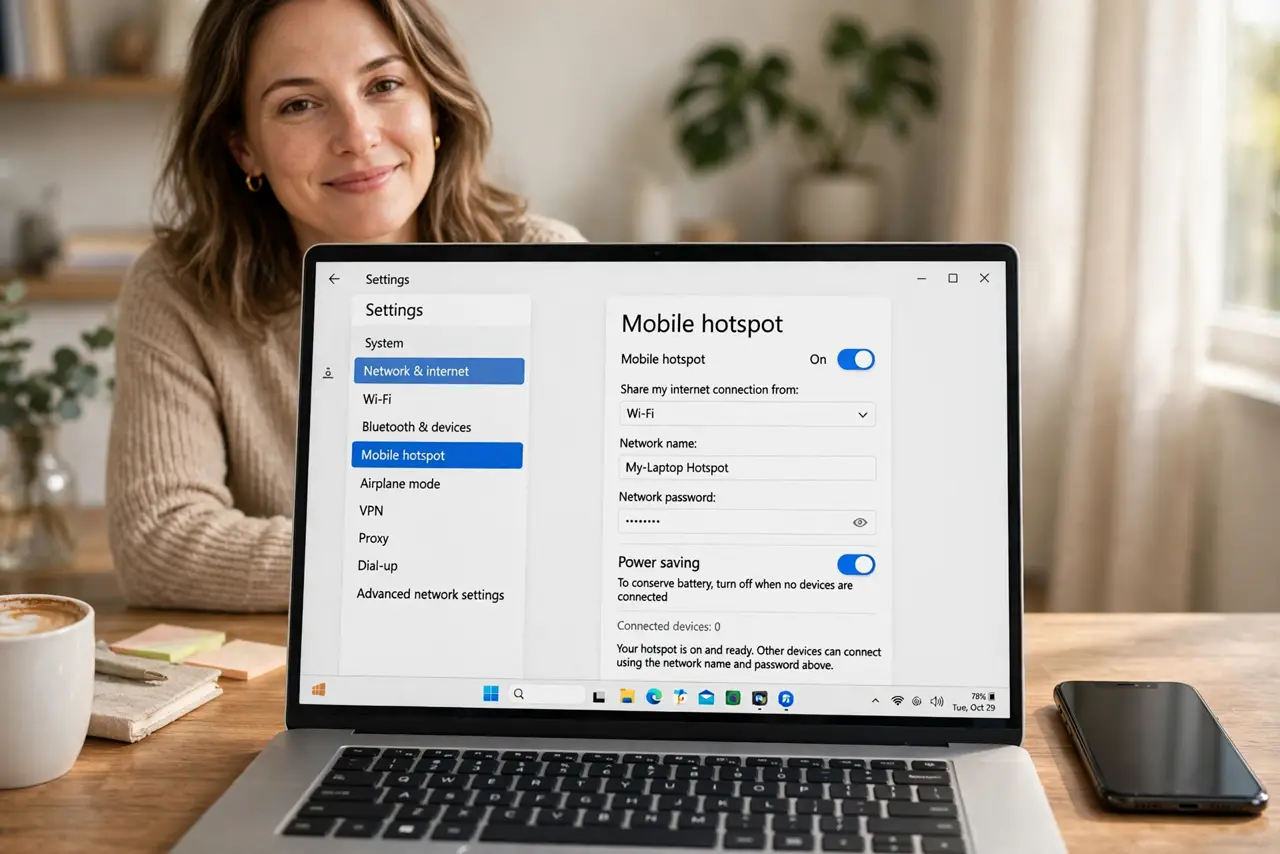
Quick fix: open Settings, then Network and internet, then Mobile hotspot, and turn off power saving for the hotspot. Also confirm a device is actually connected, then test for a full session without touching the hotspot switch, and restart the hotspot once before you judge the result.
Follow these steps
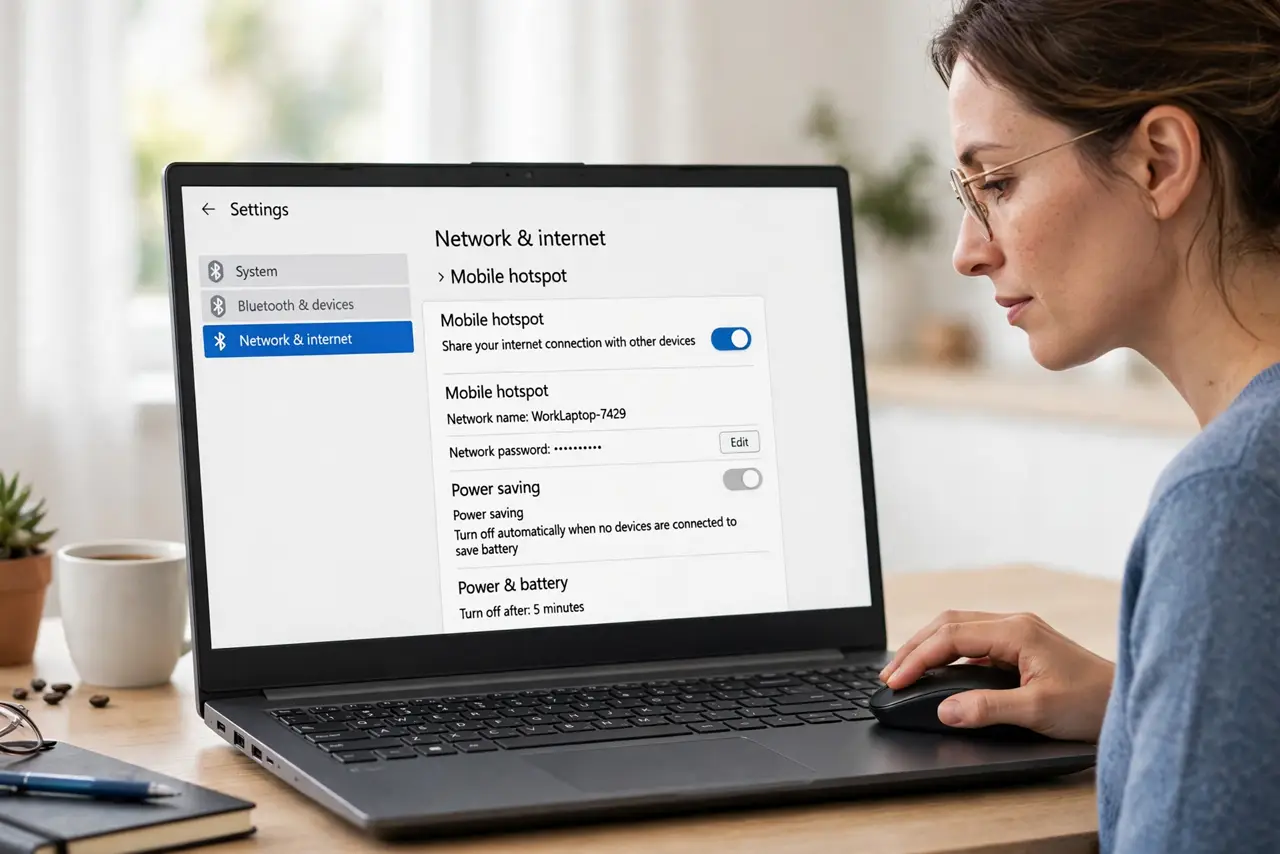
- Turn off hotspot power saving. Open Settings, then Network and internet, then Mobile hotspot, and turn off the power saving option. This option lets Windows switch the hotspot off when it thinks nothing needs it.
- Confirm a device is connected. Connect a phone or tablet and confirm it shows in the hotspot device list. Windows can switch the hotspot off when no device is connected, even if you just turned it on.
- Keep the connected device active. Use the connected device normally instead of letting it sleep at once. A device that sleeps and drops off can look like the hotspot itself turned off.
- Check the hotspot network settings. In the same hotspot page, confirm the network name and band are set, and that the hotspot switch itself is on. A band your device cannot use will make the hotspot seem dead.
- Restart the hotspot. Turn the hotspot off, wait a few seconds, and turn it on again, then reconnect the device. A fresh start clears a stuck hotspot state without changing any other setting.
- Restart the computer if it still drops. Save your work, restart, turn the hotspot on, and test for a full session. If it still switches off with power saving disabled, check for a pending Windows update.
What NOT to do
- Do not keep retyping the hotspot password. A hotspot that turns itself off is a power or timeout behavior, not a password problem.
- Do not assume the connected device is at fault. Check the hotspot power saving setting first, because it is designed to switch the hotspot off on its own.
- Do not test with no device connected. An empty hotspot switching off proves nothing about whether it stays on during real use.
- Do not leave the hotspot on all day to avoid the problem. Fix the power saving setting, so the hotspot behaves the same way every session.
Frequently asked questions
Why does Windows turn the hotspot off?
To save power, and when no device is connected. The power saving option in the hotspot settings controls that behavior.
Does the hotspot need the laptop plugged in?
Not necessarily, but battery saving can be stricter on battery power. Test plugged in if it drops only when unplugged.
Will turning off power saving drain the battery faster?
Slightly, while the hotspot is on. Turn the hotspot off by hand when you finish, instead of leaving it running all day.