Fix Double NAT with Bridge Mode
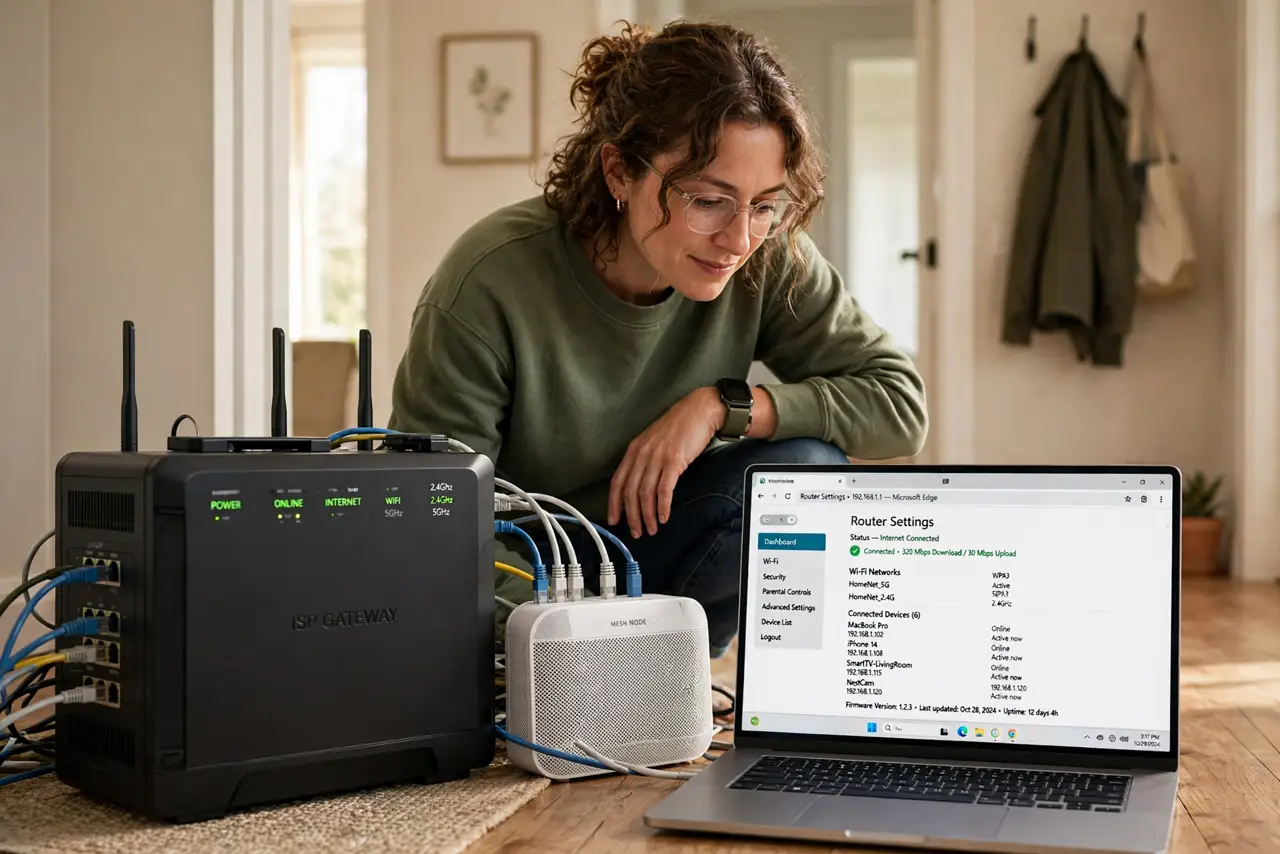
Your ISP's modem is also a router, and your nice mesh system is also a router — two routers in a row means double NAT, which breaks online gaming, video calls, and port forwarding in confusing ways. Bridge mode turns the ISP box into a dumb modem and lets your router do the routing. Here is the safe way to switch.
TL;DR / Quick Fix
Double NAT happens when your ISP modem-router and your own router both do routing, breaking gaming, calls, and port forwarding. Fix it by putting the ISP device in bridge mode. Log into the ISP modem, enable bridge or passthrough mode, then reboot modem-first. Confirm symptoms with the double NAT explainer.
Follow these steps
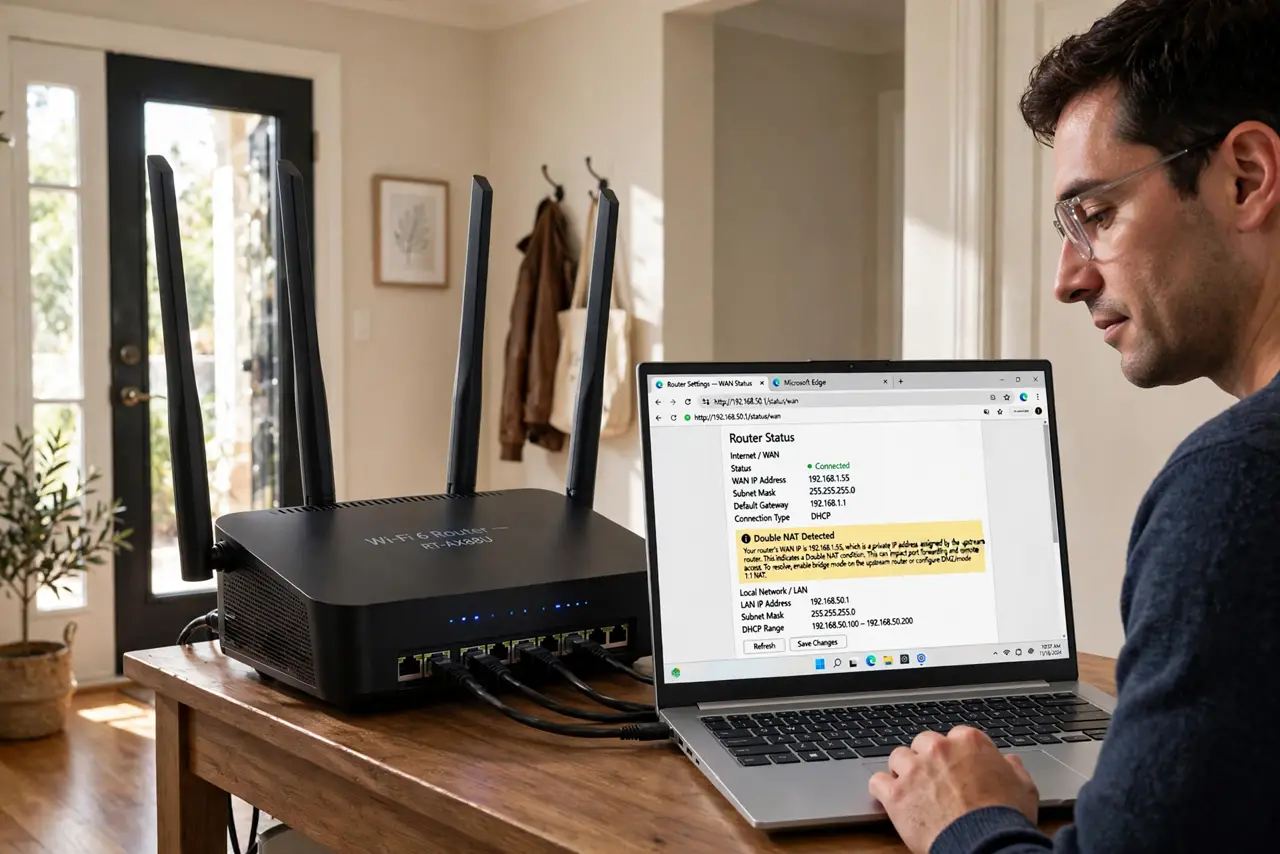
- Confirm you actually have double NAT. Check your router's WAN IP: if it is a private address (10.x, 172.16-31.x, or 192.168.x) while the ISP modem also routes, that is double NAT. The symptom checklist helps confirm before you change anything.
- Log into the ISP modem's settings. Find its address (often 192.168.0.1 or 192.168.1.1) on the sticker, sign in with the admin credentials, and look for Bridge Mode, Passthrough, or 'disable routing' options.
- Enable bridge or passthrough mode. Turn the mode on and save. The ISP box stops acting as a router — its Wi-Fi usually turns off too, which is expected. Your own router now handles everything.
- Reboot in the right order. Power everything off, then bring up the modem first, wait for its lights to settle, then power on your router. Order matters: the router needs the modem ready when it asks for an address.
- Verify the fix. Check your router's WAN IP again — it should now be a public address. Test the game, call, or service that was failing.
- Write down what you changed. Note the setting and the modem's login. If the ISP ever resets the modem remotely, you will know exactly what to re-enable.
What NOT to do
- Do not enable bridge mode on the wrong device. Bridging your own router instead of the ISP modem kills your network — the ISP box is the one to dumb down.
- Do not skip the reboot order. Modem first, then router — reversing it leaves the router asking for an address nobody is ready to give.
- Do not forget the modem's Wi-Fi dies in bridge mode. Move every device to your router's Wi-Fi before switching, or gadgets will silently drop offline.
- Do not factory-reset the ISP modem in frustration. A reset wipes bridge mode and any ISP provisioning — re-enabling provisioning can require a support call.
Frequently asked questions
Will bridge mode make my internet faster?
Not faster — it removes the double-NAT breakage. Speed stays the same; gaming, calls, and port forwarding start working properly.
What if my ISP modem has no bridge mode?
Some ISP firmware hides it — call support and ask them to enable bridge or passthrough remotely. They do this routinely.
Can I just use the ISP modem's Wi-Fi instead?
You can, and that also avoids double NAT — but you lose your own router's features and coverage. Bridge mode keeps your gear in charge.