Bridge Mode on ISP Gateway? Setup
You bought a great router, but the ISP's gateway insists on routing too — hello, double NAT, broken port forwarding, and two Wi-Fi networks fighting. Bridge mode tells the gateway to stop routing and act as a plain modem, handing your router the public connection directly. It is the single most useful gateway setting most people never touch.
TL;DR / Quick Fix
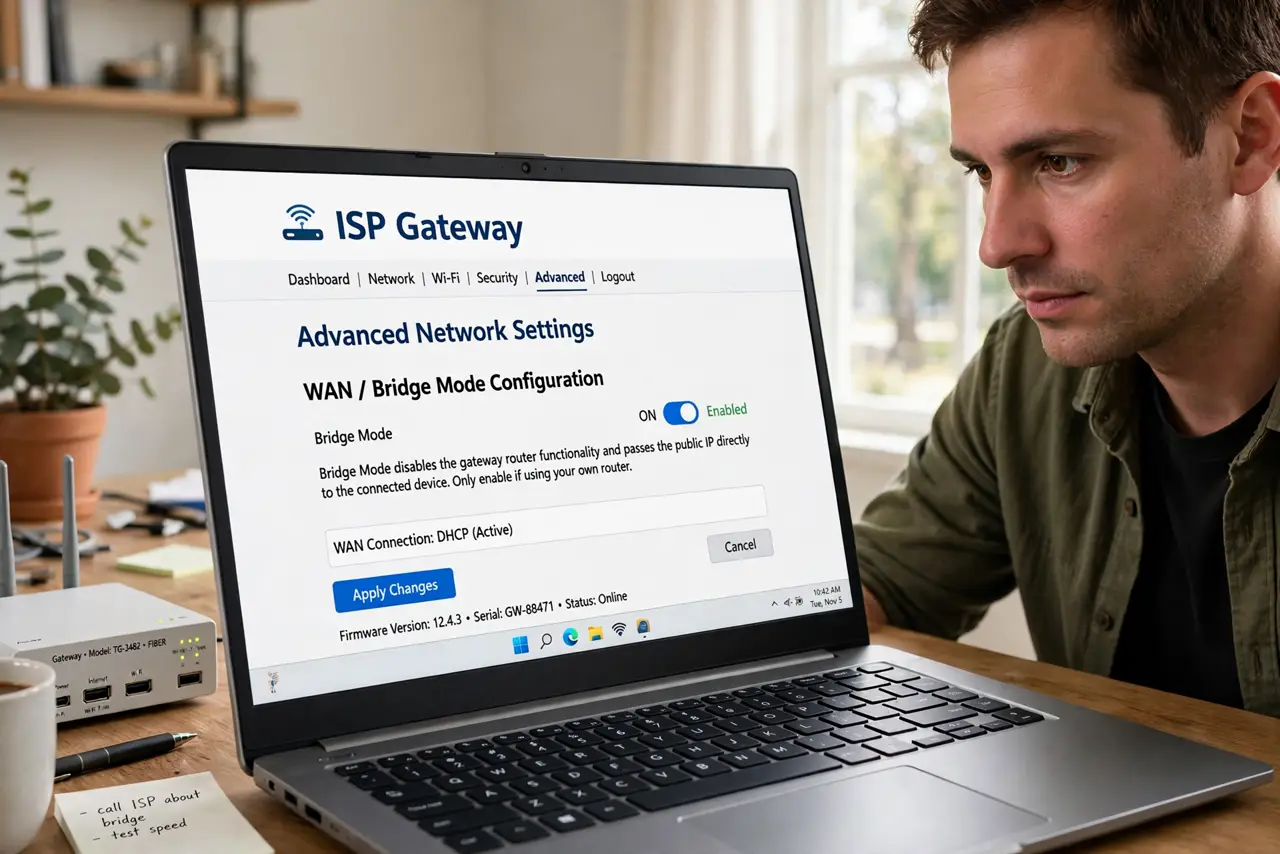
Quick fix: log into your ISP gateway's admin page, find the bridge mode or passthrough setting, and enable it — your personal router then handles everything. This ends double NAT in one move. Note the gateway's own Wi-Fi usually turns off, so plan coverage from your router.
Follow these steps
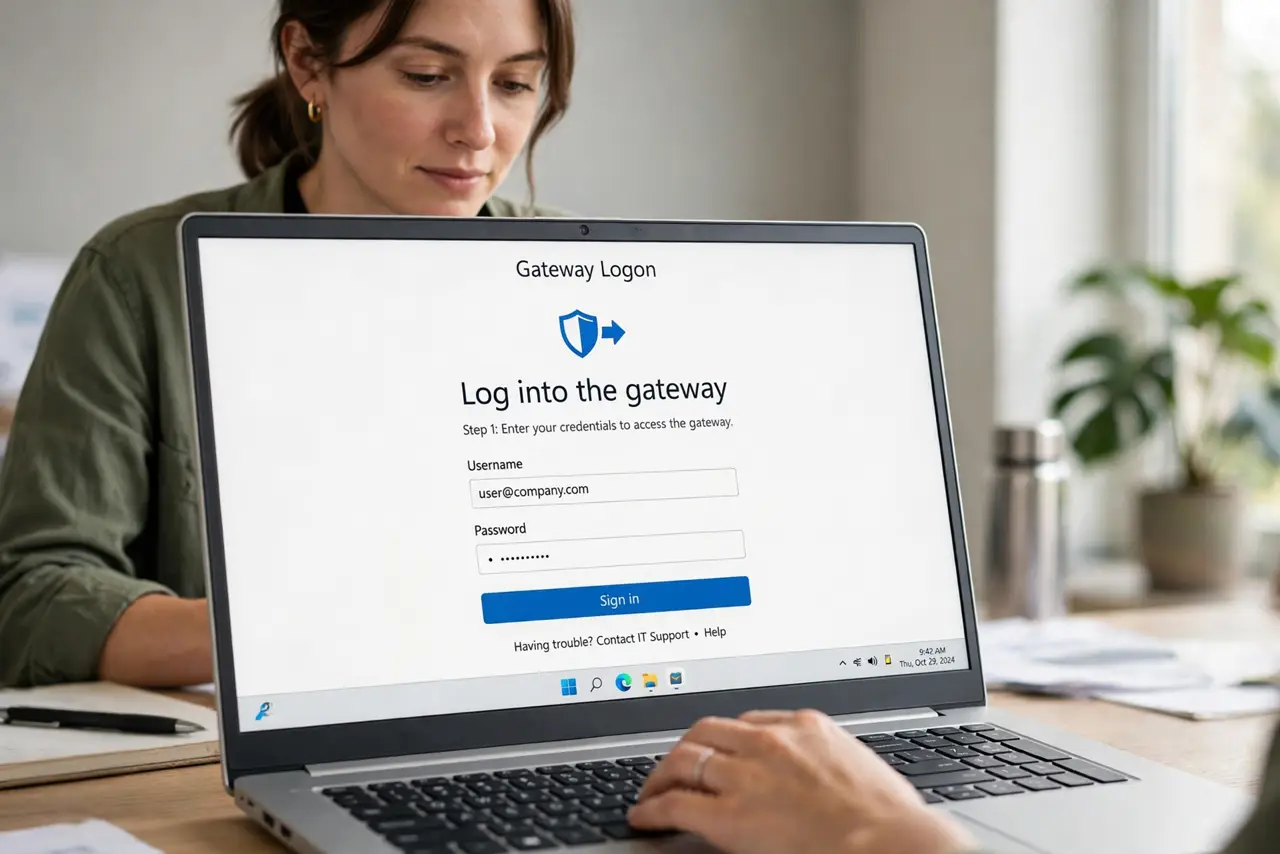
- Log into the gateway. Find the admin address and password on the gateway's sticker (often 192.168.0.1 or similar). Use a wired connection if Wi-Fi gets flaky mid-change.
- Find the bridge/passthrough setting. Look under Gateway, Connection, or WAN settings for 'Bridge Mode', 'True Bridge', or 'IP Passthrough'. The exact name varies by ISP and model.
- Enable it and let the gateway reboot. The gateway restarts as a simple modem. Its routing, firewall, and usually its Wi-Fi switch off — that is expected, not a failure.
- Confirm your router got the public IP. Check your personal router's WAN status: it should now show a public internet address, not a private 192.168.x.x. That is the proof single NAT is restored.
- Re-point port forwarding and services. Any rules you built now live on your router only. Old gateway-side rules are gone with its routing — rebuild them once, in one place.
- Know how to undo it. A factory reset of the gateway restores its routing. If bridge mode breaks something (like ISP TV service), reset and reconsider — some ISP features need their gateway routing.
What NOT to do
- Do not enable bridge mode without your own router ready. In bridge mode the gateway stops giving out Wi-Fi and addresses — no router means no network.
- Do not forget the gateway's Wi-Fi dies too. Plan coverage from your router (or mesh) before flipping the switch.
- Do not panic when the gateway 'loses internet' lights. Its status lights change meaning in bridge mode — judge by whether your router is online.
- Do not assume every ISP allows it. Some lock the setting or break TV/phone service in bridge mode — check with them first if you bundle services.
Frequently asked questions
Will bridge mode make my internet faster?
Not directly — but it removes double-NAT breakage and lets your better router do its full job, which often feels faster.
Can I still access the gateway's settings after?
Usually yes at its LAN address, but some gateways become hard to reach in bridge mode — screenshot your settings pages first.
My ISP TV box stopped working — related?
Possibly. Some TV/phone services depend on the gateway's routing. If so, you may need the gateway routing with your router as an access point instead.