Read Modem Signal Levels
When your connection drops at random, the culprit is often the signal arriving at your modem — too weak, too strong, or too noisy. Your modem's status page shows these levels as plain numbers, and knowing the healthy ranges turns a vague 'internet is down' call into a precise report. This guide shows where to look and what the numbers mean, and pairs with the signal basics reference.
TL;DR / Quick Fix
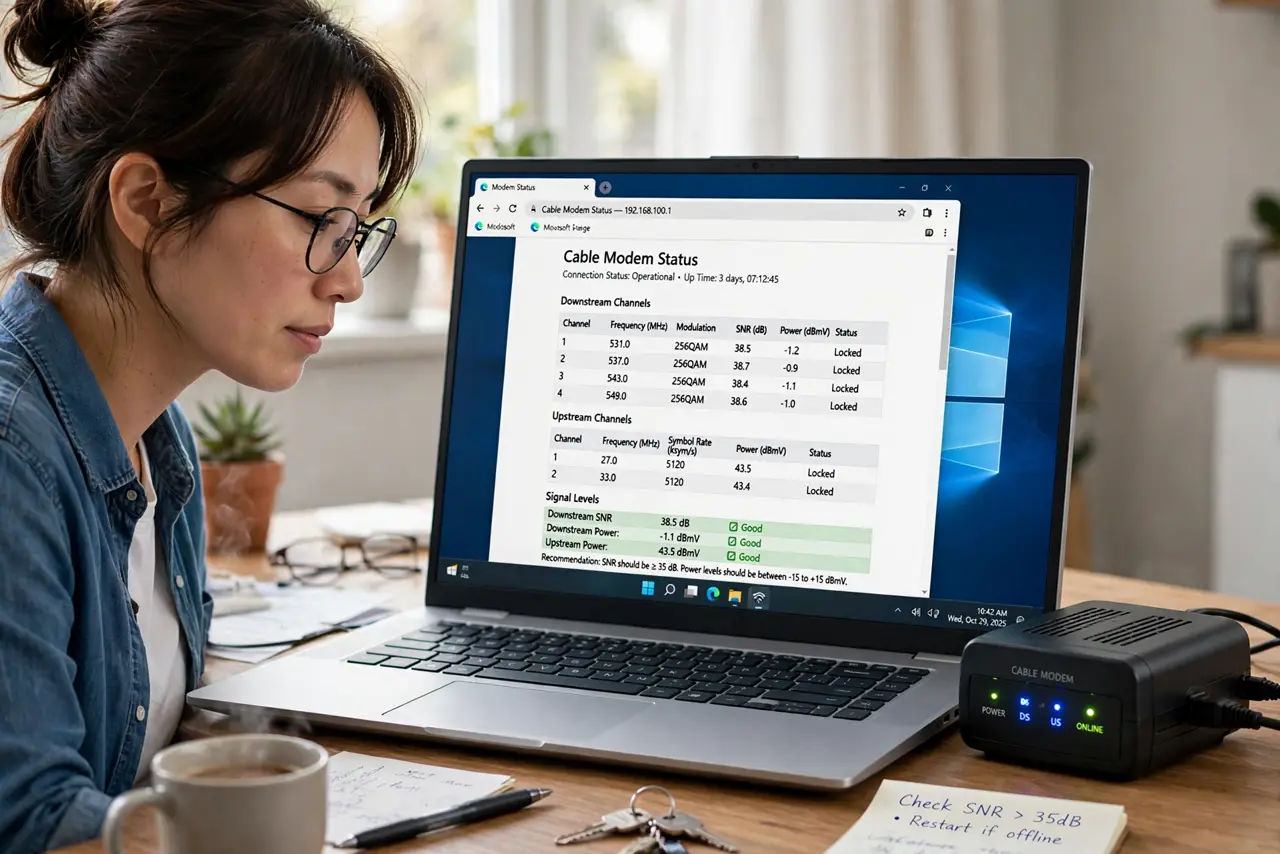
Quick fix: log into your modem at 192.168.100.1 and check the downstream power (ideal between -7 and +7 dBmV) and SNR (above 33 dB), plus upstream power (below about 50 dBmV). Values outside these ranges mean a line or wiring problem — call your provider with the numbers ready.
Follow these steps
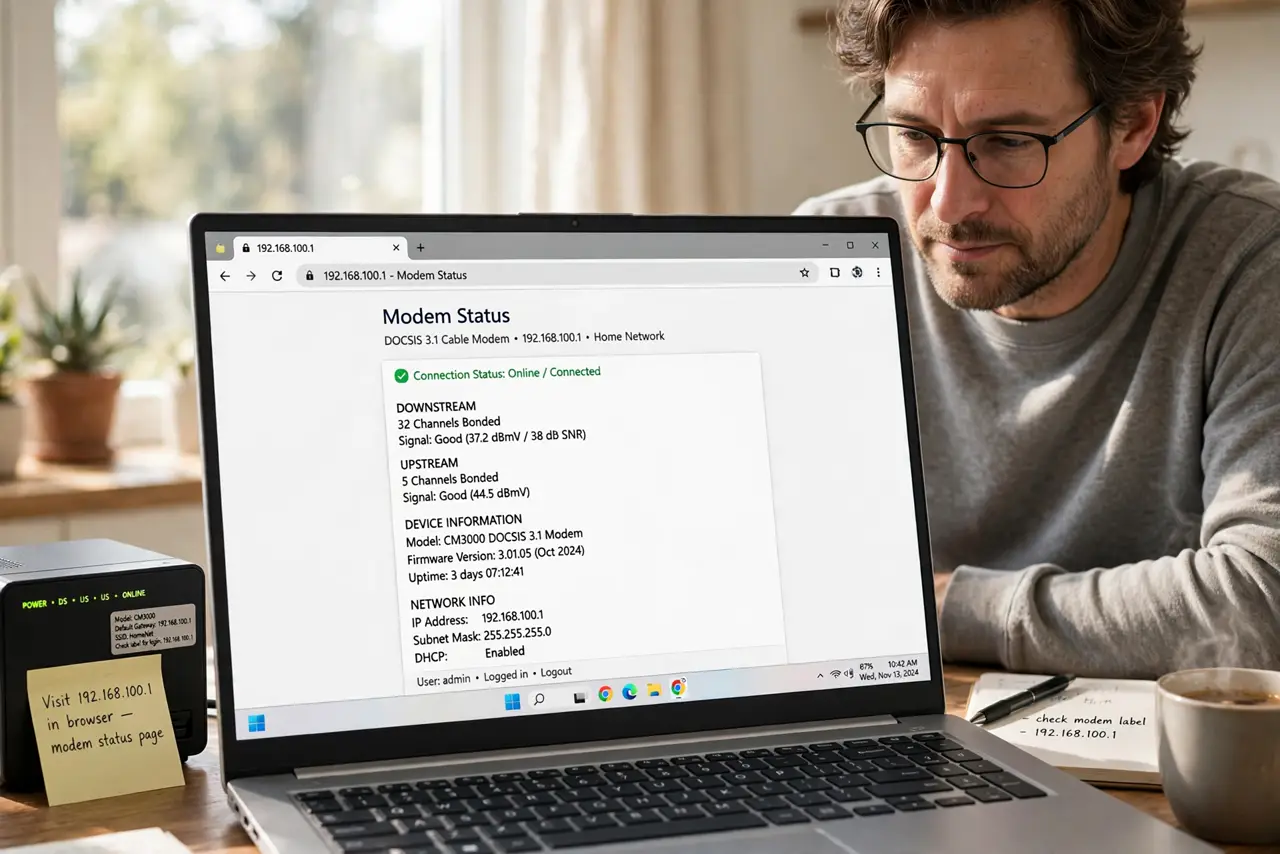
- Open your modem's status page. Connect to your home network and visit 192.168.100.1 in a browser — the common default for standalone modems. Some use 192.168.0.1; check the modem's label.
- Find the downstream power level. Look for 'Downstream Power' or 'Rx Power', measured in dBmV. Healthy is roughly -7 to +7 dBmV. Far outside that range means the signal arriving is too weak or too hot.
- Check the downstream SNR. SNR (signal-to-noise ratio) should be above about 33 dB, higher being better. Low SNR means noise is drowning the signal — a classic cause of intermittent drops.
- Check the upstream power. Upstream (Tx) power should sit below about 50 dBmV. If it is climbing toward 52+, your modem is shouting to be heard — usually a wiring or splitter problem.
- Look for uncorrectable errors. The status page lists codeword errors. A few are normal; thousands of uncorrectables accumulating fast means the line is genuinely bad.
- Call your provider with the numbers. Say: 'downstream power X, SNR Y, upstream Z, with N uncorrectables.' Techs take numeric reports far more seriously than 'it's slow sometimes' — and it gets you past the reboot script.
What NOT to do
- Do not factory-reset the modem as a first step. A reset wipes your settings and rarely fixes a signal-level problem — check the numbers first.
- Do not ignore a splitter daisy-chain. Every splitter weakens the signal; one bad or unnecessary splitter is the most common fixable cause.
- Do not confuse Wi-Fi signal with modem signal. These levels describe the cable line into your home — your Wi-Fi bars are a separate issue.
- Do not keep rebooting hoping it sticks. If the levels are out of range, no amount of rebooting fixes physics — the line needs attention.
Frequently asked questions
What if I can't reach the status page?
Some provider-locked gateways hide it, or use a different address. Check the modem label or your provider's app; if it is a modem-router combo, the address may differ.
My levels are fine but the internet still drops — now what?
Then the problem is past the modem: router, Wi-Fi, or the provider's network. Note the time pattern of drops — that detail helps the tech enormously.
Can I fix bad levels myself?
Sometimes: tighten every coax connector by hand, remove unneeded splitters, and replace visibly damaged cable. If levels stay out of range, it is the provider's line — call them.