Daisy-Chain Monitors
Two monitors, one cable from the laptop — no dock, no splitter mess. DisplayPort's daisy-chaining (MST) lets you string monitors together like holiday lights: laptop to monitor one, monitor one to monitor two, all over a single connection. It is elegant when it works and baffling when it does not, because every link in the chain has requirements. This guide checks compatibility and sets it up. For the dock-based alternative, see how to dock your laptop.
TL;DR / Quick Fix
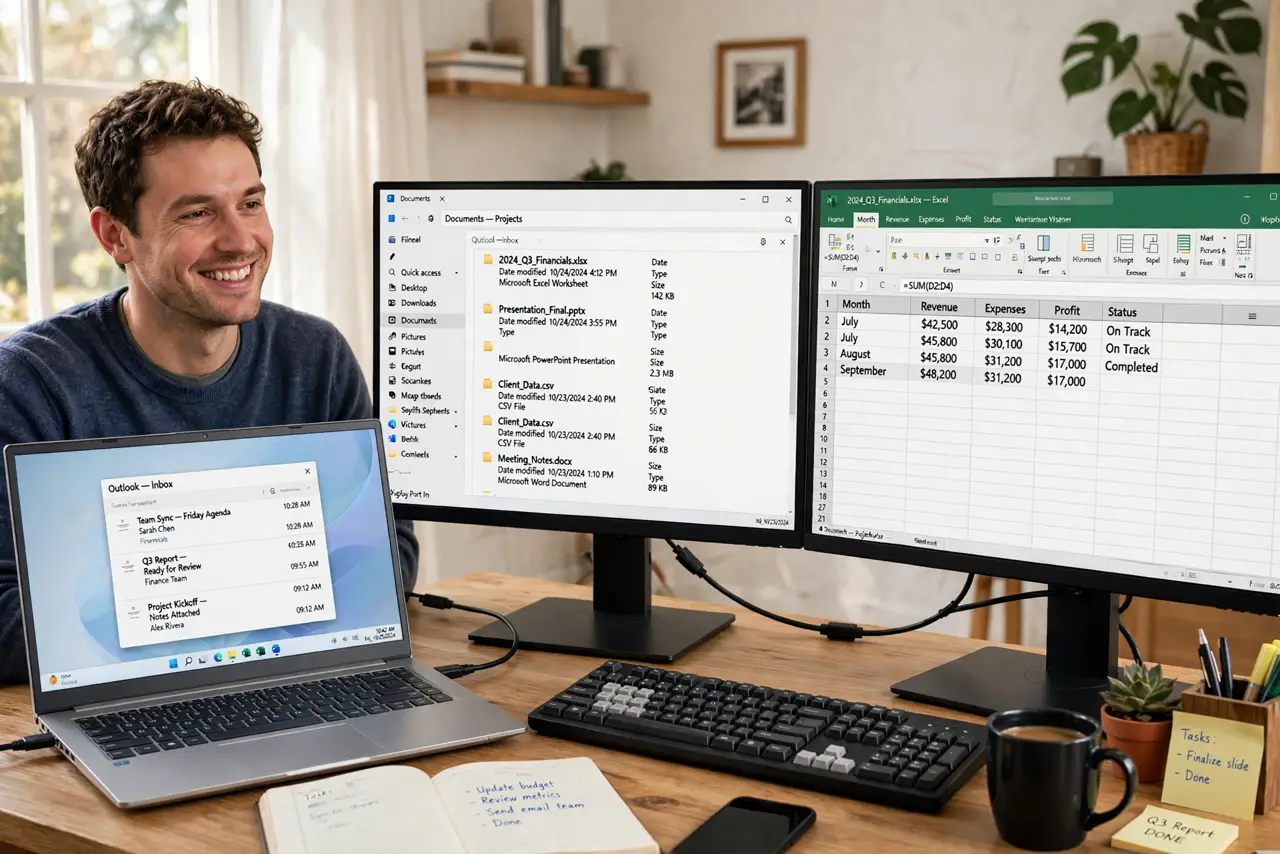
Quick fix: daisy-chaining needs DisplayPort 1.2 or newer on the laptop, cables, and both monitors — plus a DP-out port on the first monitor. Enable MST on the monitors, then arrange displays in your OS settings. It handles two 1080p or 1440p screens well; dual 4K needs newer standards.
Follow these steps
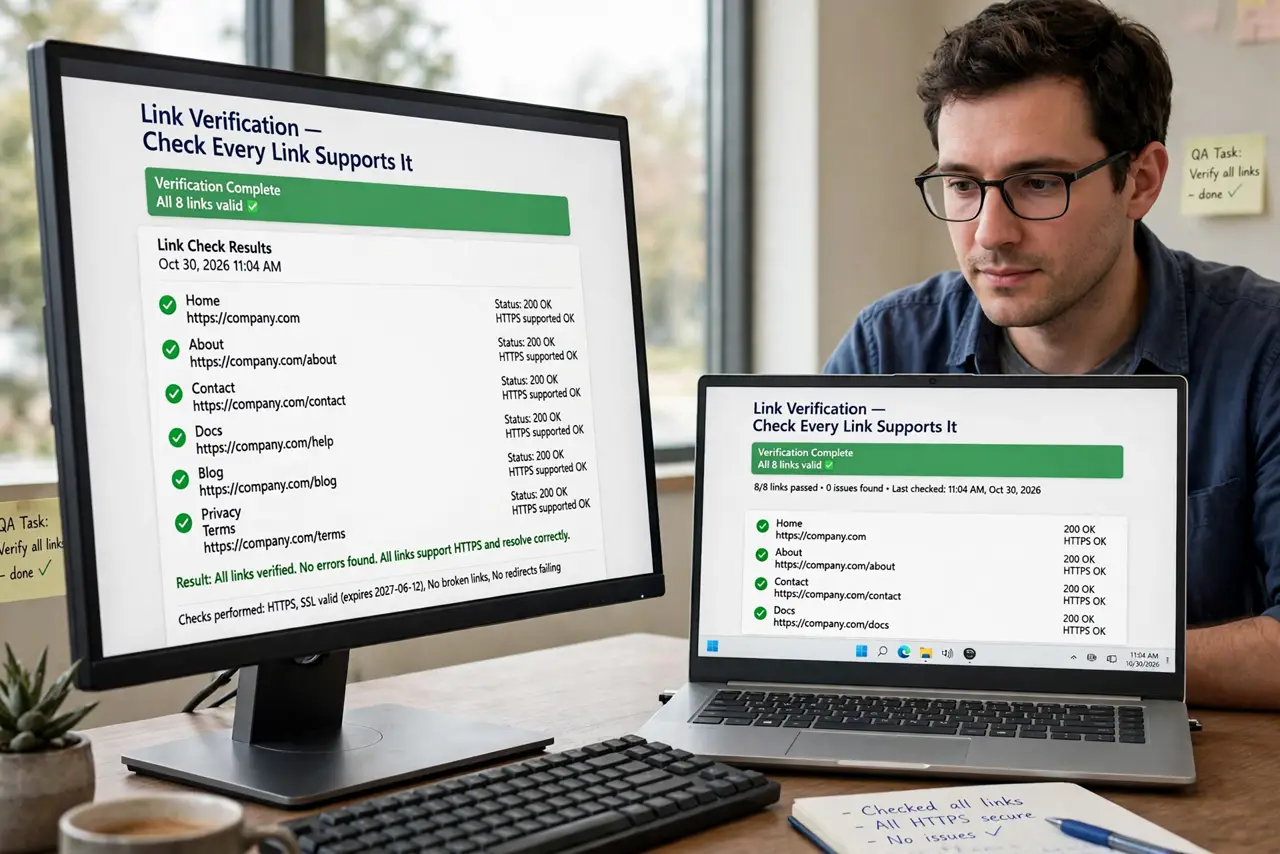
- Check every link supports it. The laptop's port, the cable, and both monitors need DisplayPort 1.2+ with MST — and the first monitor needs a DP output port. One weak link breaks the chain; check specs before buying cables.
- Use real DisplayPort cables. Not all cables carry the full signal. Certified DisplayPort cables rated for your resolution avoid the flickering and dropouts that plague cheap ones.
- Connect in series. Run one cable from the laptop to monitor one's DP in, then a second cable from monitor one's DP out to monitor two's DP in. That is the whole physical setup.
- Enable MST on the monitors. In each monitor's on-screen menu, turn on DisplayPort 1.2 / MST mode. Many monitors ship with it off — the chain silently fails until you enable it.
- Arrange in display settings. Open your OS display settings and arrange the two screens to match their physical positions. Set the primary display and scaling per monitor.
- Know the bandwidth limits. One cable shares bandwidth: two 1080p or 1440p monitors work great on DP 1.2; dual 4K wants DP 1.4+ with compression. Exceeding the budget gives you a black second screen.
What NOT to do
- Do not assume HDMI can do this. Daisy-chaining is a DisplayPort (and some USB-C/Thunderbolt) feature — HDMI ports do not chain.
- Do not buy the second monitor without a DP-out check. Only specific monitors have the output port; most budget ones do not.
- Do not use bargain cables for the chain. Each link must carry full bandwidth — one cheap cable degrades everything downstream.
- Do not enable MST and expect the monitor's USB hub to keep working. Some monitors disable USB passthrough in MST mode — check the manual.
Frequently asked questions
Can I daisy-chain three monitors?
Technically yes with enough bandwidth, but two is the practical sweet spot. Three usually means dropping resolutions.
Does it work on Macs?
Modern Macs with Thunderbolt support DisplayPort chaining through Thunderbolt docks and monitors, with some model-specific quirks — check Apple's specs.
Why is my second monitor black?
Bandwidth exceeded, MST off on a monitor, or a weak cable — in that order of likelihood. Check all three.