Turn an Old Router Into an Access Point
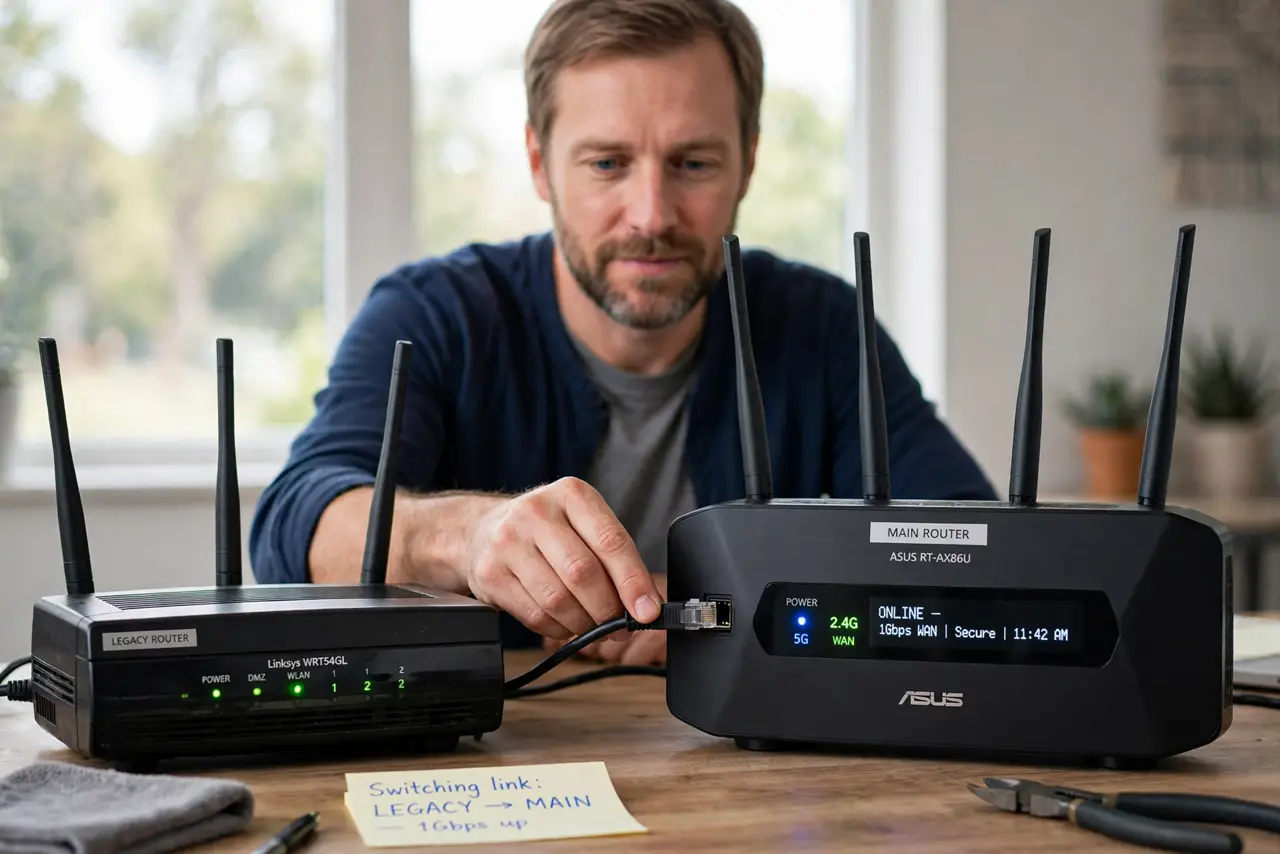
That old router in the drawer can become a Wi-Fi access point for the dead zone — for free. Wired to your main router, it broadcasts the same network from a better spot. The trick is disabling its router brain so the two do not fight.
TL;DR / Quick Fix
Quick fix: run an ethernet cable from the main router to the old one, disable DHCP on the old router, and set the same Wi-Fi name and password. Use [[bridge/AP mode|router-bridge-mode-explained-simply]] if it offers one, and watch for [[IP conflicts|router-ip-address-conflict-warning]].
Follow these steps
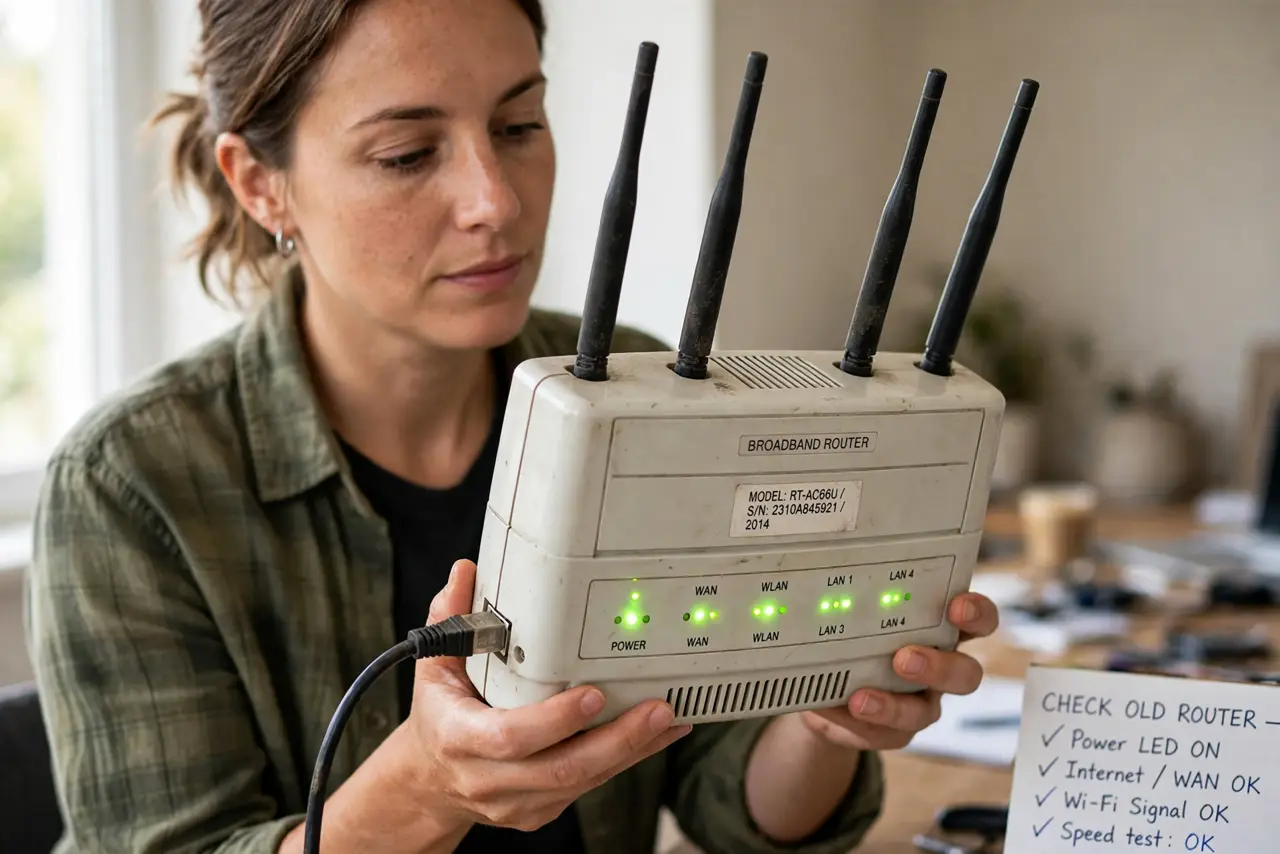
- Check the old router still works. Plug it in and confirm it powers up and broadcasts. A router that was flaky when retired will be flaky as an access point too.
- Look for a built-in AP mode. Many routers have an 'Access Point' or 'Bridge' mode in settings. One toggle does the whole job — use it if present.
- Disable DHCP manually if needed. Without an AP mode, turn off the old router's DHCP server. Two DHCP servers on one network hand out conflicting addresses and break everything.
- Give it a fixed local address. Set the old router to an address like 192.168.1.2, outside the main router's DHCP range. This keeps you able to log into it later.
- Match the Wi-Fi name and password. Use the same network name, password, and security type. Devices will roam between the two points without you managing two networks.
- Place it at the edge of good signal. Put the old router where the main signal gets weak but still works — about halfway to the dead zone. Too far out and it has nothing solid to extend.
What NOT to do
- Do not plug the cable into the old router's WAN port. Use a LAN port, or the old router keeps routing and you get the second-network problem.
- Do not leave DHCP on. This is the number-one mistake — two DHCP servers cause random, maddening connection failures.
- Do not use a different Wi-Fi password. Mismatched credentials force you to manage two networks and your phone will cling to the weak one.
- Do not skip the firmware check. Update the old router once before deploying it; ancient firmware has known security holes.
Frequently asked questions
Is an old router as good as a mesh node?
For one dead zone with a cable run, yes — and free. Mesh wins for seamless roaming across many rooms without cables.
Do I need the same brand?
No. Any router can be an access point for any other; brands interoperate fine over standard Wi-Fi and ethernet.
Why is my old router slower than the main one?
It is older Wi-Fi hardware. It still helps coverage, but do not expect it to match a modern router's speed.