Router Bridge Mode, Explained in Plain English
Bridge mode turns your provider's combo box into a plain modem, so your own router does all the Wi-Fi work. You only need it when two routers fight over the same job — and setting it wrong can knock the whole house offline.
TL;DR / Quick Fix
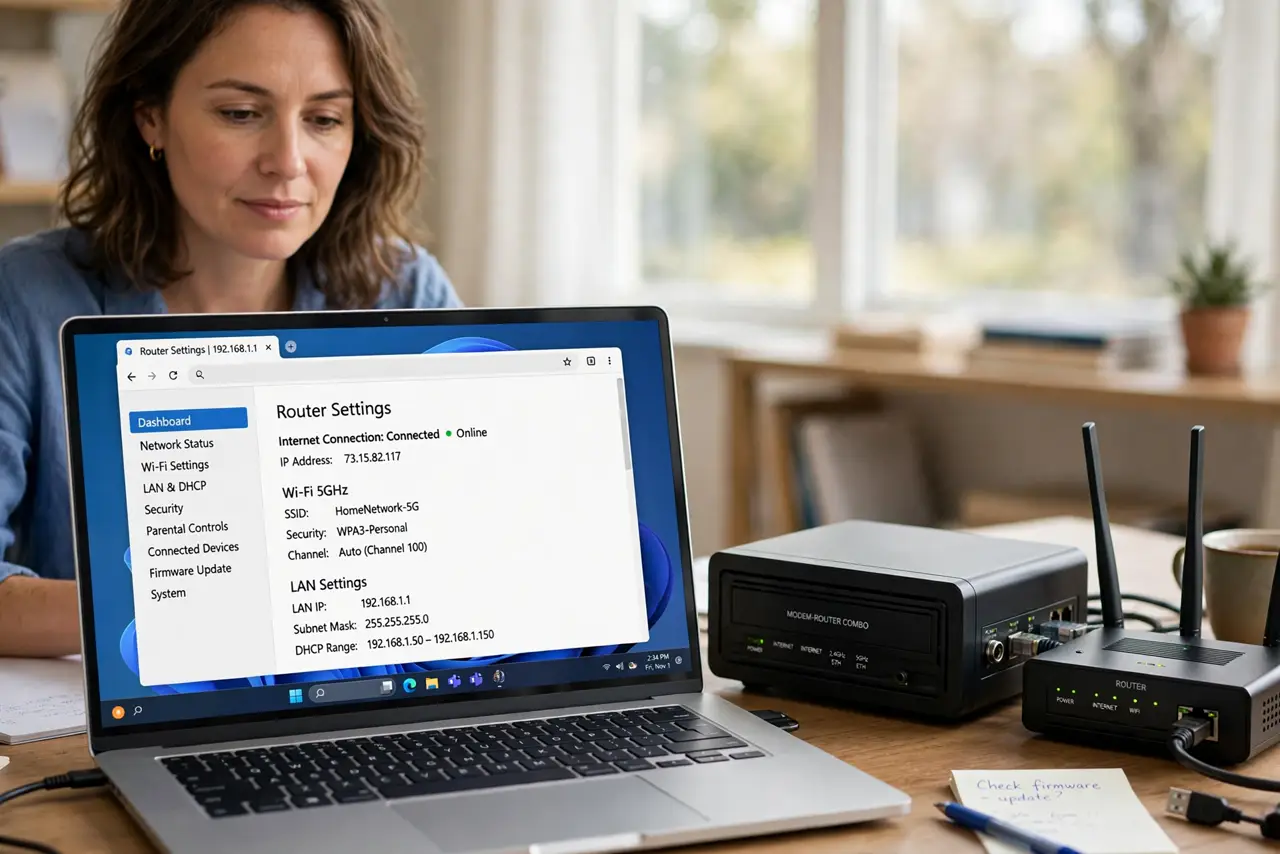
Quick fix: bridge mode is only for homes with a provider combo box plus a separate router. Log into the combo box, find the bridge or passthrough setting, turn it on, then plug your own router's WAN port into the combo box and set up Wi-Fi on your router only.
Follow these steps
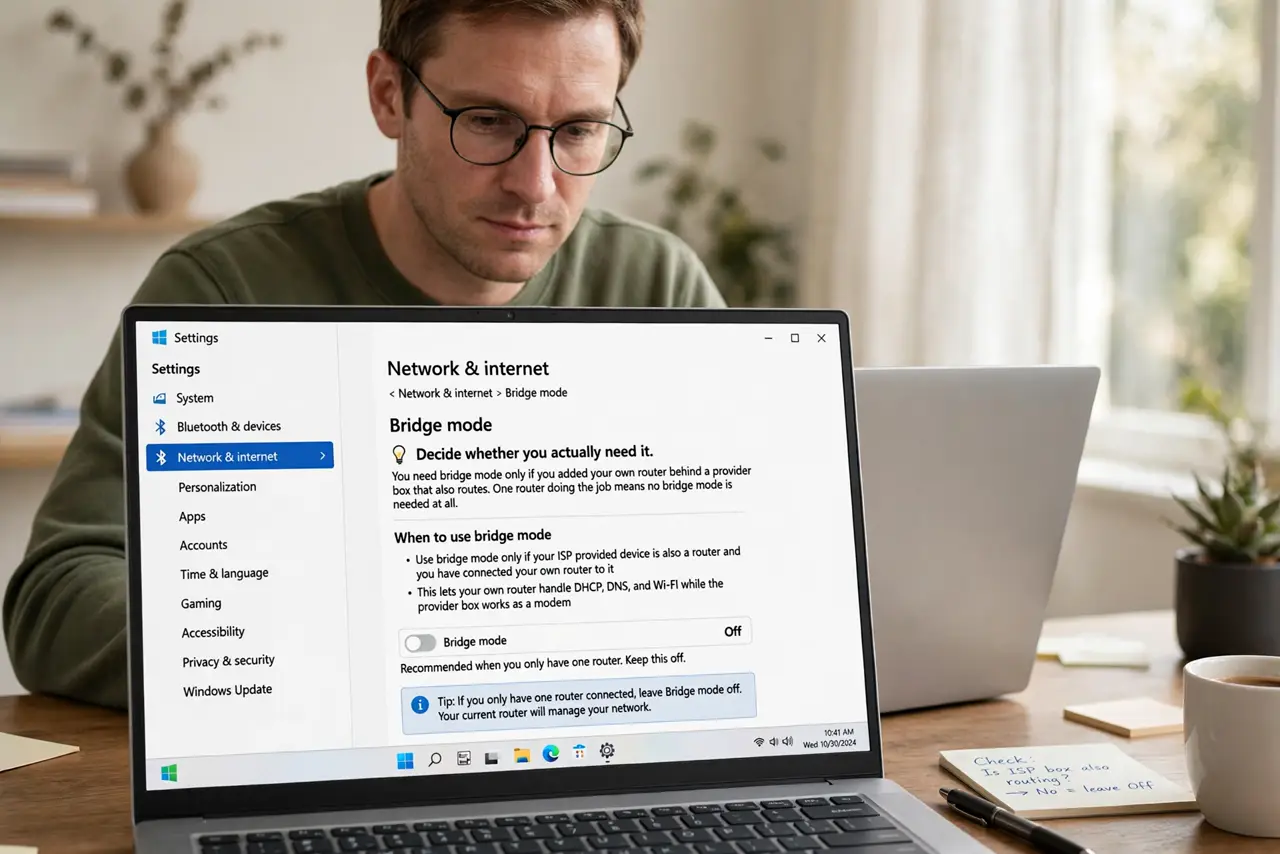
- Decide whether you actually need it. You need bridge mode only if you added your own router behind a provider box that also routes. One router doing the job means no bridge mode is needed at all.
- Log into the provider box first. Open its admin page and sign in — if the password is lost, you will need to recover the router password before changing anything.
- Find the bridge or passthrough setting. Look under WAN, internet, or gateway settings for bridge mode, IP passthrough, or modem-only mode. The exact name varies by provider, so check their support page for your model.
- Connect your own router correctly. Plug an ethernet cable from your router's WAN or internet port into a LAN port on the bridged box. Your router now gets the public connection directly.
- Set up Wi-Fi only on your router. Create your Wi-Fi name and password on your own router, and turn the combo box's Wi-Fi off. Two active Wi-Fi networks from two routers cause the conflicts bridge mode is meant to end.
- Watch for the double-NAT symptoms disappearing. After bridging, port forwarding and some games and cameras start working properly. If devices start fighting over addresses, check for an IP address conflict before undoing the change.
What NOT to do
- Do not turn on bridge mode with no second router ready. Bridging disables the box's routing, so without your own router connected, the whole house loses internet.
- Do not change this setting over Wi-Fi on a laptop with low battery. Losing connection mid-change can leave the box half-configured and the network down until you fix it by cable.
- Do not leave both boxes broadcasting the same Wi-Fi name. Two routers answering one network name creates the exact conflicts bridge mode was supposed to remove.
- Do not factory-reset the provider box if bridging confuses you. Write down the original setting first, so you can switch bridge mode back off and restore what worked.
Frequently asked questions
What does bridge mode actually do?
It turns a combo modem-router into a modem only, handing the public internet connection straight to your own router to manage.
Will bridge mode make my internet faster?
Not by itself. It fixes conflicts and features like port forwarding, but your plan's speed stays the same.
Can I undo bridge mode?
Yes. Log back into the provider box and switch bridge mode off, which returns it to a normal router. Keep the login details somewhere safe.