Organize Your Screenshots
Screenshots breed like rabbits — error messages, receipts, memes, things to read later — until your desktop, downloads, and camera roll are an unnavigable swamp. The fix is not willpower; it is a system: one destination folder, automatic saving, and a ruthless monthly purge. Boring, effective, permanent.
TL;DR / Quick Fix
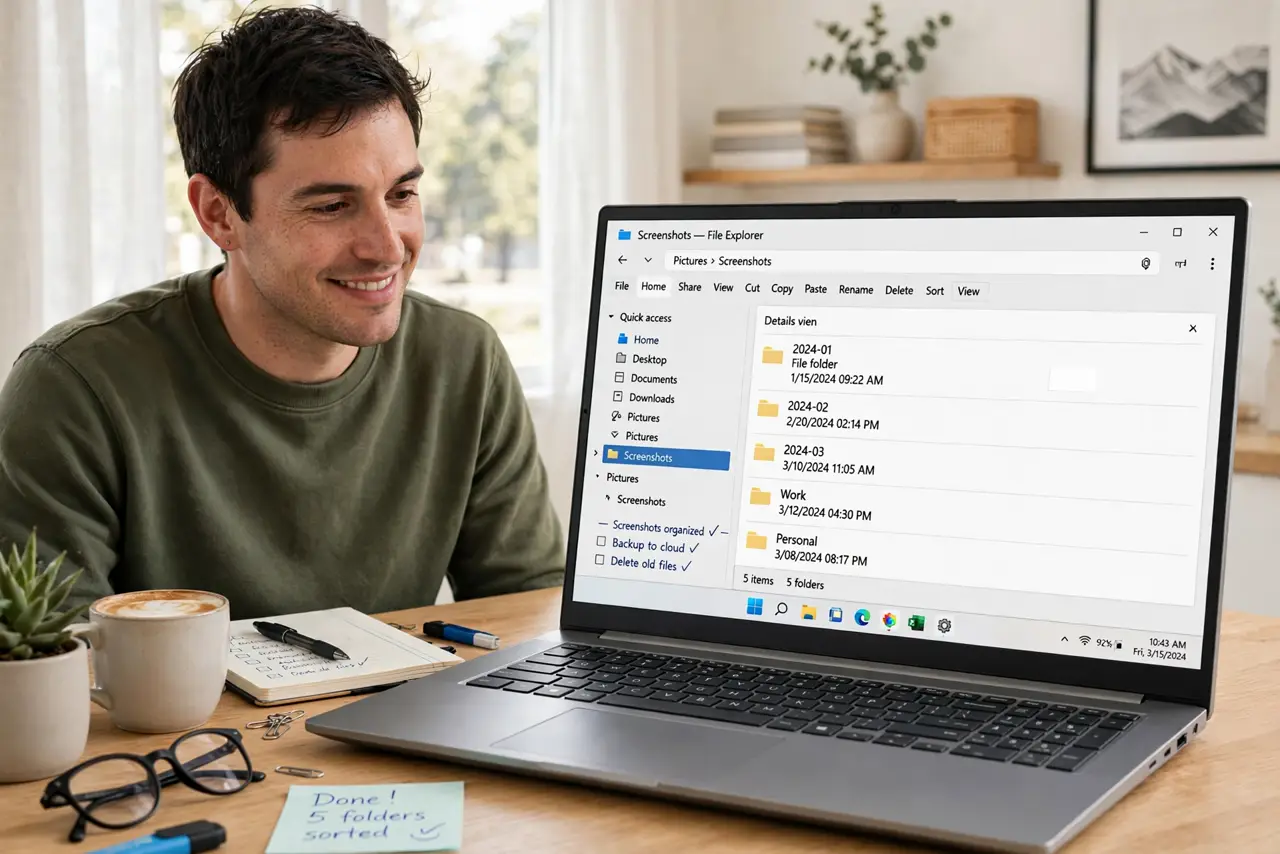
Quick fix: create one Screenshots folder and move every stray screenshot into it today. Then set your devices to save screenshots there automatically. Once a month, delete the useless ones and rename the keepers. The system is boring on purpose — boring systems are the ones you actually maintain.
Follow these steps
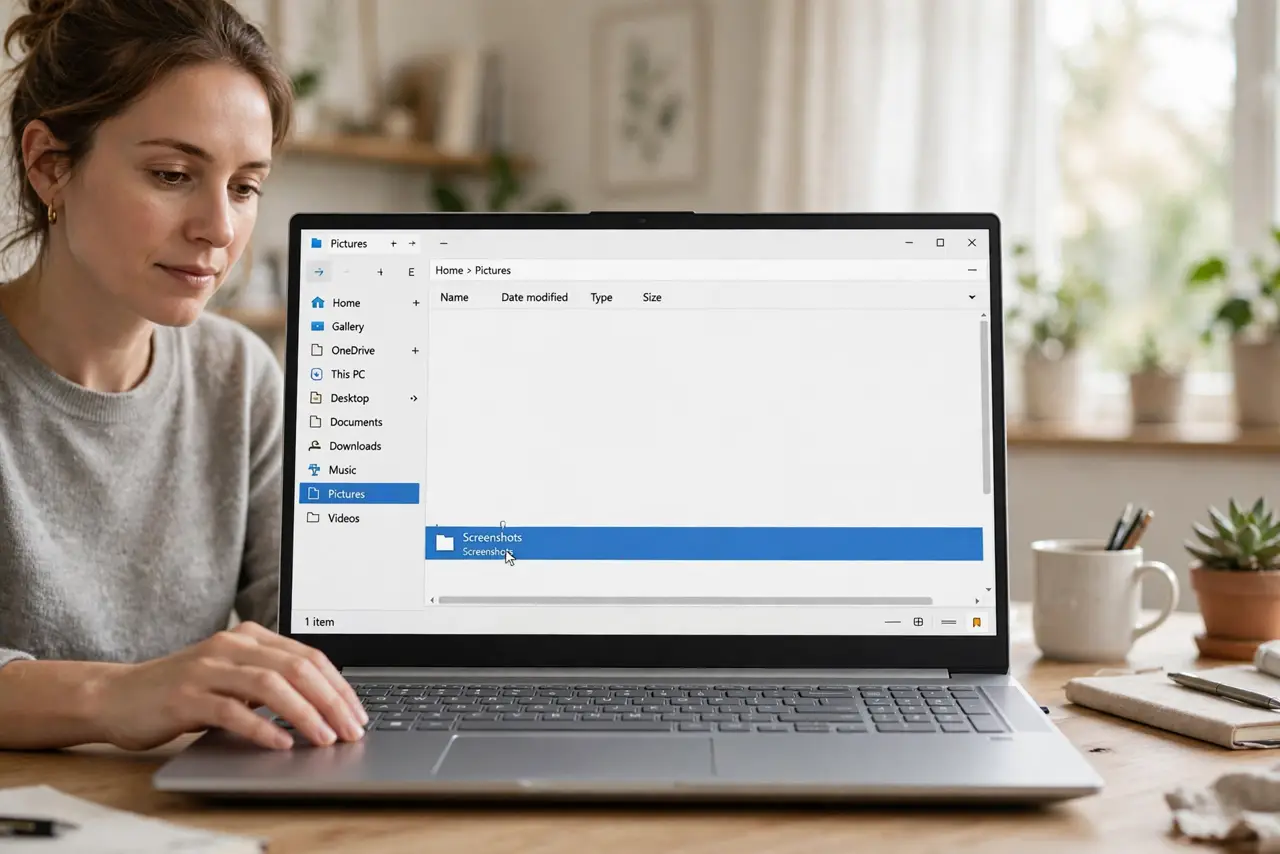
- Create one screenshots home. Make a single Screenshots folder — in Pictures or Documents. Every screenshot on every device funnels here eventually. One home ends the scatter.
- Round up the strays today. Search your devices for screenshots — desktop, downloads, camera roll — and move them all into the folder. This one-time roundup is the painful part; it gets easy after.
- Set automatic saving. Point your screenshot tools at the folder: change the save location on your computer and enable camera-roll or cloud sync on your phone. New screenshots should never land on the desktop — the desktop pile-up starts exactly there.
- Sort into a few buckets. Inside, keep it simple: Receipts, Reference, To-Read, Memes. Four buckets beat forty — you are organizing, not archiving the Library of Congress.
- Purge monthly. Once a month, open the folder and delete ruthlessly. The error message from March, the meme you already sent — if you have not used it in a month, you never will.
- Rename the keepers. Screenshots worth keeping deserve real names: screenshot-2026-10-29-error-code.png beats Screenshot 2026-10-29 at 3.14 PM. Future searches will thank you.
What NOT to do
- Do not create an elaborate folder taxonomy. Ten nested folders for screenshots guarantees abandonment — keep it flat and simple.
- Do not keep every screenshot just in case. Just in case is how the swamp formed; be honest about what you will actually revisit.
- Do not let phone and computer diverge. One system across devices, or you maintain two swamps instead of one folder.
- Do not skip the monthly purge. Without it, the folder becomes another archive nobody opens — the purge is the system.
Frequently asked questions
Where should screenshots save by default?
One dedicated folder — never the desktop. Desktop screenshots are invisible within a week and unsorted forever.
How long should I keep screenshots?
Reference screenshots: until the task is done. Receipts: until the return window or tax season passes. Memes: until you have sent them.
Should I use an app to manage screenshots?
Usually unnecessary — a folder plus a monthly purge beats most apps. Apps help only if you annotate heavily.