Edit One Instance of a Recurring Meeting
The weekly team meeting moved just for next Tuesday — new time, different room — but the rest of the series stays put. Editing one instance of a recurring meeting changes only that occurrence; the series continues untouched. It is a small distinction with big consequences if you get it wrong. Here is how to edit a single instance safely.

TL;DR / Quick Fix
Quick fix: to change just one occurrence of a recurring meeting, open that instance and choose to edit only this event, not the whole series. Change the time, location, or details and save. The rest of the series stays untouched. If you need the change everywhere, edit the series instead.
Follow these steps
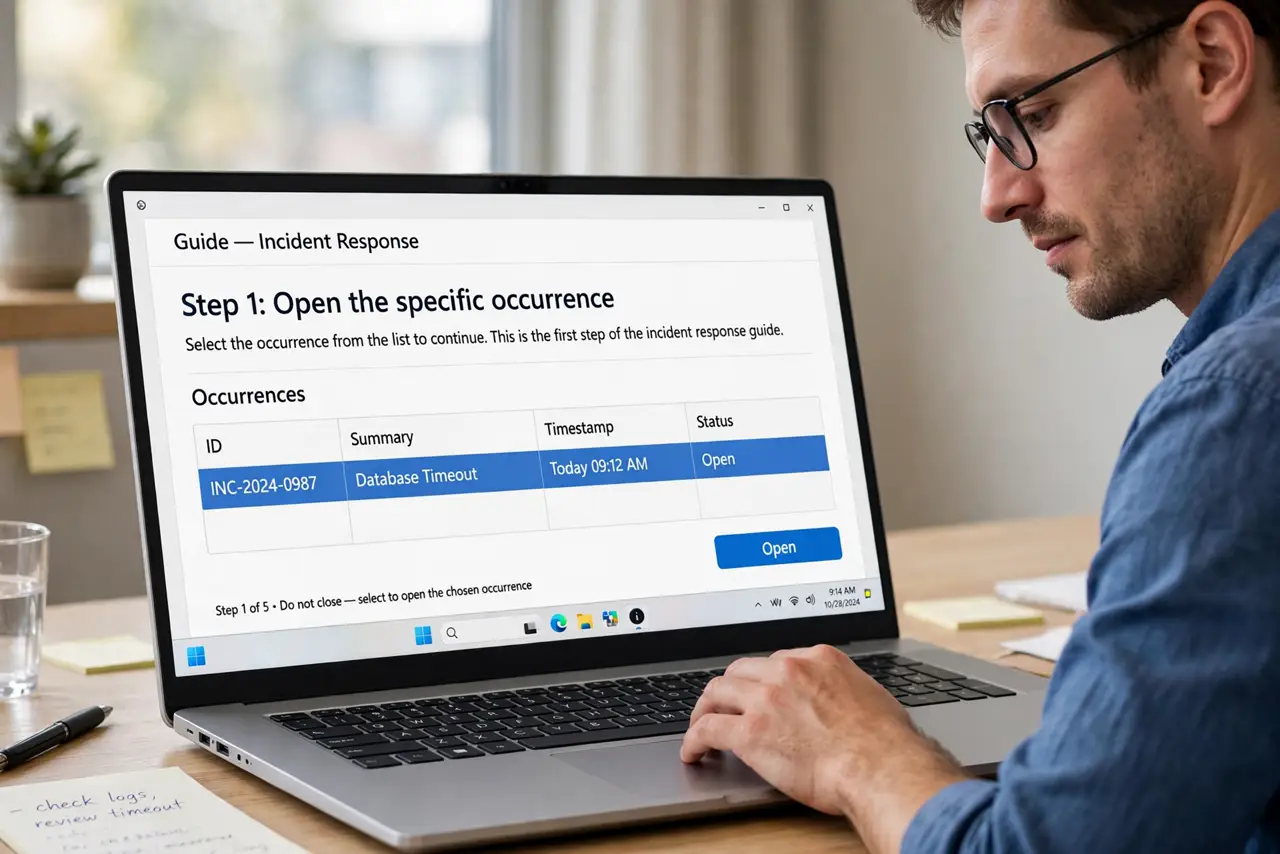
- Open the specific occurrence. Double-click the meeting on the day you want to change — not the series header, the actual instance on that date.
- Choose 'this event' when asked. Outlook asks: this event or the entire series? Pick This Event (or 'just this one'). This choice is the whole trick.
- Make your changes. Adjust the time, location, agenda, or attendees for this occurrence only. Everything else stays as it was.
- Save and send updates. Attendees get an update for this occurrence only. People in the rest of the series hear nothing — as it should be.
- Verify the series is intact. Glance at neighboring occurrences to confirm they kept their original times. A quick check prevents a series-wide accident.
- Know when to edit the series instead. If the change is permanent — new room forever — open the series and edit that. See recurring meeting basics for the series-level view.
What NOT to do
- Do not choose 'the entire series' by habit. One careless click reschedules months of meetings and confuses everyone.
- Do not edit a single instance to change the invite list permanently. New attendees added to one instance miss the rest of the series.
- Do not assume a moved instance stays linked. It becomes an exception — future series edits may skip it, so note what you changed.
- Do not edit instances from a phone without checking. Mobile apps sometimes phrase the this-event-vs-series choice differently — read carefully.
Frequently asked questions
Can I change the time of one meeting without affecting the rest?
Yes — that is exactly what editing a single instance does. Open the occurrence, choose This Event, change the time, save.
What happens to exceptions if the organizer edits the series?
Usually the exception survives, but some organizers' edits reset exceptions. If your moved instance snaps back, re-apply the single-instance edit.
How do I undo a single-instance change?
Open the occurrence again and revert the fields, or delete the exception. The series pattern underneath is unchanged.