Open a Shared Calendar? How To
You need to see a coworker's calendar — for scheduling, coverage, or just knowing when they are free — but it is not in your list. Opening a shared calendar takes seconds once it is actually shared with you; the permission is the whole battle. Here is how to add it, view it side by side with yours, and what to do when it refuses to appear.
TL;DR / Quick Fix
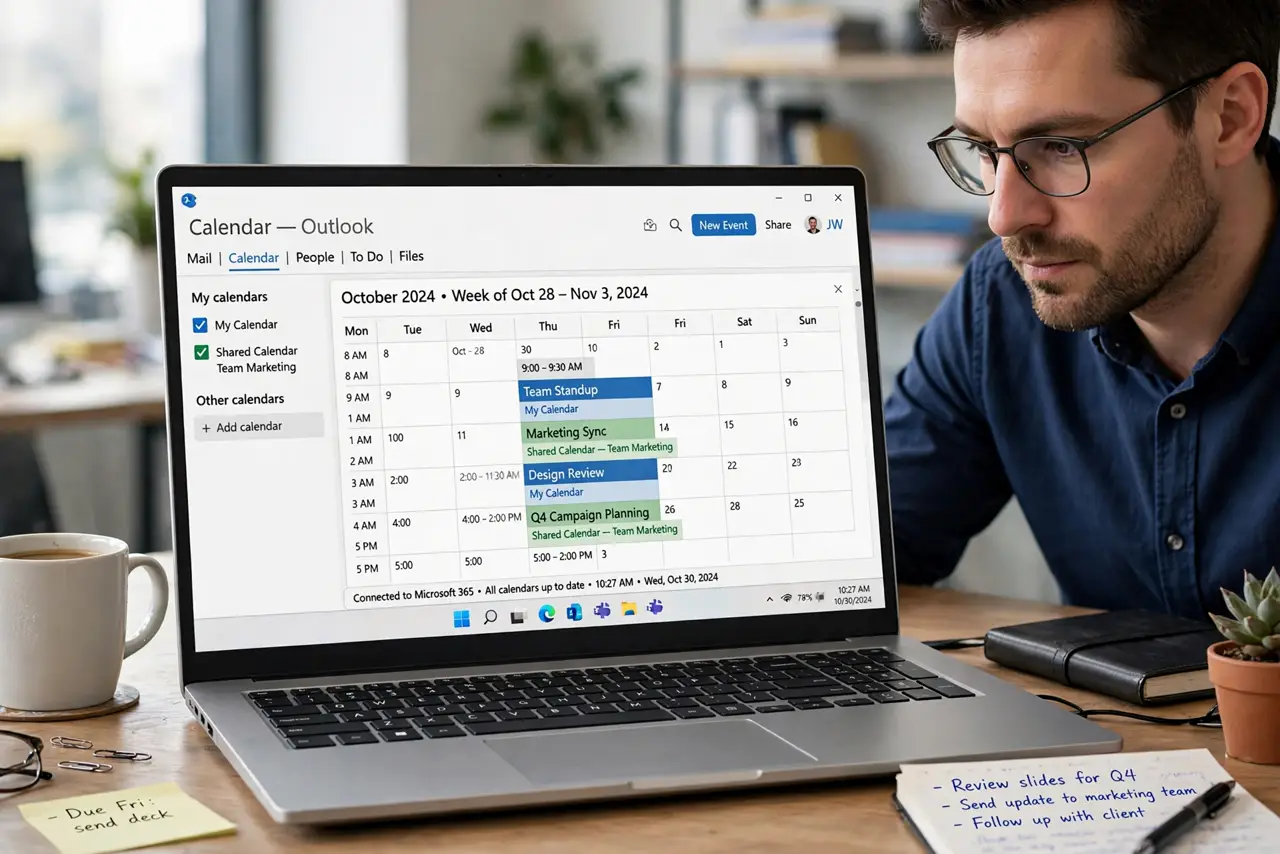
Quick fix: to open a shared calendar, go to Calendar view and choose Add Calendar > From Directory, then pick the person's name. It appears alongside yours in the side pane. If you cannot see it, they have not shared it with you — ask them to grant permission.
Follow these steps
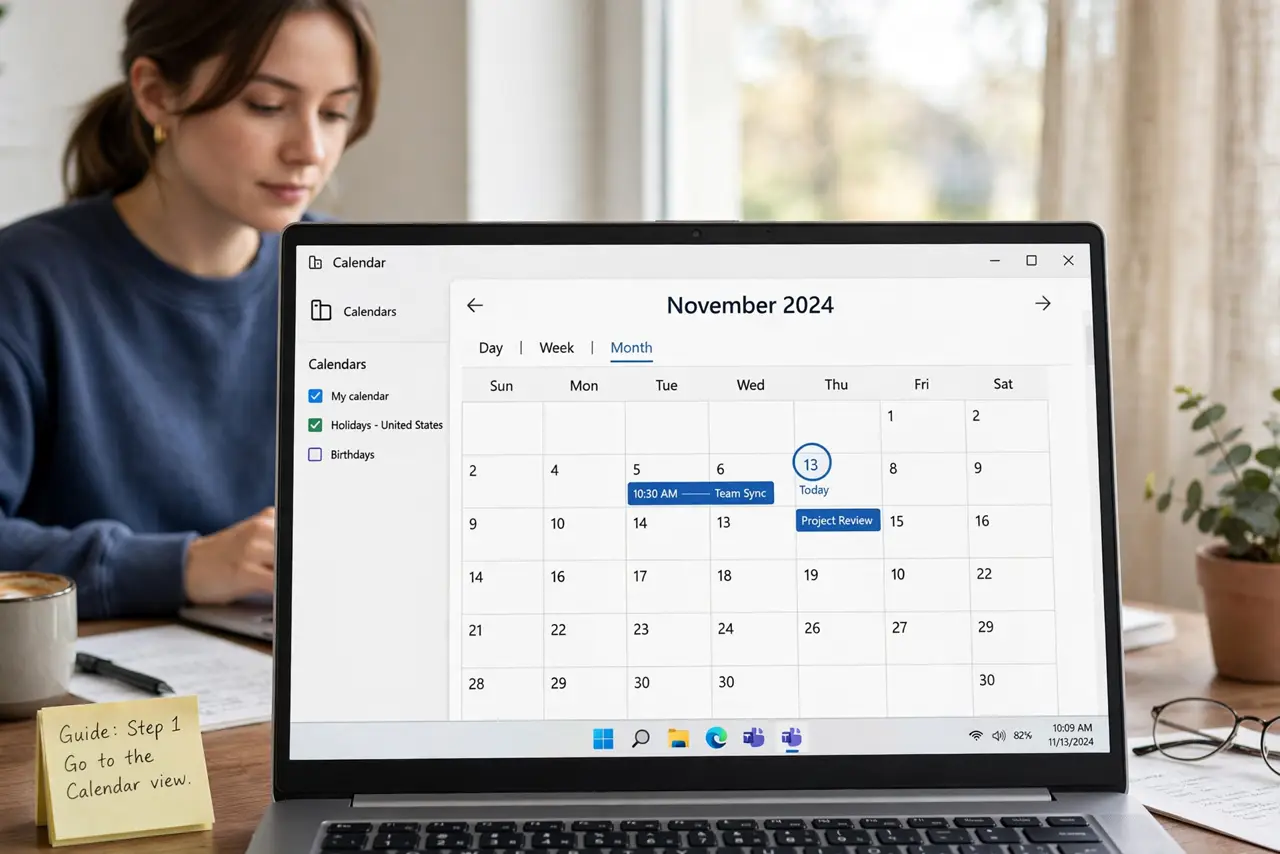
- Go to the Calendar view. Click the calendar icon in Outlook's navigation. You need to be in calendar land, not mail, for the calendar options to appear.
- Choose Add Calendar > From Directory. This opens your organization's directory — the list of people whose calendars you are allowed to request.
- Pick the person and add them. Select their name and confirm. Their calendar appears in the side pane, checkmarked and visible next to yours.
- View side by side or overlaid. With both checked, calendars show side by side. For scheduling, an overlay view merges them into one grid.
- Check permissions if it fails. 'Cannot display the folder' means they have not shared with you. Ask them to share — or check calendar sharing permissions to see what level you need.
- Remove it when done. Right-click the calendar and choose Delete or Remove. This only removes it from your view — their calendar is untouched.
What NOT to do
- Do not keep requesting access repeatedly. One request plus a quick message to the person beats five automated requests.
- Do not confuse opening with editing. Seeing a calendar does not let you add events to it — that needs a higher permission level.
- Do not share your own calendar publicly to 'return the favor.' Share deliberately, with the right people and the right permission level.
- Do not assume a missing calendar is a bug. Nine times out of ten, it simply has not been shared with you yet.
Frequently asked questions
They shared it but I still cannot see it — why?
Wait a few minutes for permissions to propagate, then restart Outlook. If it still fails, they may have shared the wrong calendar or mistyped your name.
Can I open a shared calendar on my phone?
Yes — once added in Outlook, shared calendars sync to the Outlook mobile app too. Give it a few minutes to appear.
What is the difference between opening and delegating?
Opening lets you view. Delegate access lets someone manage your calendar — send invites, respond — on your behalf. Different power, different setting.