Show as Conversations? Toggle It
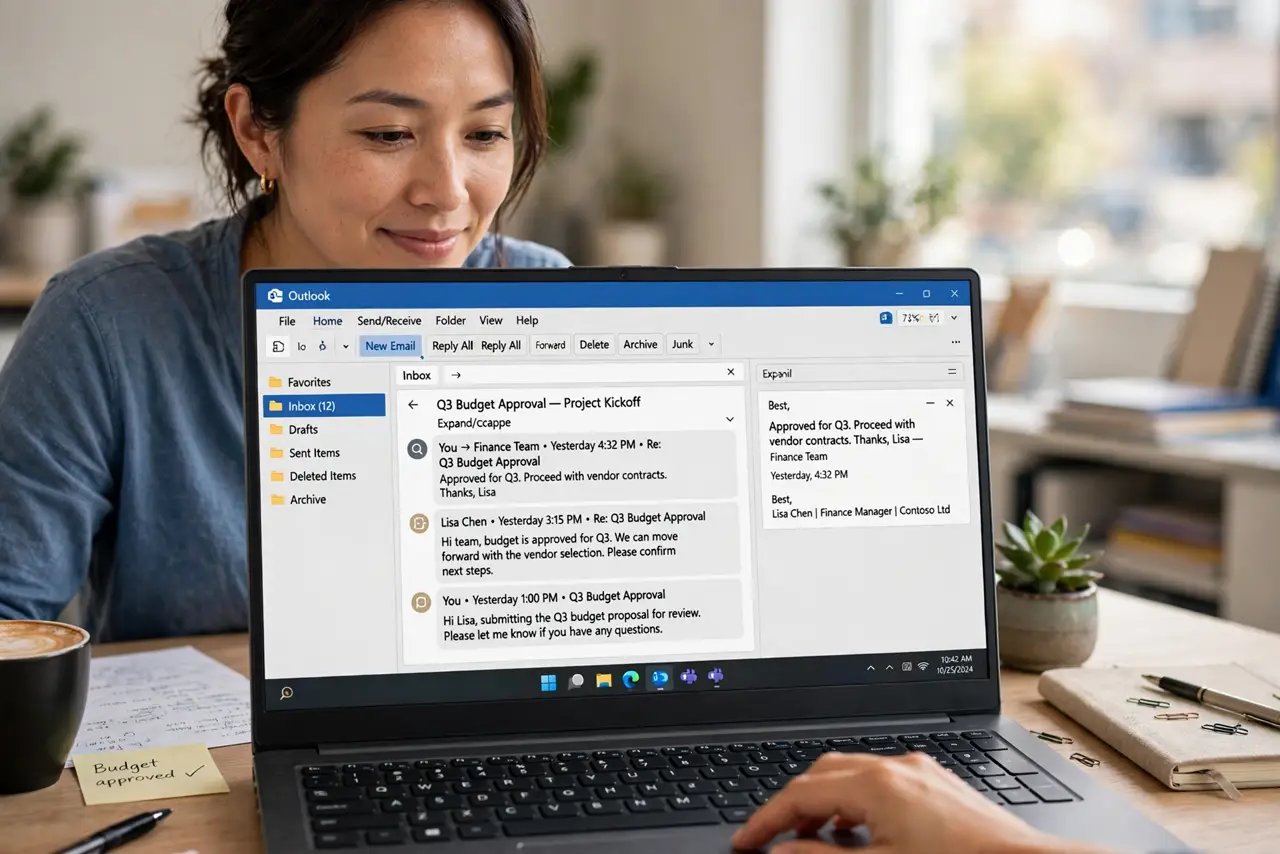
Long email threads arrive as scattered individual messages, and following the story means hunting up and down the inbox. Show as Conversations fixes that: it groups each thread — original plus all replies — under one expandable entry, newest on top. One toggle, and your inbox reads like actual conversations. Here is how to turn it on and tune it.
TL;DR / Quick Fix
Quick fix: Show as Conversations groups replies so long threads read as one story. Toggle it under View > Show as Conversations, choosing this folder or all mailboxes. If a thread still looks scattered, check that messages share the same subject — renamed subjects break the grouping.
Follow these steps
- Toggle it on. Go to View and check Show as Conversations. Outlook asks whether to apply it to the current folder or all mailboxes — pick all mailboxes for consistency.
- Learn the grouped display. Each thread collapses to one row showing the participants and message count. Click the arrow to expand and read every reply in order.
- Understand the newest-on-top logic. The thread sorts by its newest message, so active discussions float up while dead threads sink — the inbox starts organizing itself.
- Expand across folders optionally. Conversation settings can include messages from other folders (like Sent Items), so your own replies appear inside the thread too.
- Fix broken threads by subject. If replies scatter, someone renamed the subject line. Conversations group by subject — consistent subjects stay together.
- Turn it off per folder if you hate it. Uncheck the same toggle for a single folder. Some people love conversations in the inbox but prefer a flat list in Sent Items.
What NOT to do
- Do not panic when the inbox 'loses' messages after enabling. They are grouped, not gone — expand the thread to see them.
- Do not enable it and expect old chaos to vanish instantly. It organizes by thread, but a messy inbox still benefits from archiving and cleanup.
- Do not assume grouping works across renamed subjects. A reply with an edited subject line starts a new conversation — that is by design.
- Do not confuse conversations with Clean Up. Conversations group threads visually; Clean Up actually removes redundant messages.
Frequently asked questions
Why do some messages refuse to group?
Different subject lines, or messages that arrived without proper threading headers (common with some mailing lists and automated senders).
Does conversation view work on mobile?
The Outlook mobile app groups threads its own way and does not follow this desktop toggle. Each platform has its own conversation logic.
Will this slow down Outlook?
Barely. Grouping is a display operation — though on truly enormous folders, any view change can take a moment to render.