Test for Packet Loss
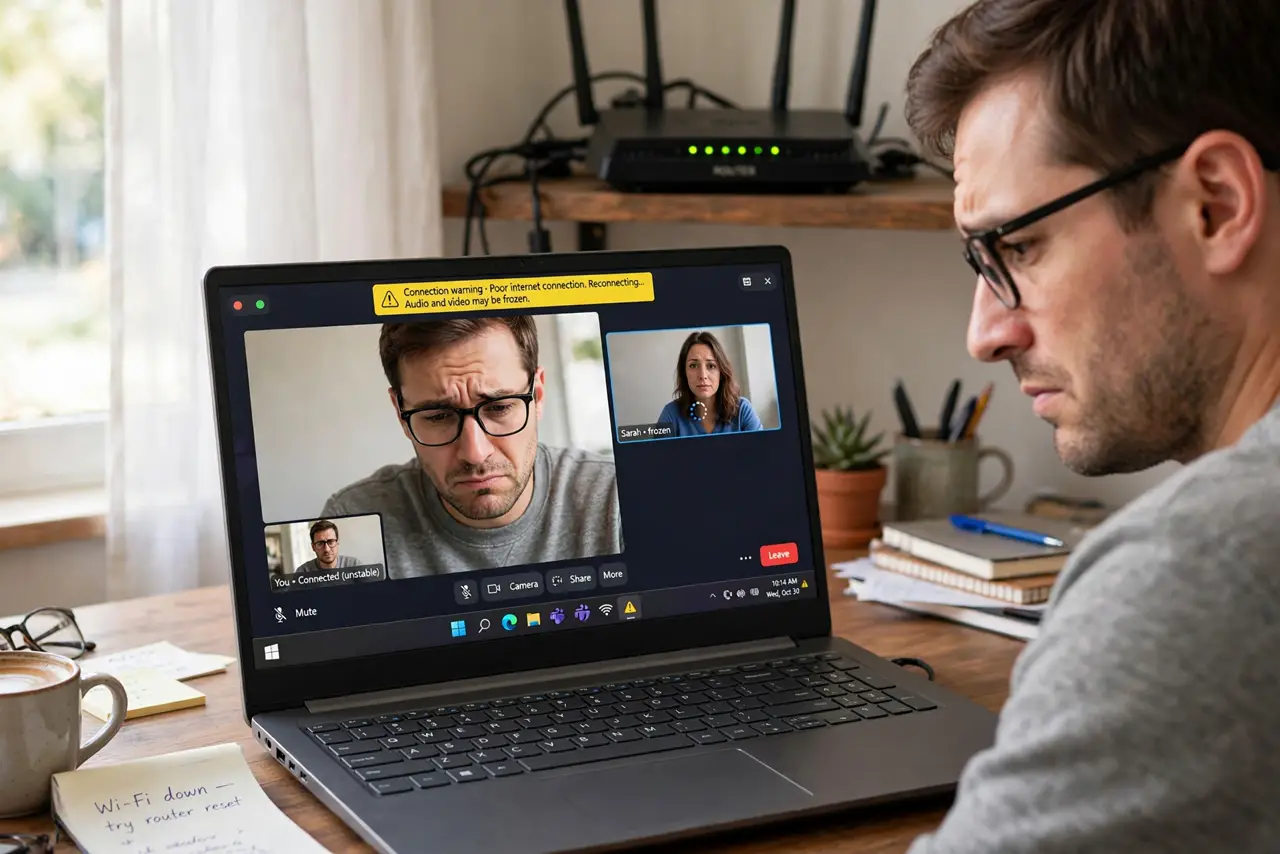
Your video calls drop words, the game teleports you across the map, and the voice assistant keeps saying 'sorry, I didn't catch that.' Speed tests look fine — because the problem is not speed. Packet loss means chunks of your data simply never arrive, and even 2–3% loss wrecks real-time everything. Here is how to test for it properly.
TL;DR / Quick Fix
Quick fix: packet loss — data that never arrives — destroys calls and gaming even when speed tests look great. Run a continuous ping test for several minutes; anything above 1–2% loss needs fixing. Test wired first to isolate Wi-Fi, then check cables, and call your provider with the numbers.
Follow these steps
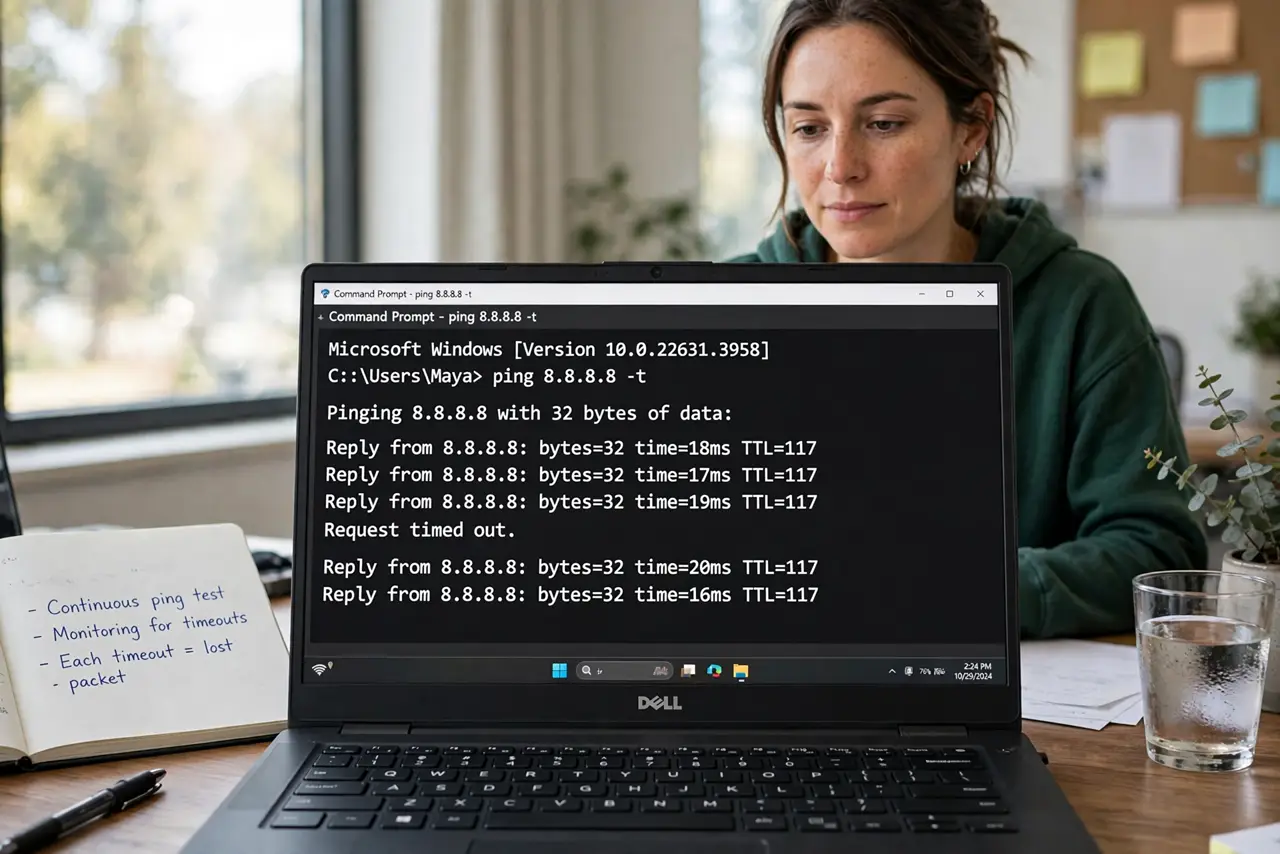
- Run a continuous ping test. Open a terminal and ping a reliable server for several minutes — not the five-second speed-test kind. Watch for timeouts: each one is a lost packet. The method in detail shows the exact commands.
- Test wired to isolate Wi-Fi. Plug in with Ethernet and repeat. If loss disappears on the cable, your Wi-Fi is the problem — interference, distance, or a struggling router. If loss persists wired, the problem is upstream.
- Try multiple destinations. Loss to one server might be that server. Test two or three different targets; loss everywhere points at your connection, loss to one points at that service.
- Check cables and splitters. A damaged Ethernet cable or a corroded coax splitter causes exactly this symptom. Swap the cable — it is a two-minute test that solves a surprising number of cases.
- Look for patterns in time. Loss only in the evening suggests a congested neighborhood node. Loss in bursts every few minutes suggests interference or a dying modem. Patterns tell the provider where to look.
- Call the provider with numbers. 'The internet feels slow' gets you a script. 'I have 4% packet loss to multiple servers, wired, for a week' gets you a technician. Documented numbers change the conversation.
What NOT to do
- Do not rely on a speed test to diagnose this. Speed tests measure throughput, not loss — they can look perfect while calls fall apart.
- Do not test for thirty seconds and declare victory. Packet loss is bursty; short tests miss it. Give it several minutes.
- Do not ignore loss 'only' on Wi-Fi. That is still real loss for everything you do wirelessly — fix the Wi-Fi, do not dismiss the test.
- Do not factory-reset the router as step one. Note the pattern first; blind resets erase the evidence and rarely fix loss.
Frequently asked questions
How much packet loss is acceptable?
Under 1% is fine for almost everything. 1–2% starts hurting calls and gaming; above 5% makes real-time apps nearly unusable.
Why do only my calls suffer, not downloads?
Downloads retry lost packets invisibly; real-time audio and games cannot wait for retries, so the same loss hits them visibly.
Can packet loss come and go?
Yes — it is often bursty, tied to congestion, interference, or heat. That is why multi-minute tests at different times of day matter.