What Are Passkeys?
Passwords feel broken because they are: reused, phished, and leaked by the thousand. Passkeys are the replacement the big platforms finally agreed on — a login that lives on your device, unlocks with your face or fingerprint, and cannot be phished because there is nothing to type or steal. This guide explains what they are, how they work, and when to start using them.
TL;DR / Quick Fix
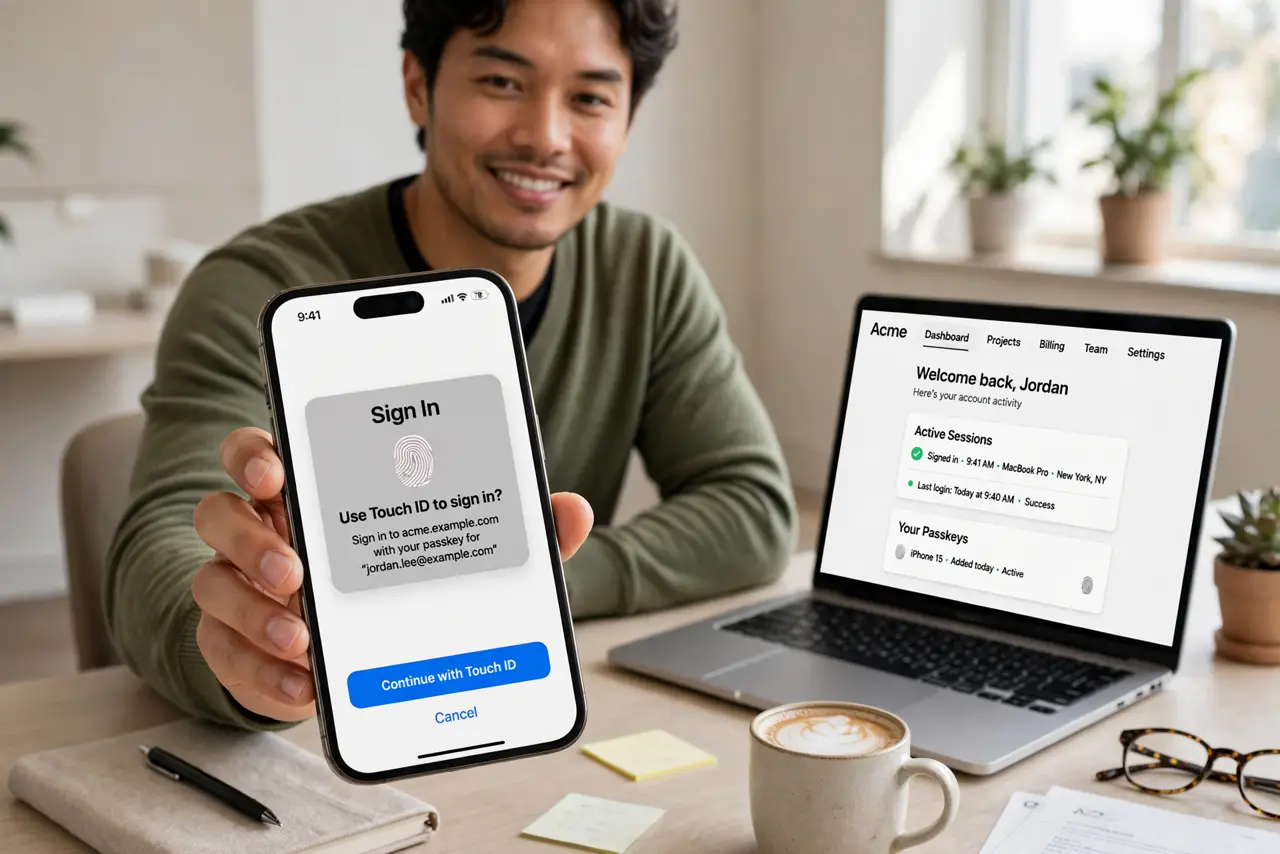
Quick fix: a passkey replaces your password with a device-bound login unlocked by face, fingerprint, or PIN. It cannot be phished and nothing leaks in a breach. Start with your most important accounts — email, banking, password manager — and keep the old password as backup until you are comfortable.
Follow these steps
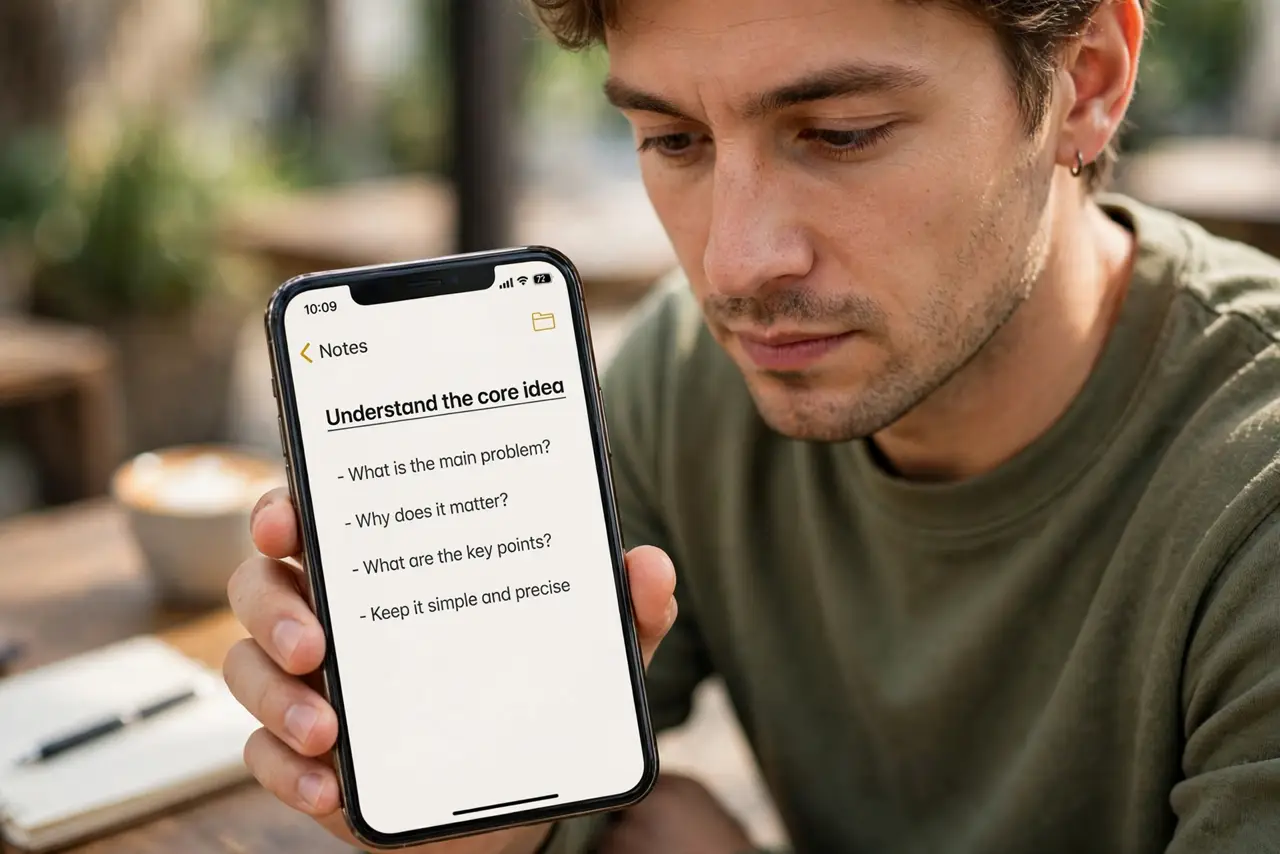
- Understand the core idea. Instead of a secret you type, your device holds a private key and the site holds the matching public key. Logging in proves you hold the key — with your fingerprint or face — without sending anything a phisher could intercept.
- Learn why phishing stops working. A passkey only works on the real site it was created for. A fake login page gets nothing, because there is no password to type and the key will not answer the wrong site. This is the big security win.
- Know where passkeys live. They live in your phone, your computer, or your password manager, and they sync across your devices through your platform account. Losing one device does not mean losing the passkey.
- Start with three accounts. Enable passkeys on your email, your bank, and your password manager first — these are the accounts attackers want most. Most sites offer it under Security or Sign-in options in account settings.
- Keep a fallback until you are sure. Do not delete your password the day you add a passkey. Keep it, plus a recovery method, until you have logged in with the passkey a few times on each device you use.
- Plan for a lost device. Check each account's recovery options now: a second device with the passkey, printed recovery codes, or an alternate sign-in method. Recovery planned in advance takes minutes; in a panic it takes days.
What NOT to do
- Do not assume a passkey means the password is gone. Most sites keep both until you remove the password deliberately.
- Do not create passkeys on a shared or public device. A passkey on a device you do not control is a login you do not control.
- Do not skip setting up recovery. A passkey with no fallback and a lost phone is a locked account — the recovery step is not optional.
- Do not confuse passkeys with two-factor codes. Codes are a second step after a password; a passkey replaces the password entirely.
Frequently asked questions
Are passkeys really safer than a strong password plus 2FA?
Yes against phishing, which is how most accounts actually get stolen. A unique strong password with 2FA is still good — passkeys are simply better, because the phish-proofing is built in.
What happens if I switch from iPhone to Android?
Passkeys sync within each platform's ecosystem, and password managers can carry them across platforms. Move your passkeys to a cross-platform manager before switching phones.
Can a website steal my passkey?
No. The site never sees your private key — only a proof that you hold it. A breach of the site leaks nothing that logs in as you.