Passkeys vs Passwords?
Websites keep offering 'sign in with a passkey' next to the password box, and it is not obvious what you gain by switching. Passkeys replace passwords with a cryptographic key pair on your device — nothing to remember, nothing to phish. This guide explains the real difference and when to make the switch.
TL;DR / Quick Fix
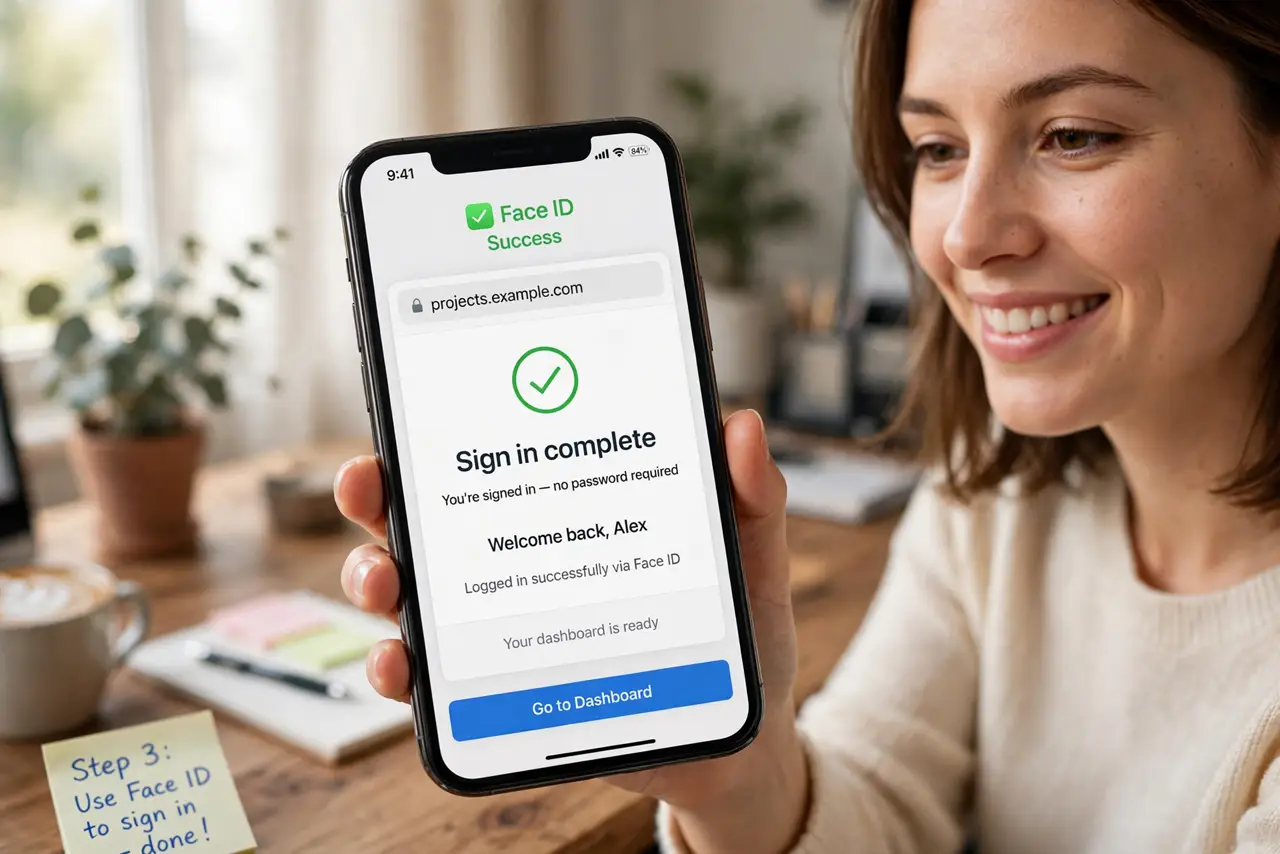
Quick fix: where a site offers passkeys, create one — you will sign in with your fingerprint or face instead of a password, and phishing sites cannot steal it. Keep your password manager for sites without passkeys. Passkeys are safer and faster; passwords remain the universal fallback.
Follow these steps
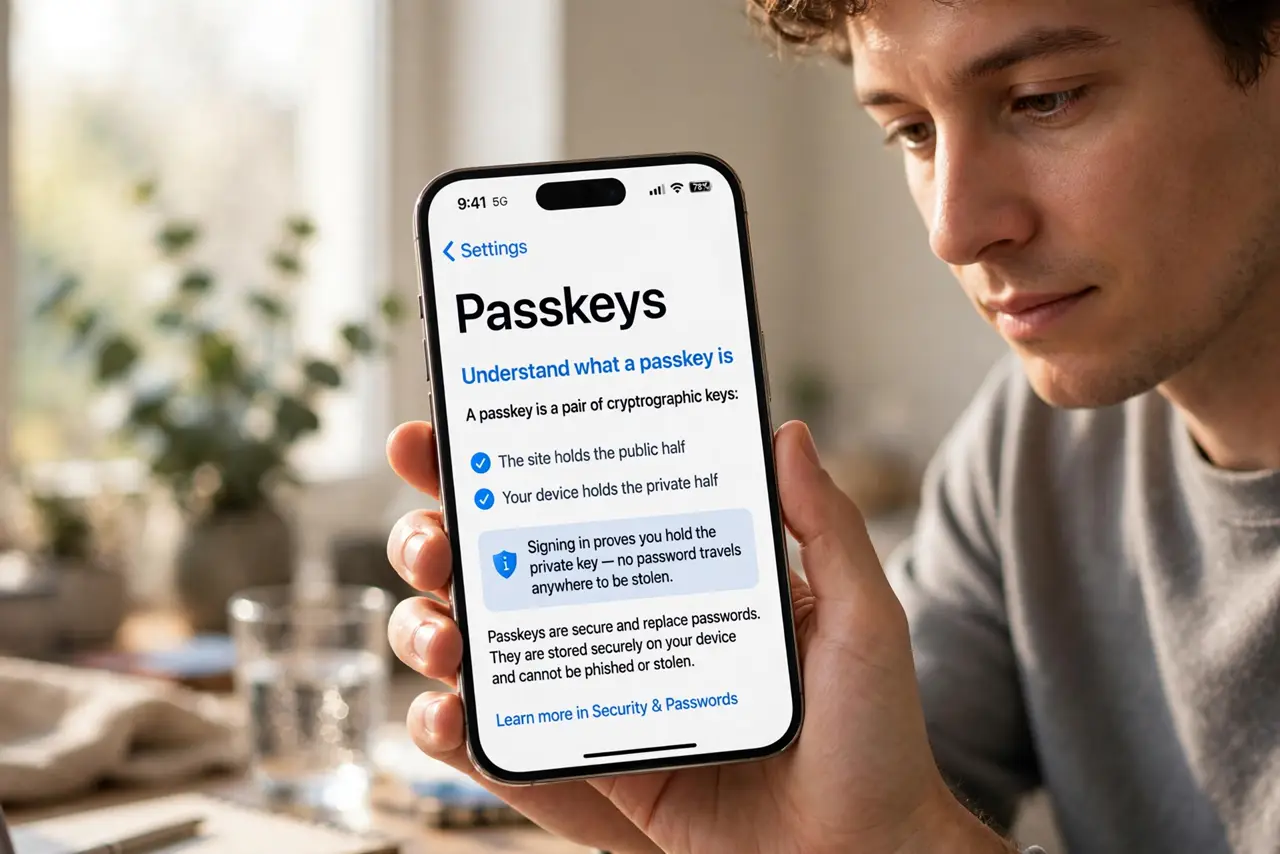
- Understand what a passkey is. A passkey is a pair of cryptographic keys: the site holds the public half, your device holds the private half. Signing in proves you hold the private key — no password travels anywhere to be stolen.
- Understand why phishing fails against passkeys. A fake login page cannot use your passkey because the key only works with the real site's identity. Stolen passwords work anywhere; passkeys do not — that is the core security win.
- Create a passkey where offered. In the site's security settings, choose to create a passkey. Your phone or computer generates it and offers to save it — see the setup for iPhone or Android.
- Sign in with biometrics. Next login, choose the passkey option and confirm with your fingerprint or face. It is noticeably faster than typing a password plus a code.
- Keep passwords as fallback. Most sites keep the password option alongside passkeys. Do not delete passwords yet — not every device and browser handles passkeys smoothly.
- Know how they sync. Passkeys sync through your platform's cloud — iCloud Keychain, Google Password Manager — so they follow you across devices. Learn how the syncing works before relying on it.
What NOT to do
- Do not delete your passwords the day you create a passkey. Keep both until passkey sign-in works smoothly on all your devices.
- Do not create passkeys on a shared or public device. The private key lives on that device — only use devices you control.
- Do not assume every site offers passkeys. Adoption is growing but far from universal — your password manager still earns its keep.
- Do not ignore the recovery options. If you lose all devices, account recovery is the way back — set it up before you need it.
Frequently asked questions
Are passkeys really safer than a strong password plus 2FA?
For phishing resistance, yes — passkeys cannot be phished the way passwords and codes can. A strong password plus authenticator remains solid where passkeys are not offered.
What happens if I lose my phone?
Synced passkeys restore with your cloud account on the new device. Unsynced ones are lost — which is why syncing matters.
Can I use passkeys on a Windows PC?
Yes — Windows supports passkeys through Windows Hello, and you can also use your phone as the passkey device via Bluetooth.