PDF Opens in the Wrong App? Fix It
When PDFs open in the wrong app, every document feels like a chore, because you land in an editor or browser you did not choose. Setting the default app once fixes every PDF, not just the one you just opened.
TL;DR / Quick Fix
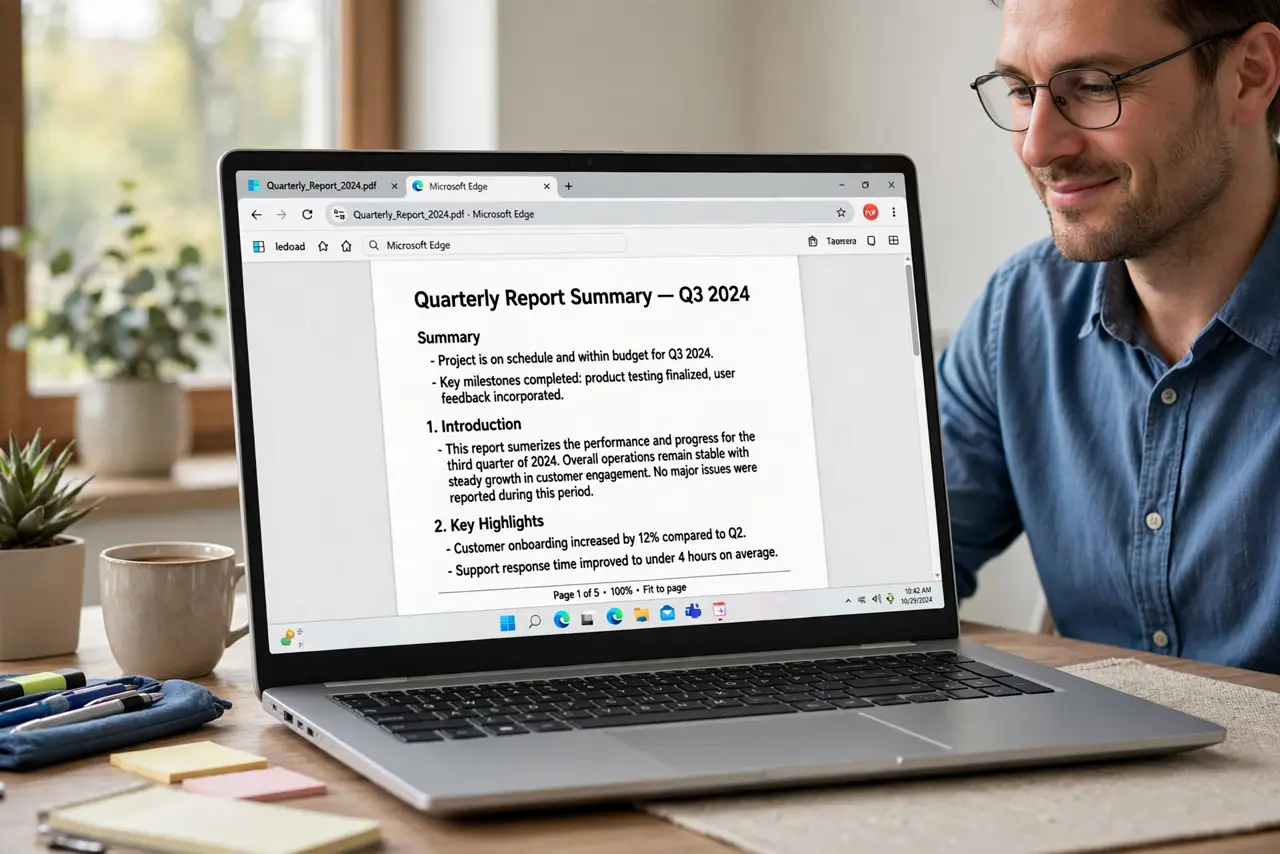
Quick fix: right-click a PDF, choose Open with, then Choose another app, pick the reader you want, and tick Always use this app. Then open a second PDF to confirm it opens in the same reader every time. Test it once more after a restart to confirm the fix holds.
Follow these steps
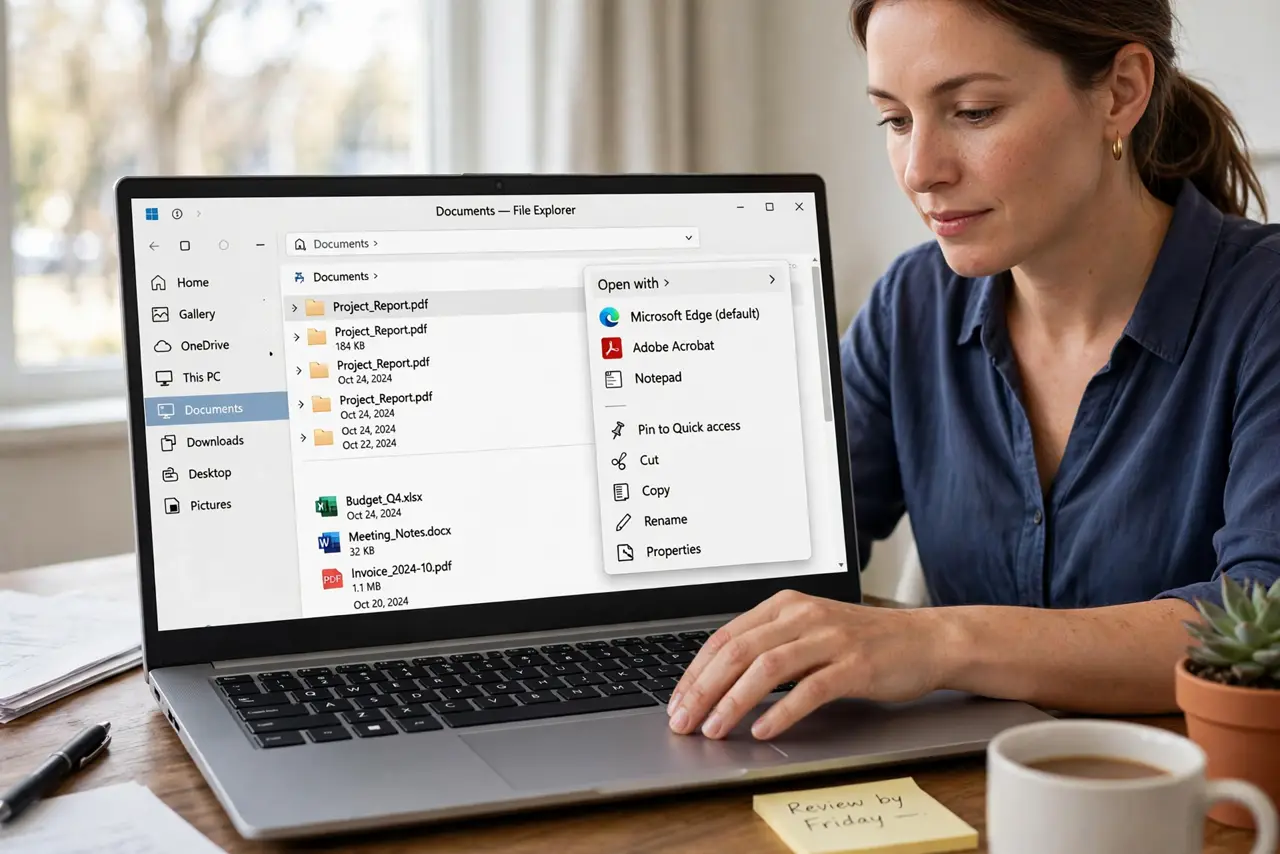
- Set the default from a PDF file. Right-click any PDF, choose Open with, then Choose another app. Pick your preferred reader and tick Always use this app to open PDF files.
- Confirm in Default apps settings. Open Settings, then Apps, then Default apps, and search for PDF. Confirm your reader is listed as the default for the PDF type.
- Check the browser PDF setting. If PDFs still open in the browser, open the browser settings and check its PDF handling. Some browsers are set to open PDFs internally instead of downloading them.
- Test with a second PDF. Open a different PDF from another folder. If it opens in the right reader, the default is fixed. If not, repeat the Open with step and check the tick box.
- Reset the PDF default only if it flips back. If the default keeps flipping, reset the PDF association in Default apps and set it again. A reset clears a conflicting choice that kept winning.
- Keep one reader as the main choice. Use one reader for everyday PDFs, even if you keep another for editing. Two readers fighting for the default is how the wrong app keeps winning.
What NOT to do
- Do not open every PDF with Open with and forget the tick box. Without Always use this app, the choice lasts for one file only, and the next PDF reverts.
- Do not install a new PDF reader to fix a default. The default setting is the problem, and a new app will not set itself as default on its own.
- Do not change the file extension to force an app. Renaming a PDF to another extension breaks the file for every app, not just the wrong one.
- Do not allow every app to claim PDFs. When an installer asks to become the PDF default, say no unless you actually want that app as your reader.
Frequently asked questions
Why do PDFs open in the browser even after I set a reader?
The browser has its own PDF setting that can override the system default for downloads. Change it in the browser settings too.
Will setting a default change my files?
No. It only changes which app opens them. Your PDFs stay exactly where they are, with the same contents.
What if I want different apps for different PDFs?
Right-click and use Open with for the odd file, without ticking Always. That opens one file elsewhere while keeping the main default.