Shrink a PDF Without Ruining It
A 40 MB PDF bounces off email limits and takes forever to upload. Shrinking it is easy; shrinking it without turning every page into mush takes a little judgment. This guide shows how to cut the size while keeping the document readable.
TL;DR / Quick Fix
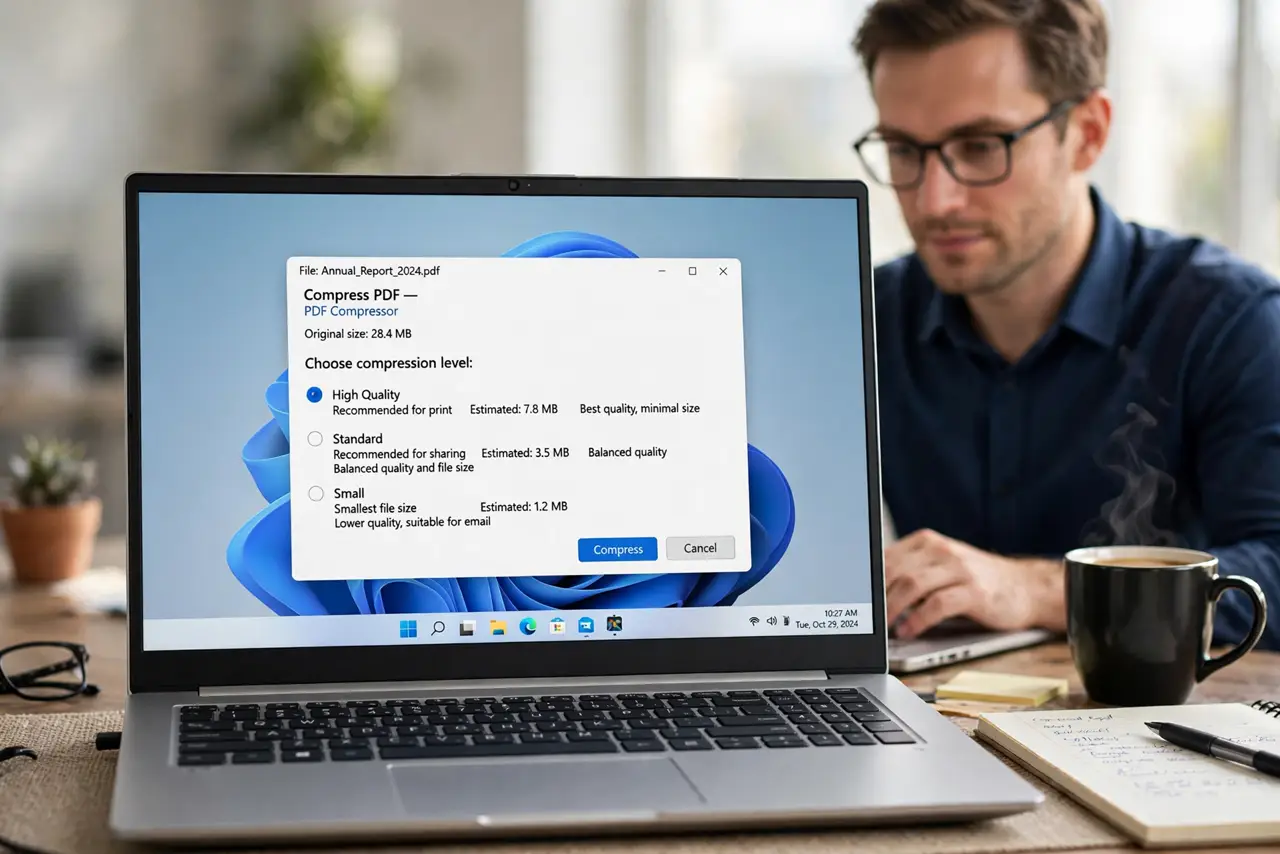
Use your PDF tool's Compress or Reduce File Size option and pick a medium quality setting first. Downsample huge scanned images rather than deleting content. Check the result page by page, since one bad setting can blur the whole document.
Follow these steps
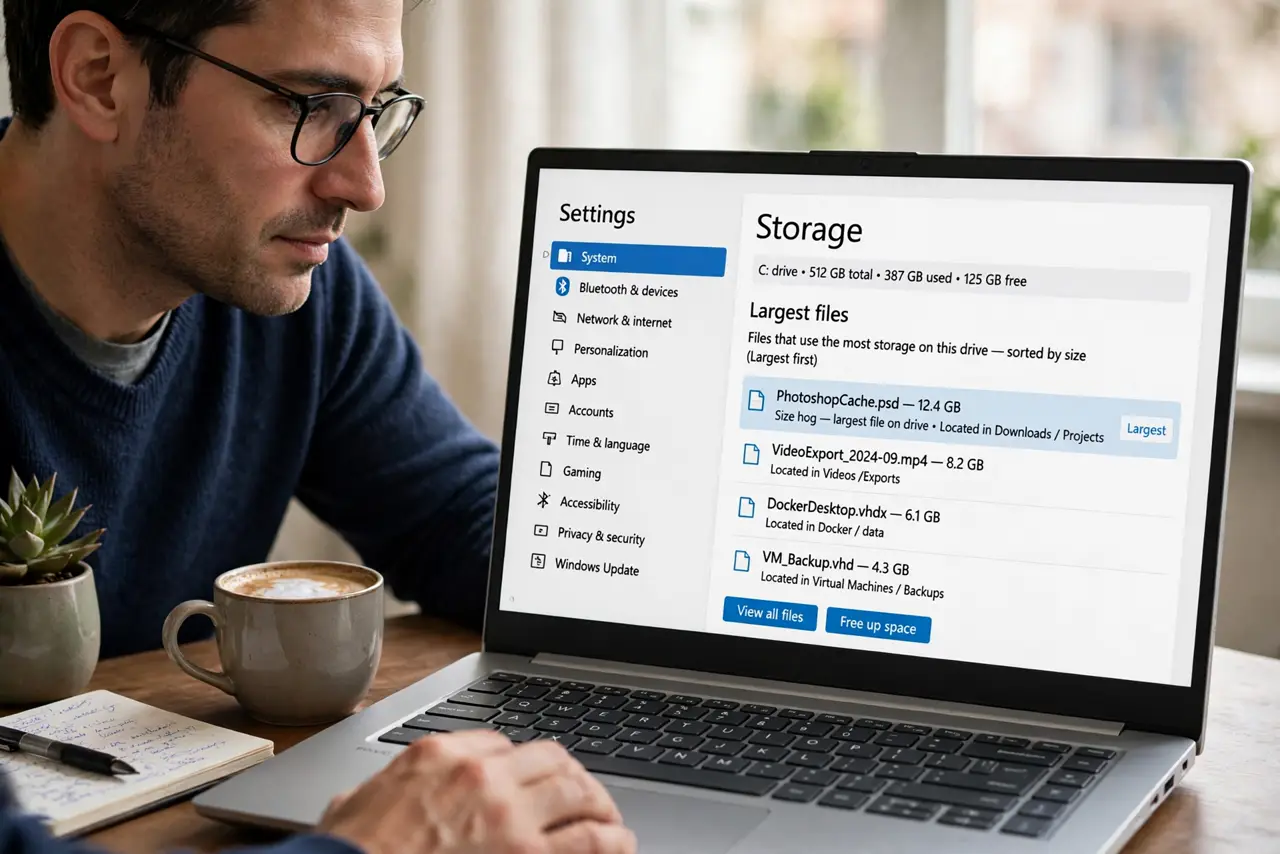
- Find the real size hog. Check whether the bulk is scanned images, embedded fonts, or dozens of pages. Scanned images are the usual culprit — and the reason email attachments bounce.
- Use the built-in compressor. Open the PDF tool's Compress or Reduce File Size feature. Built-in compressors balance quality and size better than random online tools.
- Start at medium quality. Choose a medium or ebook-quality preset first. You can always compress harder; you cannot un-blur an over-compressed file.
- Downsample oversized scans. If pages are 600-DPI scans, reducing them to 150–200 DPI slashes size with no visible loss on screen. Resolution far beyond the display is pure waste.
- Drop what nobody needs. Remove duplicate pages, blank pages, and embedded files you do not need. Dead weight compresses poorly because it is not the problem.
- Verify every page visually. Scroll the compressed file from start to finish and zoom into fine text. One ruined page means the setting was too aggressive — redo it gentler.
What NOT to do
- Do not compress the only copy. Keep the original, since compression is one-way.
- Do not use a shady free online compressor for sensitive documents. You just uploaded your file to a stranger's server.
- Do not max out compression on the first try. Start gentle and increase only if the size still misses the target.
- Do not compress a PDF you will print professionally. Print needs the resolution that screen viewing does not.
Frequently asked questions
How do I make a PDF smaller?
Use the Compress or Reduce File Size option in a PDF tool, starting at medium quality, and downsample oversized scanned images.
Why is my PDF so large?
Usually huge scanned images at print resolution, or many pages with embedded fonts. Images are the first thing to slim down.
Will compressing ruin the quality?
Not if you start at medium settings and check the result. Aggressive settings blur text, so verify page by page.