Sign a PDF With Your Phone, No Extra App
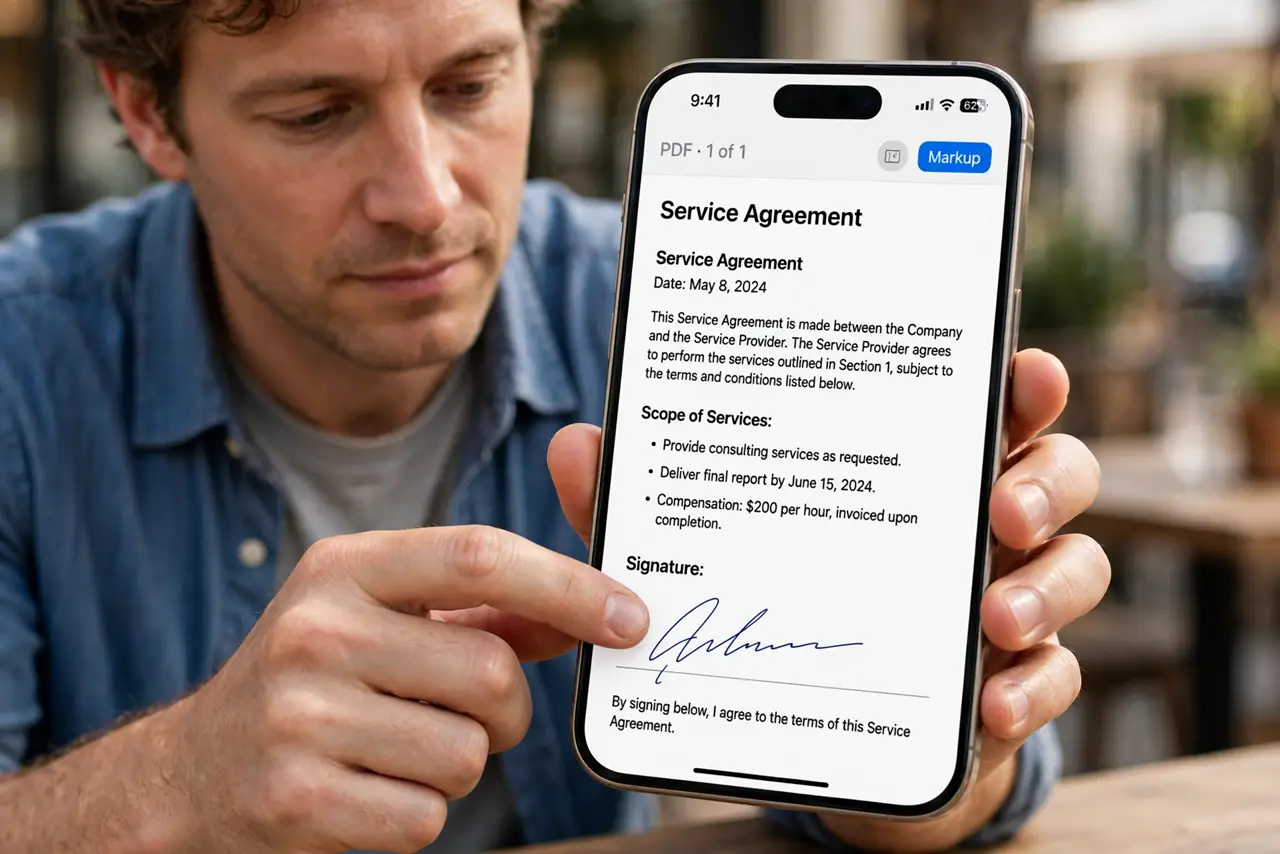
Printing a PDF to sign it, then scanning it back, is a slow ritual from another decade. Your phone already has the tools to sign on the glass: open, draw your signature, place it, save, and send.
TL;DR / Quick Fix
Quick fix: open the PDF in your phone's built-in viewer, use the markup or fill-and-sign tool to draw your signature, place it on the line, and save a signed copy. No extra app is needed, and the signed file stays a normal PDF anyone can open.
Follow these steps
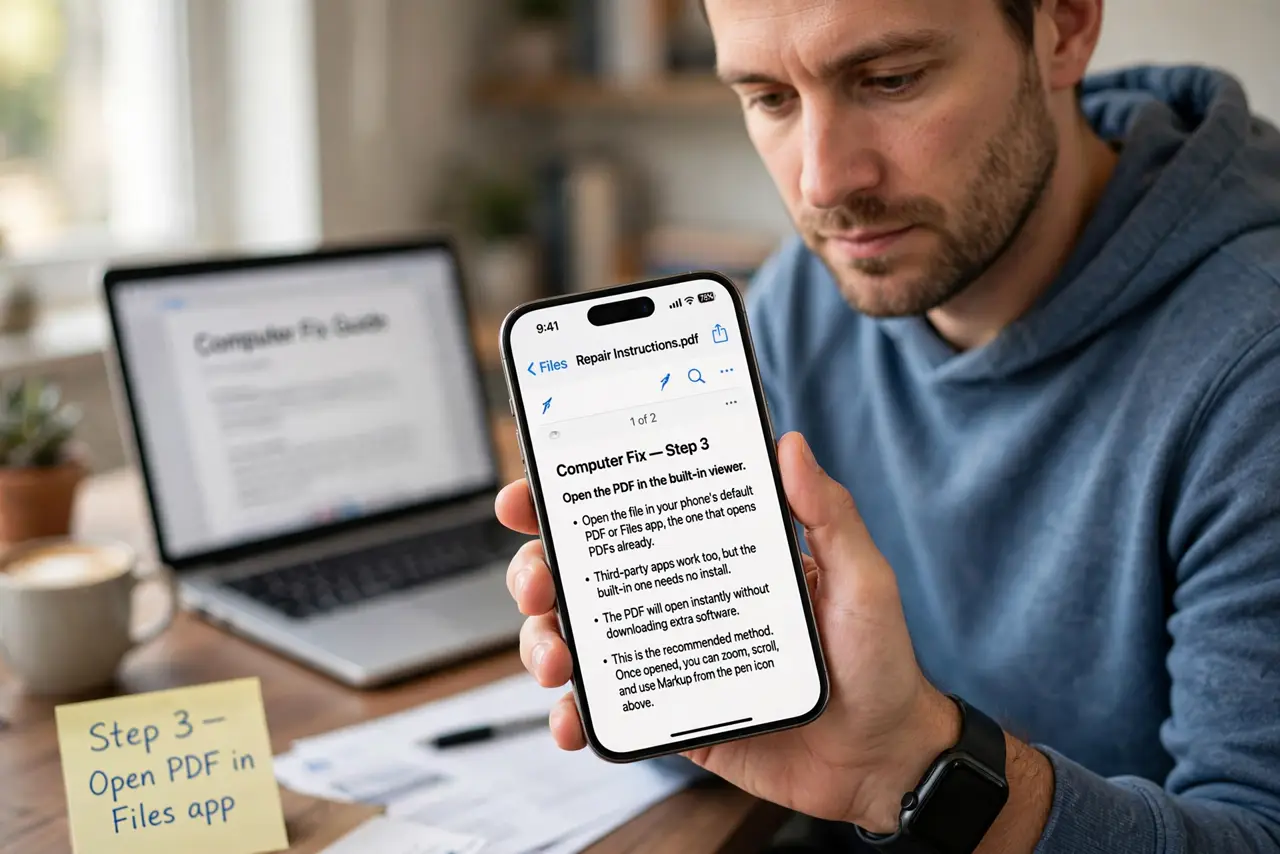
- Open the PDF in the built-in viewer. Open the file in your phone's default PDF or files app, the one that opens PDFs already. Third-party apps work too, but the built-in one needs no install.
- Find the markup or sign tool. Look for a pen icon, Markup, or Fill and Sign in the viewer menu. Every modern phone hides this tool one tap away, and it is free.
- Draw your signature once and save it. Sign with your finger or stylus, then save the signature when the app offers. A saved signature drops onto future documents in seconds.
- Place the signature on the line. Drag the signature to the signature line and resize it to fit. Zoom in first so the placement lands exactly where the form expects it.
- Save as a new signed copy. Save the signed file under a new name, keeping the original blank. If the signature lands wrong, you still have the clean original to retry.
- Send the signed copy, not a photo. Share the PDF file itself. A photo of the screen looks unprofessional and prints badly, while the signed PDF is the real document.
What NOT to do
- Do not print, sign, and rescan. The phone signs on the glass with the same legal result and none of the paper, ink, or scanner hassle.
- Do not download a random signing app first. Built-in tools sign perfectly well, while free signing apps often watermark or limit you.
- Do not sign the only copy without saving the original. Keep the blank PDF until the signed one is sent and confirmed received.
- Do not use a typed name where a drawn signature is expected. Some forms want the drawn mark, so check what the recipient actually requires.
Frequently asked questions
Is a phone-drawn signature valid?
For most everyday documents, yes. It carries the same intent as ink, though some legal filings still want specific certified signing.
Where is the sign tool on my phone?
In the built-in PDF or files viewer, under a pen icon, Markup, or Fill and Sign. It is already installed and free.
Can I reuse my signature?
Yes. Save it the first time you draw it, and most viewers let you drop it onto any document in one tap.