App Library? The Basics
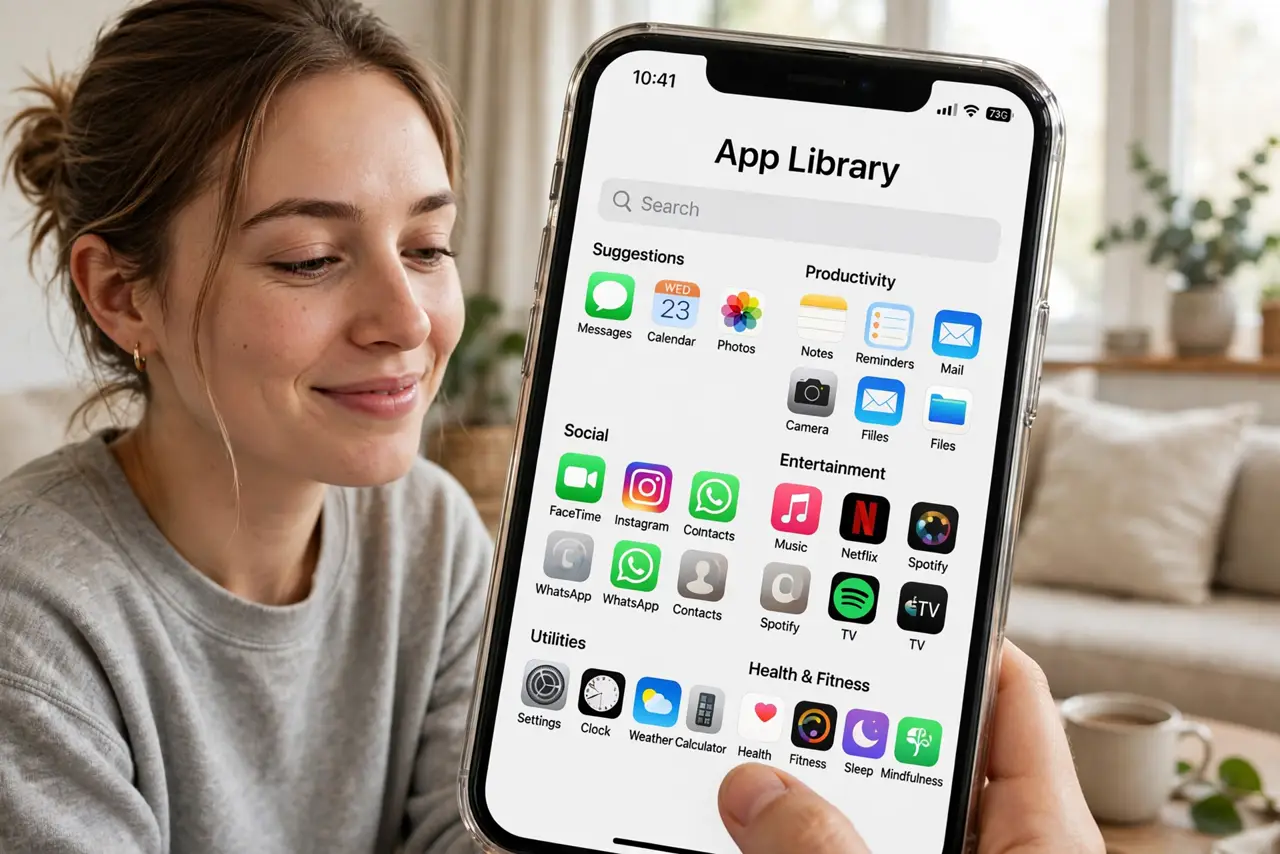
Your home screens are a sprawling mess of apps — pages and pages, folders you forgot — and finding anything takes a archaeological dig. The App Library is the iPhone's automatic organizer: every app, sorted into categories, one swipe away, no manual filing. Android has had the app drawer forever; here is the iPhone version.
TL;DR / Quick Fix
Quick fix: the App Library auto-organizes every app into categories — swipe left past your last home screen to reach it. Use the top search bar to find any app instantly. Set new downloads to go straight there: Settings > Home Screen > App Library Only.
Follow these steps
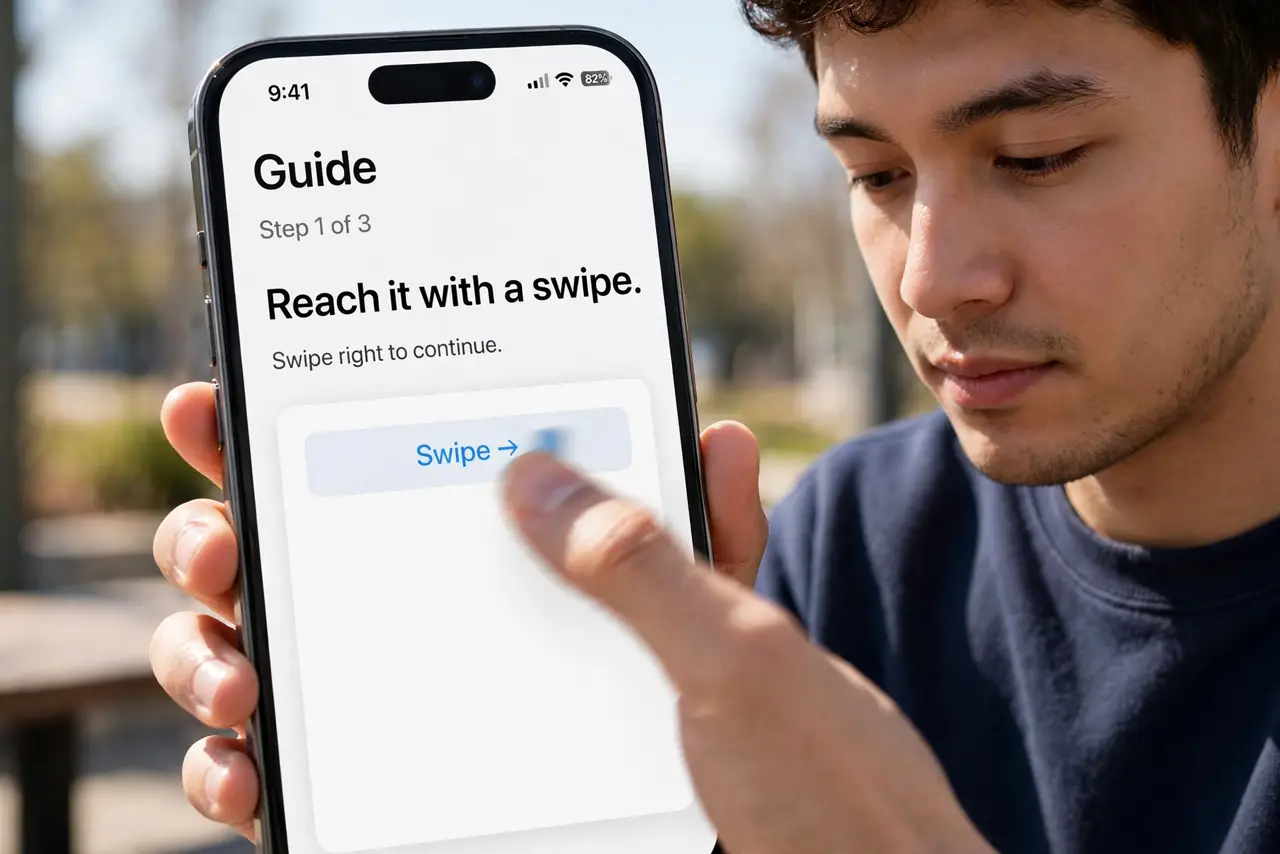
- Reach it with a swipe. Swipe left past your last home screen page. The App Library appears: category folders like Social, Productivity, and Utilities, auto-sorted by the system. No setup required.
- Search instead of browsing. Tap the search bar at the top for an alphabetical list of every installed app. This is the fastest way to open anything — faster than hunting through pages.
- Send new downloads there directly. Go to Settings > Home Screen > New App Downloads and choose App Library Only. New apps skip the home screen entirely — install without clutter, find via search.
- Understand the category folders. The system groups apps automatically; the three large icons are suggested, the four small ones open the full category. You cannot rename categories — search is the real interface.
- Remove apps from home screens freely. Long-press an icon > Remove App > Remove from Home Screen. The app stays installed and findable in the Library — see remove vs delete for the crucial distinction.
- Note the Android parallel. Android's app drawer is the same idea, older: swipe up from the home screen for the full alphabetical list. If you came from Android, the Library is home.
What NOT to do
- Do not reorganize the Library manually. You cannot — categories are automatic. Fighting it wastes time; use search instead.
- Do not delete apps thinking they are 'only in the Library.' Removing from the Library uninstalls the app — know which remove you are tapping.
- Do not keep nine home screen pages 'just in case.' The Library plus search replaces the archive pages — hide them.
- Do not forget it when an app 'disappears.' New apps set to Library-only baffle people — check the Library before reinstalling.
Frequently asked questions
Where did my new app go?
Probably straight to the App Library — check Settings > Home Screen to see where new downloads go, then swipe left past your last page.
Can I organize the App Library myself?
No. Categories are automatic and unchangeable. Your organization tools are home screens, folders, and search — the Library is the system's domain.
Is the App Library the same as the app drawer?
Conceptually, yes. Android's app drawer holds every app alphabetically; the Library holds every app in auto-categories. Same job, different filing.