AssistiveTouch? The Basics
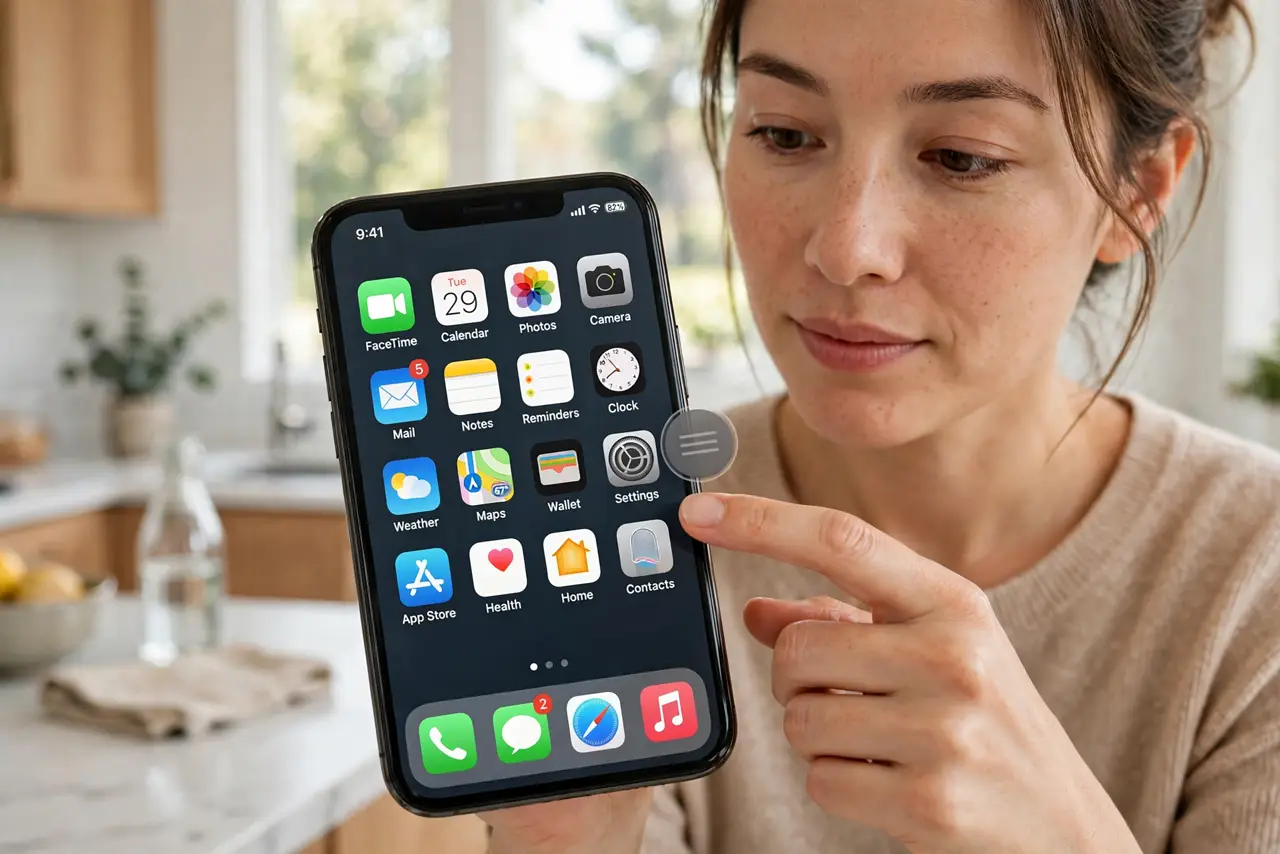
A small floating button that opens a menu of shortcuts — screenshots, volume, Home, Siri — without touching the physical buttons. That is AssistiveTouch, and it is a lifesaver with a cracked power button, a stiff volume rocker, or limited hand mobility. Android has similar floating-button tools, but the iPhone original is the one most people ask about. Here is how to turn it on and tame it.
TL;DR / Quick Fix
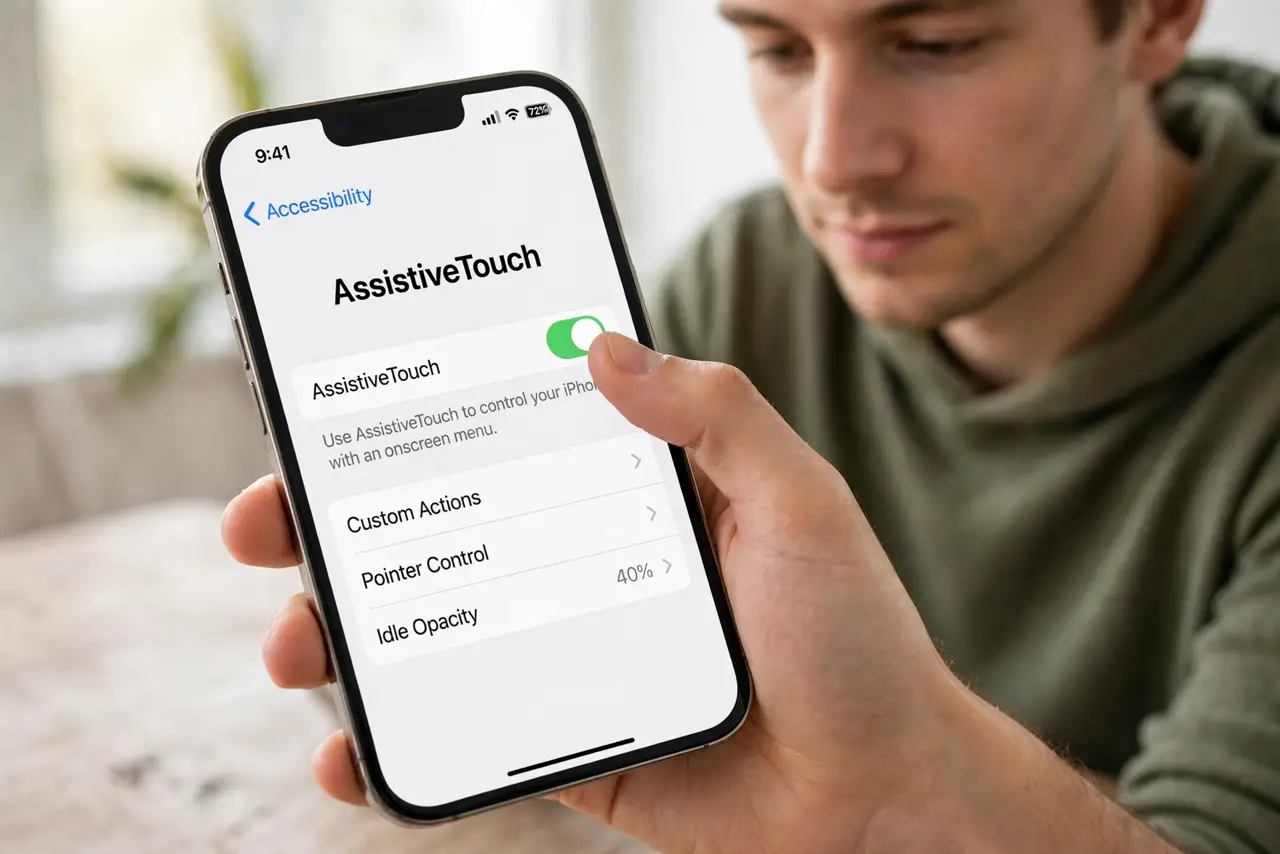
Quick fix: on iPhone open Settings, Accessibility, Touch, AssistiveTouch, and turn it on — a floating button opens a shortcut menu. Tap it, then Device, for volume, lock, and screenshot without physical buttons. Drag the button to a screen edge to park it.
Follow these steps
- Turn on AssistiveTouch. Go to Settings, then Accessibility, then Touch, then AssistiveTouch, and flip the switch. The floating button appears immediately.
- Open the shortcut menu. Tap the button to reveal actions like Notification Center, Device, Control Center, Home, and Siri. Tap Device for the hardware stand-ins: volume, lock, rotate, screenshot.
- Customize the menu. Tap Customize Top Level Menu to add, remove, or reorder buttons. Put your most-used actions — say, Screenshot — on the first page.
- Park the button out of the way. Drag it to any screen edge; it snaps there and dims when idle. If it still annoys you, see button in the way for finer control.
- Use it as a broken-button workaround. Power button dead? Long-press the button, tap Device, then Lock Screen. It is a full stand-in until the repair.
- Try Back Tap as an alternative. If the floating dot bothers you, Back Tap puts double- and triple-tap shortcuts on the phone's back instead.
What NOT to do
- Do not assume the floating button means something is wrong. It is an accessibility feature you (or someone) turned on — not malware and not damage.
- Do not leave it at maximum opacity in the screen center. Park it on an edge and lower its idle opacity so it stops photobombing screenshots.
- Do not confuse it with the accessibility shortcut. Triple-clicking the side button is a different feature that can launch AssistiveTouch — or something else.
- Do not install a third-party floating-button app on iPhone. The built-in one is smoother, free, and cannot be killed by the system.
Frequently asked questions
Will AssistiveTouch drain my battery?
Negligibly. It is a tiny overlay, not a background process — you will not see it in battery stats.
Can I make the button invisible until needed?
You can lower its idle opacity so it nearly vanishes, but it cannot fully hide while enabled. Back Tap is the invisible alternative.
Does Android have AssistiveTouch?
Android has an Accessibility floating button plus maker tools like Samsung's Assistant menu — same idea, different name and location.