AssistiveTouch Button Gets in the Way
The floating AssistiveTouch button hovers over apps, photos, and buttons you need. It is meant to help, but when it parks over content, it blocks more than it assists.

TL;DR / Quick Fix
Quick fix: drag the AssistiveTouch button to a screen edge or corner where it blocks nothing. Then lower its idle opacity, and turn it off if you only needed it once and lower idle opacity so the button fades when unused.
Follow these steps
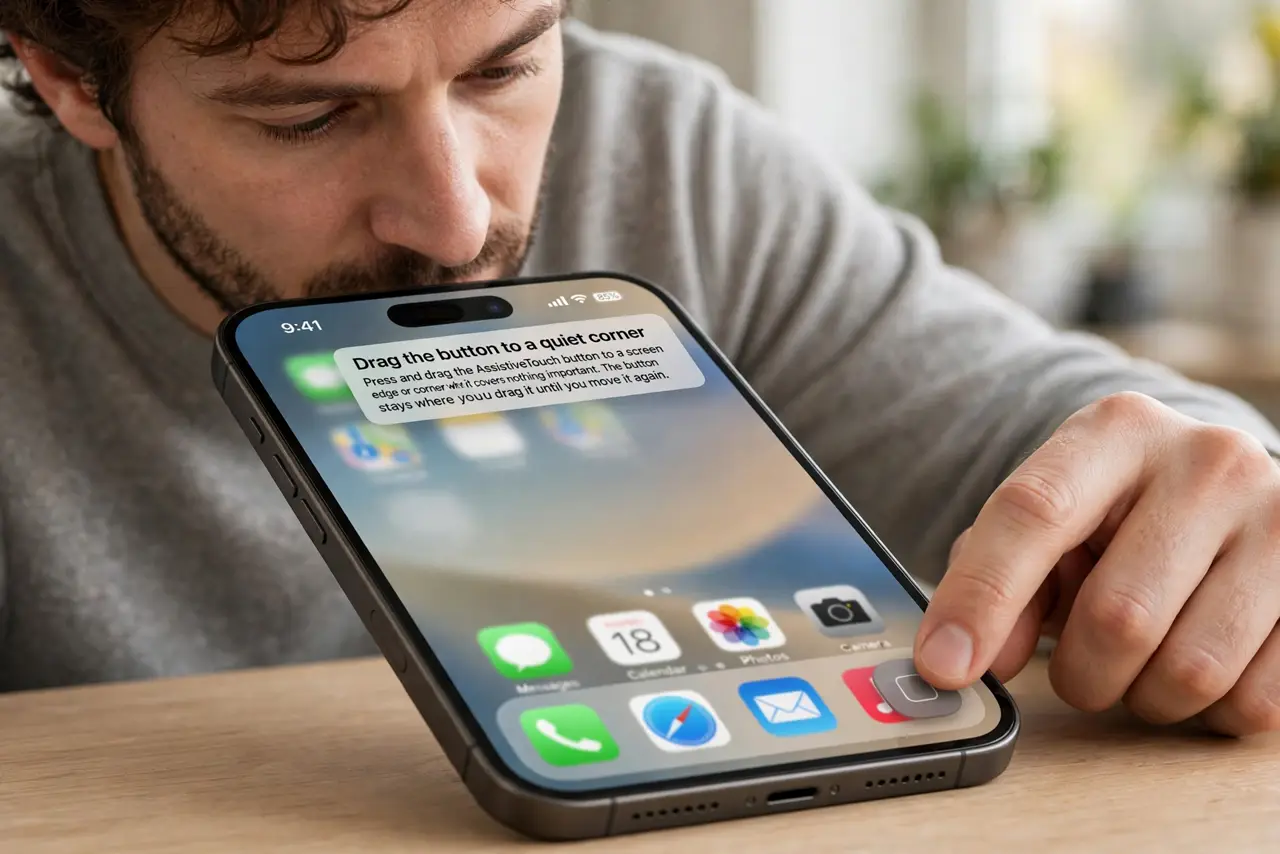
- Drag the button to a quiet corner. Press and drag the AssistiveTouch button to a screen edge or corner where it covers nothing important. The button stays where you drag it until you move it again.
- Lower its idle opacity. Open Settings, then Accessibility, then Touch, then AssistiveTouch, and lower Idle Opacity. A faint button is easier to ignore when you are not using it.
- Turn it off if you no longer need it. In the same AssistiveTouch pane, turn the switch off. If you turned it on for a one-time need, switching it off removes the floating button entirely.
- Check why it was turned on. Think back to why AssistiveTouch was enabled — a broken button, a temporary injury, or a test. If that reason is gone, the button can go too.
- Use a triple-click shortcut instead. Set AssistiveTouch as an Accessibility Shortcut, so triple-clicking the side button toggles it. That way it appears only when you ask for it, not all day.
- Restart if the button will not move. If the button ignores dragging, restart the iPhone once and drag it again. A stuck floating button can refuse to move until a restart clears its position.
What NOT to do
- Do not delete apps to escape the button. The floating button belongs to AssistiveTouch, and dragging or switching it off removes it without touching your apps.
- Do not assume the button is part of an app. It floats over every app because it is a system feature, so closing apps will never make it leave.
- Do not leave it over the shutter or send button. Drag it to a corner before taking photos or sending messages, so it never blocks the tap you need.
- Do not turn off all Accessibility features to remove it. AssistiveTouch is one switch, and turning it off alone leaves every other feature intact.
Frequently asked questions
Why does the button float over everything?
Because AssistiveTouch is a system button, so it stays on screen across all apps until you move or turn it off.
How do I make it less annoying?
Drag it to a corner and lower its idle opacity, so it fades when you are not using it.
Can I show it only when needed?
Yes. Set it as an Accessibility Shortcut, so triple-clicking the side button toggles it on and off.