Background Refresh Per App? Manage
Some apps keep working behind your back — refreshing email, weather, and feeds so they are ready when you open them. That convenience quietly eats battery and mobile data. The fix is not turning everything off; it is choosing which apps deserve background access. This guide shows how to manage background refresh per app on iPhone and Android.
TL;DR / Quick Fix
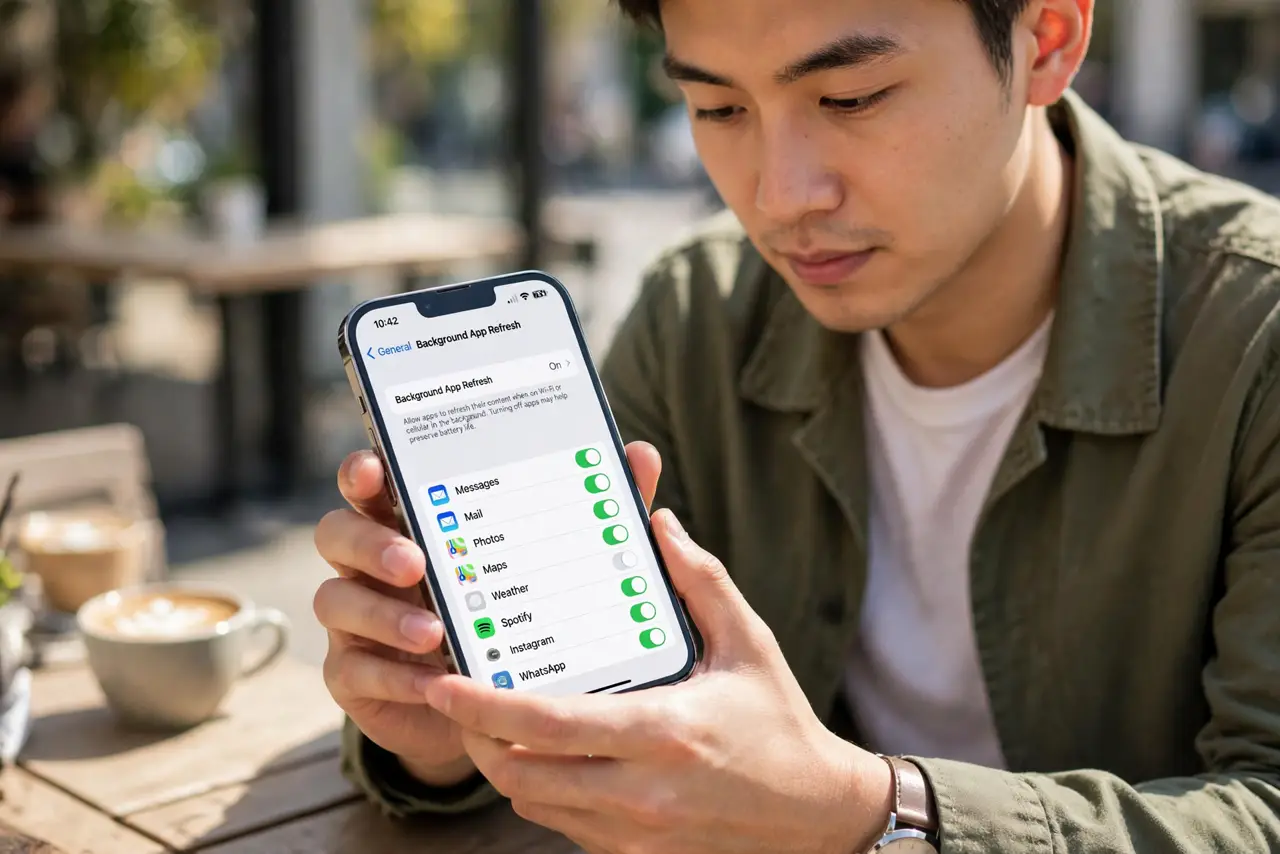
Quick fix: control background refresh per app, not globally. On iPhone, open Settings > General > Background App Refresh and toggle apps individually. On Android, open each app's battery or mobile data settings and restrict background activity. Keep refresh on only for apps you truly need updated.
Follow these steps
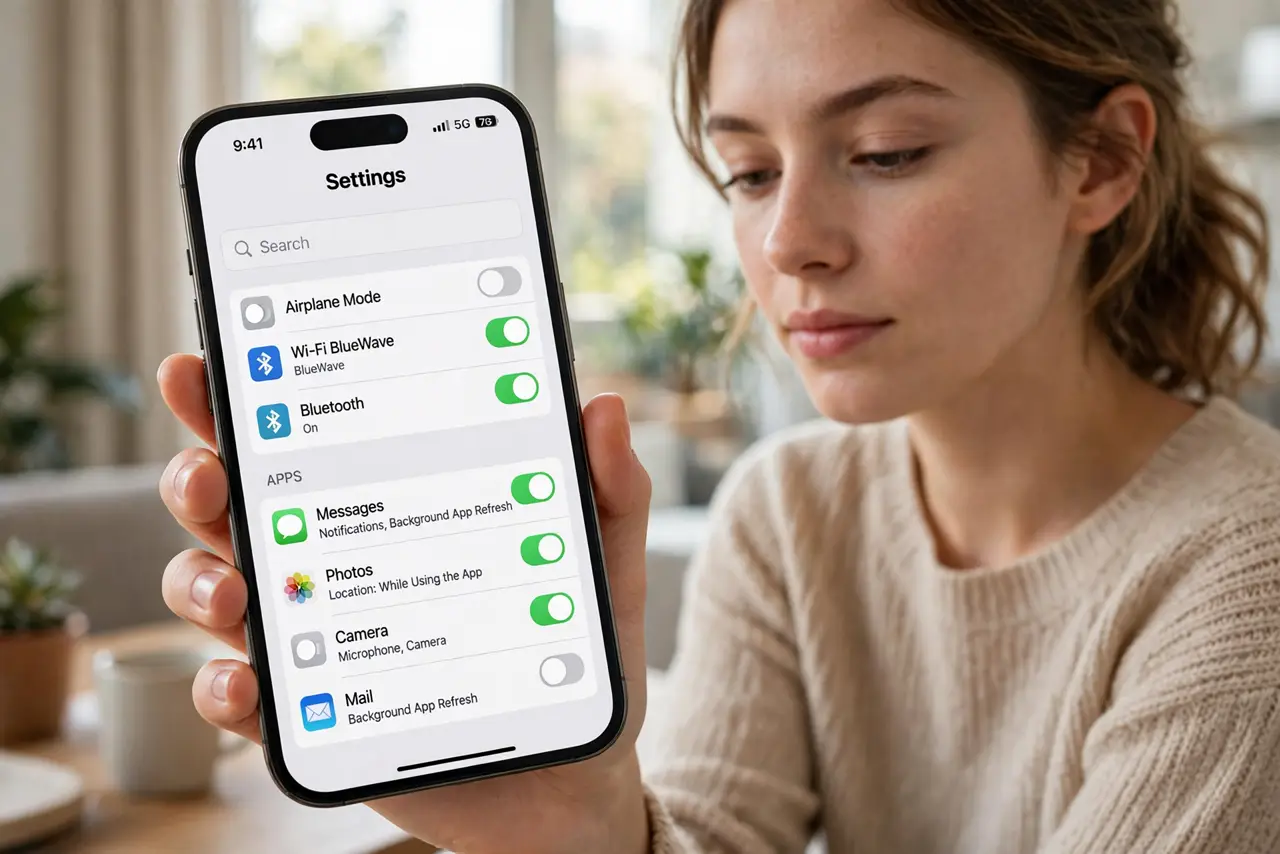
- Find the background refresh list. On iPhone, open Settings > General > Background App Refresh to see every app with a toggle. On Android, open Settings > Apps, tap an app, then Battery or Mobile data to control its background activity. Most people have never opened this list.
- Turn off refresh for the worst offenders. Social feeds, shopping apps, and games refresh constantly yet rarely need it — toggle those off first. Email, messaging, and navigation apps earn their refresh. This selective approach fixes overnight battery drain without breaking anything you rely on.
- Use Wi-Fi-only refresh where offered. On iPhone you can set Background App Refresh to Wi-Fi only in the same menu. On Android, restrict background mobile data per app. Updates keep flowing at home while your mobile data plan stays protected on the go.
- Restrict the truly greedy apps. On Android, each app's Battery section offers a Restricted mode that blocks most background work. Use it for apps that update constantly but matter little — like casual games.
- Leave system services alone. Do not disable background activity for Find My, emergency alerts, or your authenticator app. Those need background access to do their job — this is about trimming, not a purge.
- Check the effect after a few days. Battery stats will show whether the change helped. If an app you trimmed starts misbehaving — messages arriving late, widgets stale — turn its refresh back on. Tuning is reversible.
What NOT to do
- Do not turn off background refresh for every app at once. Messaging, email, and security apps genuinely need it.
- Do not use a third-party 'battery saver' app to do this. They add their own background drain while promising to remove it.
- Do not restrict your banking or authenticator apps. Late codes and missed fraud alerts are not worth the tiny savings.
- Do not expect miracles on an old battery. Background tuning helps; it cannot fix a chemically worn battery.
Frequently asked questions
Will turning off background refresh break notifications?
For most apps, no — push notifications arrive through the system, not background refresh. A few apps with custom sync may delay. If something stops notifying, re-enable refresh for that app.
Does background refresh use mobile data?
Yes, unless you limit it. On iPhone set Background App Refresh to Wi-Fi only in the same menu. On Android restrict background mobile data per app.
Why is one app using so much background battery?
Some apps refresh aggressively or get stuck syncing. Restrict that app specifically, or reinstall it if the drain persists after restricting.