Turn Off App Badges
The little red numbers on your app icons — 47 unread emails, 12 updates, 3,208 photos — are engineered to nag you. App badges turn your home screen into a to-do list you never agreed to. Turning them off per app reclaims your attention without losing any actual notifications. Here is how.
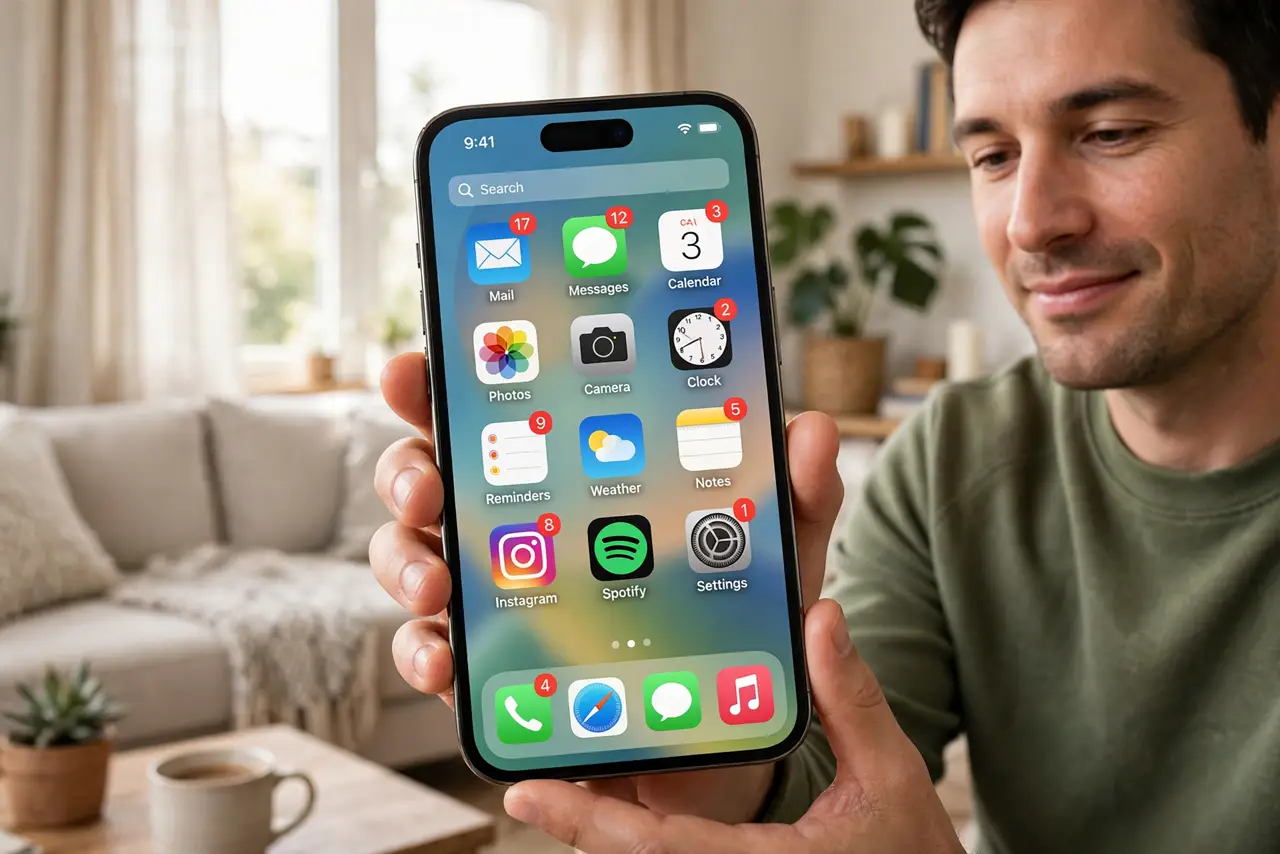
TL;DR / Quick Fix
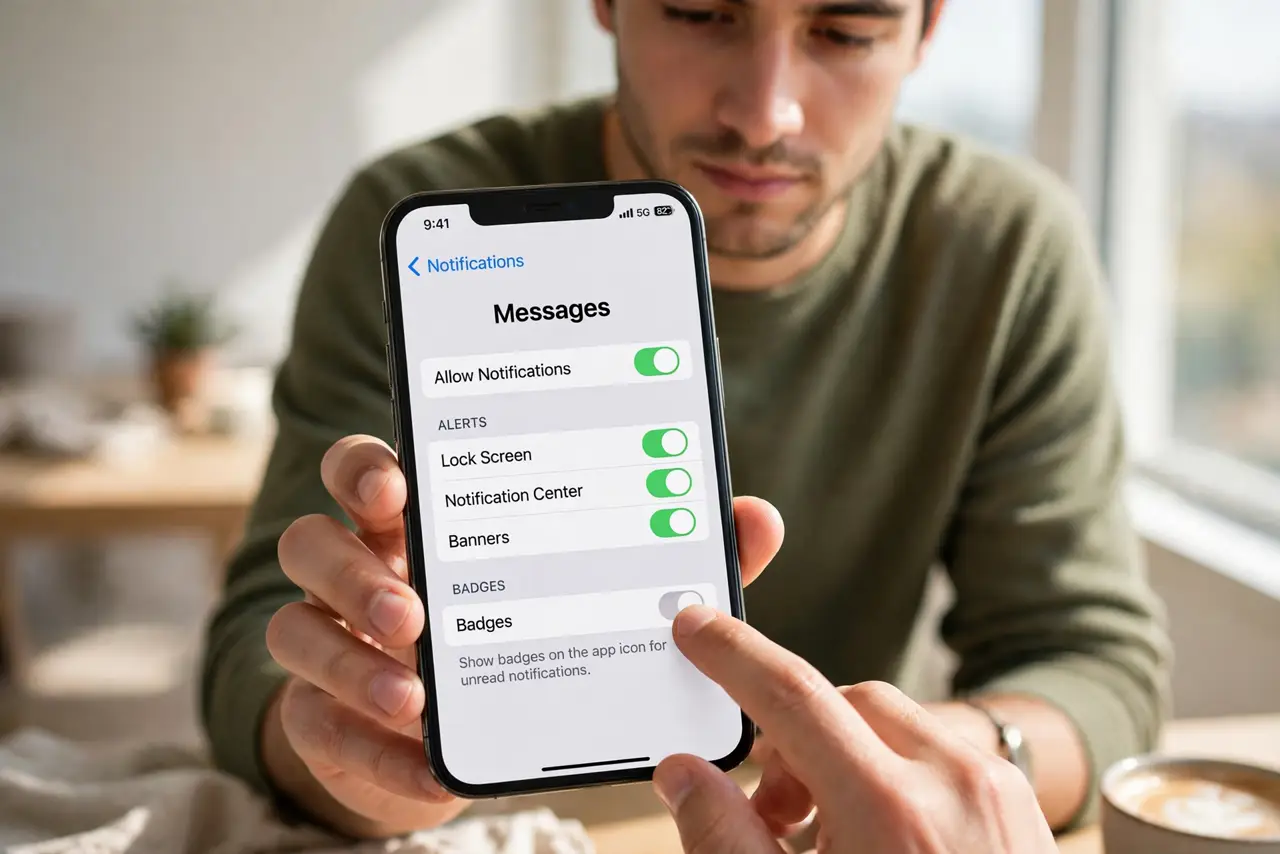
Quick fix: app badges are the red count bubbles on icons — disable them per app without losing notifications. On iPhone: Settings > Notifications > [app] > Badges off. On Android: Settings > Apps > [app] > Notifications > badge off. The nagging number disappears.
Follow these steps
- Turn off badges per app on iPhone. Go to Settings > Notifications, tap the app, and toggle off Badges. Alerts, sounds, and banners continue normally — only the red number on the icon goes away.
- Turn off dots on Android. Go to Settings > Apps > [app] > Notifications and disable the app icon badge or notification dot. Android's dots are the equivalent nag — see stuck dots if one will not clear.
- Start with the worst offenders. Email, social, news, shopping — the apps whose badges manufacture urgency. Keep badges where the count is genuinely useful: messages from real people, maybe.
- Keep notifications, lose the number. This is the key distinction: turning off badges does not silence the app. You still get banners and sounds per your settings — the home screen just stops shouting.
- Clear existing badges first. Toggling off badges clears the current counts too. Open the app once to clear any stuck badge before disabling, so you start from a clean slate.
- Revisit after app updates. Major updates sometimes reset notification settings, badges included. If the red numbers creep back, one settings visit fixes it.
What NOT to do
- Do not confuse badges with notifications. Badges off still means banners and sounds per your settings — nothing important is lost.
- Do not leave badges on for shopping and social apps. Their counts are engagement engineering, not information.
- Do not expect zero badges everywhere. System apps like Phone and Messages earn their badges — be selective, not absolute.
- Do not ignore a badge that will not clear. A stuck badge can signal a sync problem — open the app; if it persists, see the stuck-dot guide.
Frequently asked questions
Will I miss messages with badges off?
No. Banners, lock-screen alerts, and sounds all work as configured. Badges are only the icon overlay — the laziest, most anxiety-producing part.
What's the difference between badges and notification dots?
Same idea, different platforms: iPhone shows numbered red badges; Android shows dots (sometimes with counts). Both are per-app toggleable.
Why did badges come back after an update?
Some updates reset notification permissions. Revisit Settings > Notifications for the app and toggle badges off again — thirty seconds.