See Notification History
You swiped away a notification — the delivery update, the verification code, the message you meant to read — and now it is gone. Or was it ever there? Both phones keep a log of recent notifications, a safety net for the swipe-happy. Here is how to open your notification history.
TL;DR / Quick Fix
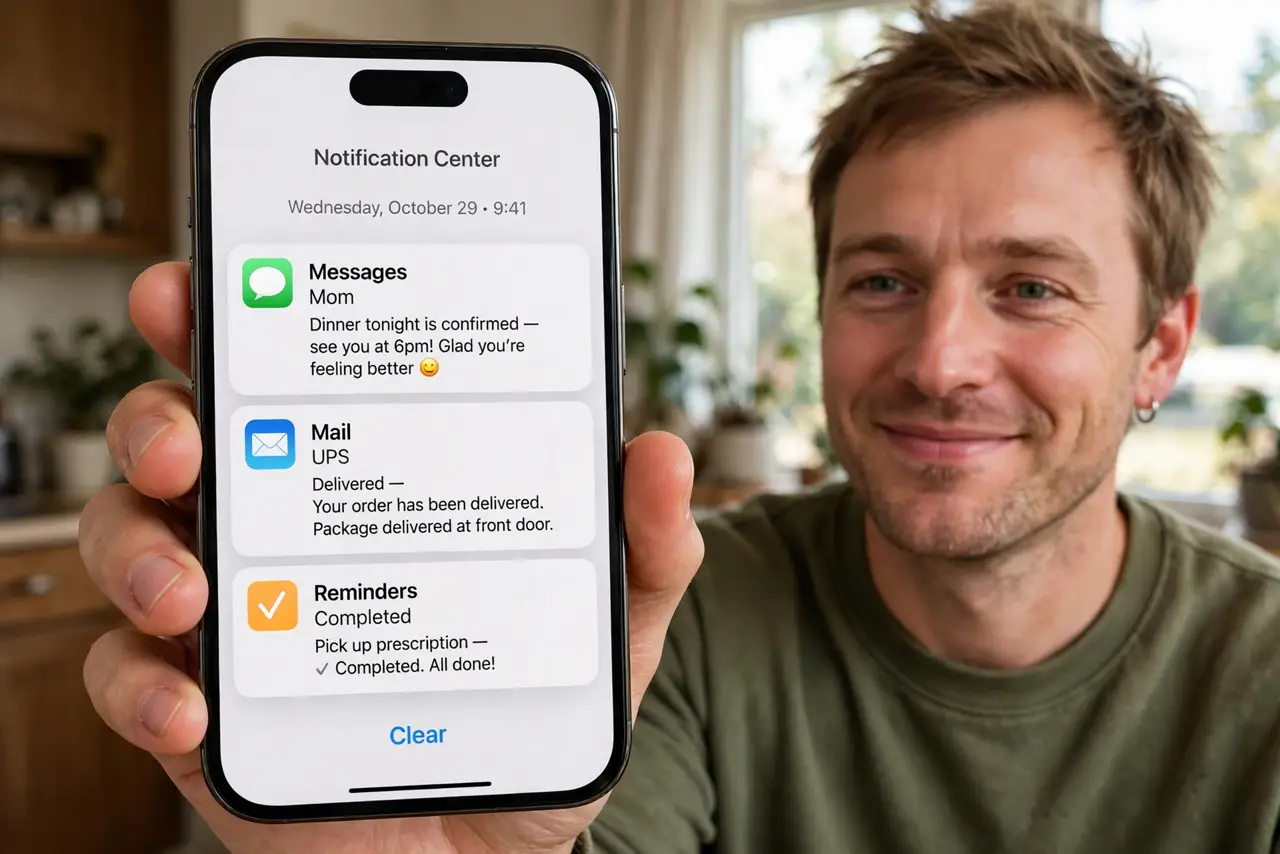
Quick fix: dismissed notifications aren't gone — both phones log them. On Android, go to Settings > Notifications > Notification history and turn it on; recent notifications appear there for 24 hours. On iPhone, swipe down for Notification Center — undismissed notifications wait there, grouped by app.
Follow these steps
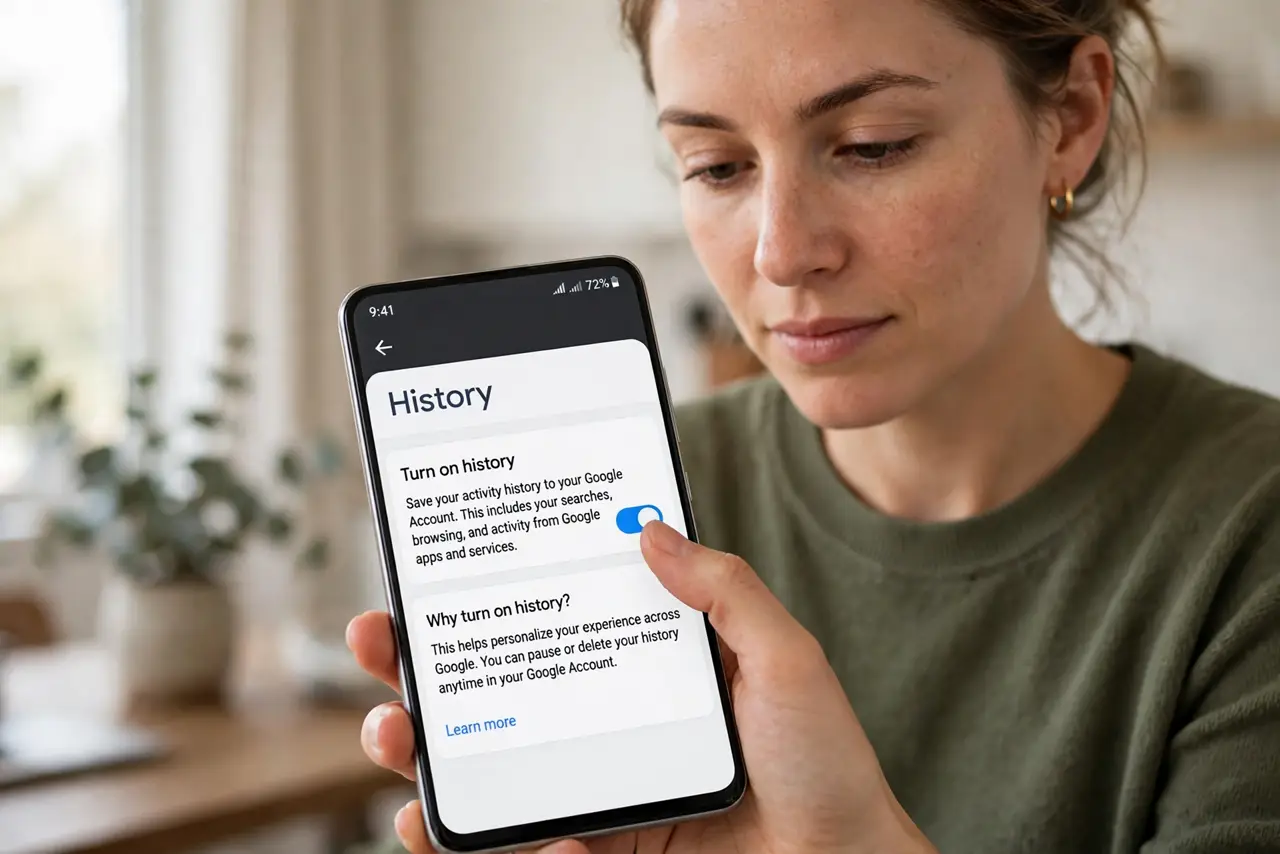
- Turn on history on Android. Go to Settings > Notifications > Notification history and enable it. It is off by default — turn it on now, before you need it. Once on, it keeps roughly the last 24 hours.
- Read the log after a mistaken swipe. Open the history screen anytime: every notification from the last day is listed with app, time, and content. The 'lost' verification code is usually sitting right there.
- Use Notification Center on iPhone. Swipe down from the top of the screen. iPhone keeps notifications here until you clear them — there is no separate history log, so do not mass-clear what you have not read.
- Search the log for the missing item. Android's history is chronological — scroll to the approximate time. Knowing roughly when the notification arrived narrows it fast.
- Understand the 24-hour window. Android's log covers about a day, then entries age out. It is a safety net for recent swipes, not an archive — for older items, check the app itself.
- Pair with per-app controls. If one app's notifications keep getting swiped away unread, the fix is notification channels or muting — history is the backstop, not the system.
What NOT to do
- Do not enable history and forget privacy. The log shows message contents — anyone holding your unlocked phone can read it.
- Do not treat it as permanent. Twenty-four hours, then gone — screenshot anything you need to keep longer.
- Do not mass-clear Notification Center blindly on iPhone. There is no history log behind it — cleared is cleared.
- Do not assume every notification is logged. Silent, low-priority, or instantly-handled notifications may never appear.
Frequently asked questions
I swiped a notification — is it gone forever?
On Android with history enabled, no — check the log. On iPhone, only if you also cleared Notification Center; otherwise swipe down and look.
Why is my notification history empty?
On Android, the feature was off when the notification arrived — it only logs from the moment you enable it. Turn it on now for next time.
Can apps see my notification history?
No. The log is a system feature, not shared with apps — though anyone with your unlocked phone can open it.