Bold Text? Turn It On
Some people read small text fine but find thin, wispy fonts tiring — letters look pale and menus feel blurry even though nothing is wrong with their eyes. Bold text thickens every letter across the system, and for many readers it helps more than making text bigger. It is one toggle on both iPhone and Android, and it is instantly reversible.
TL;DR / Quick Fix
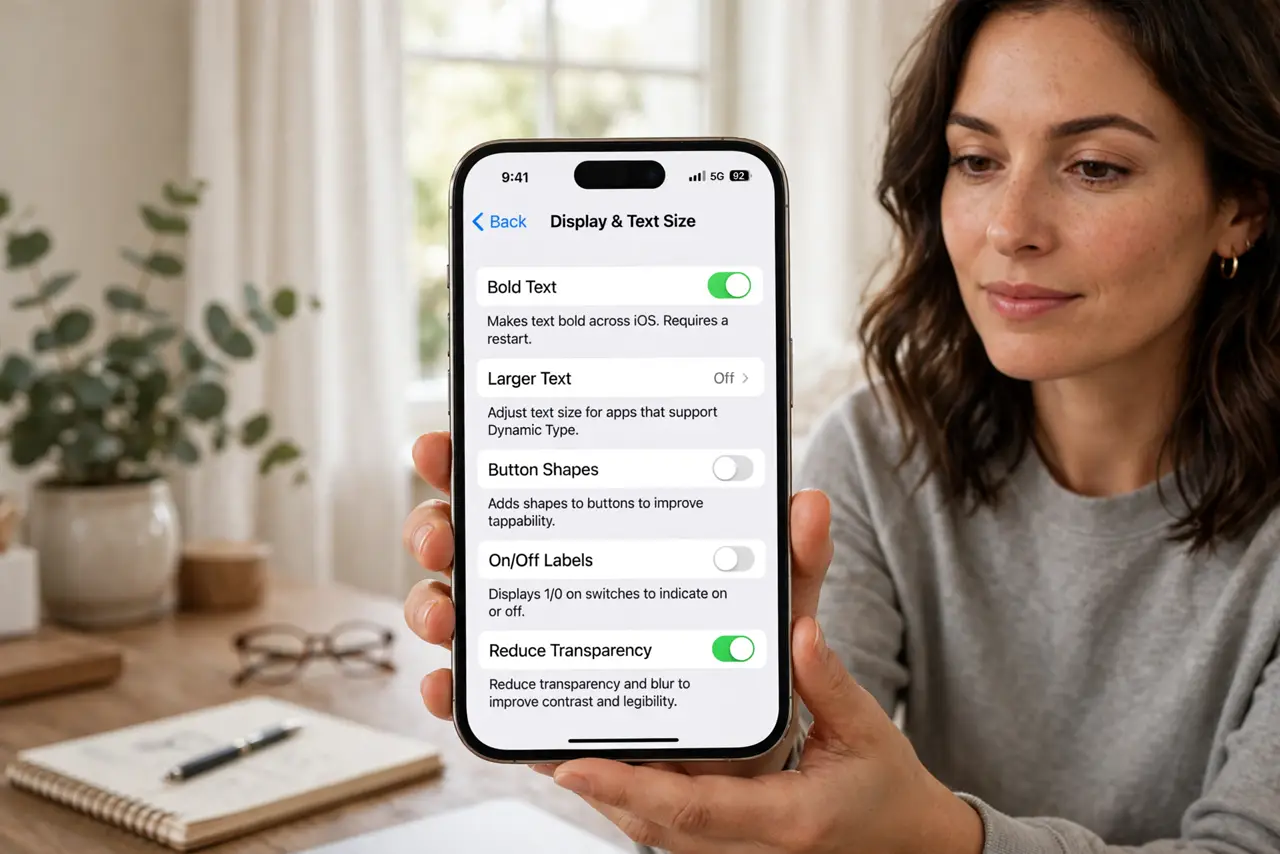
Quick fix: on iPhone open Settings, Accessibility, Display and Text Size, and turn on Bold Text — menus and apps instantly get heavier type. On Android the toggle is usually under Settings, Accessibility, Text and display, labeled Bold text. Pair it with larger text for maximum readability.
Follow these steps
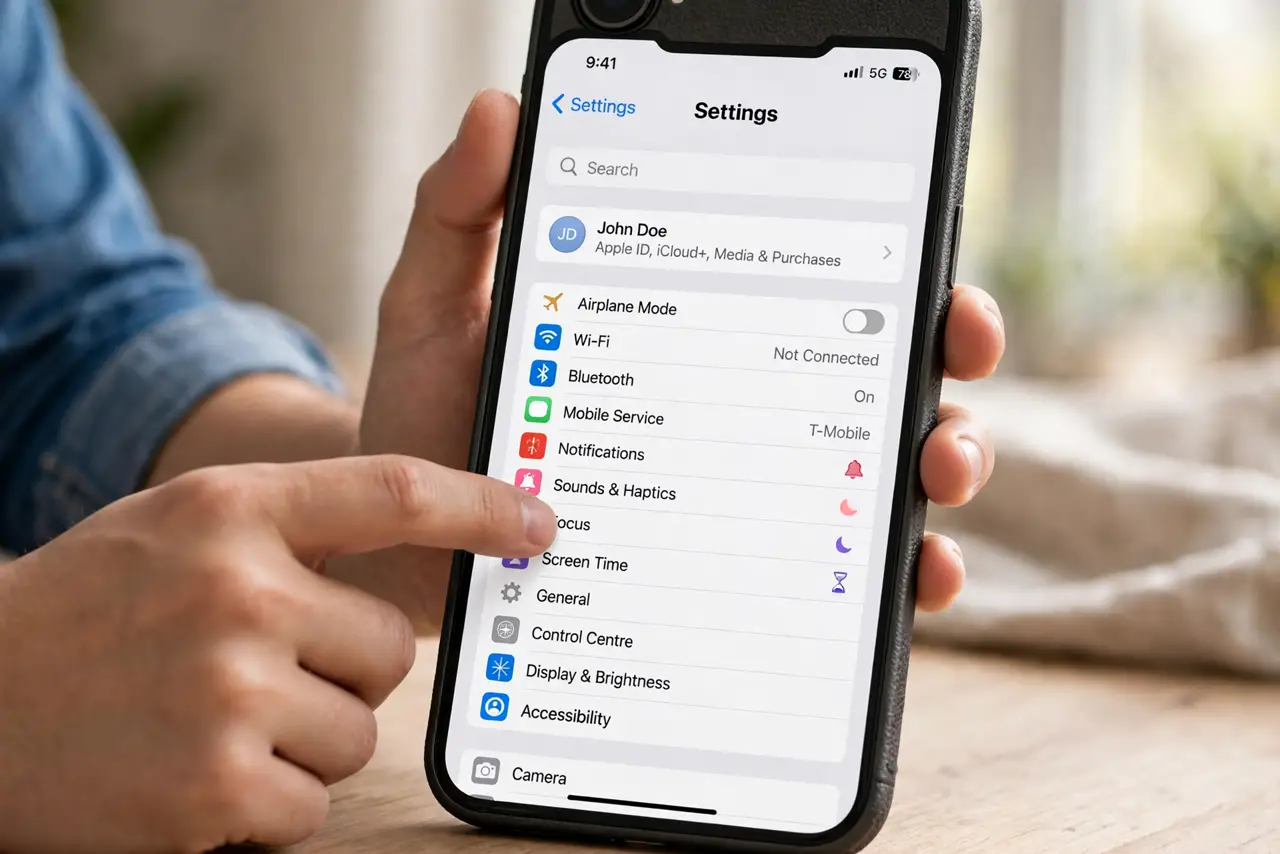
- Open Accessibility settings on iPhone. Go to Settings, then Accessibility, then Display and Text Size. This is the hub for every readability tweak, including this one.
- Flip the Bold Text switch. Turn on Bold Text. iPhone applies heavier type across menus, apps, and the keyboard instantly — no restart needed on modern versions.
- Find the toggle on Android. Open Settings, then Accessibility, then Text and display (wording varies slightly by maker). Turn on Bold text and watch the settings screen itself get heavier.
- Combine it with larger text. Bold plus larger text is the classic low-vision pairing — each helps, but together they transform readability.
- Give your eyes a day to judge. The heavier look feels odd for an hour. Live with it for a day before deciding — most people who keep it never go back.
- Turn it off the same way. If you do not like it, revisit the same toggle and switch it off. Nothing is permanent and nothing else changes.
What NOT to do
- Do not download a 'bold font' app from an app store. The system toggle is built in, free, and safer than any third-party font tool.
- Do not expect bold to fix blurry vision. It improves legibility of sharp text; if everything looks blurry, see an eye doctor.
- Do not confuse bold text with high contrast. They are separate toggles that stack well together — try both if reading is hard.
- Do not change five accessibility settings at once. Adjust one, live with it, then decide — otherwise you will not know which one helped.
Frequently asked questions
Will bold text use more battery?
No. Rendering heavier glyphs costs essentially the same energy as thin ones — this setting is battery-neutral.
Why do some apps ignore bold text?
A few apps draw their own custom fonts and skip the system setting. Most built-in and well-made apps follow it.
Is bold text the same as zoom?
No. Zoom magnifies the whole screen; bold text only thickens letterforms at the same size. They solve different problems.