Make Text Larger? How To
Squinting at tiny menus is not something you just have to live with. Both iPhone and Android let you scale up the text across the whole system, and most apps follow along. The setting takes seconds to find once you know where each platform hides it. This guide shows the exact path on both, plus what to do when one stubborn app ignores the change.
TL;DR / Quick Fix
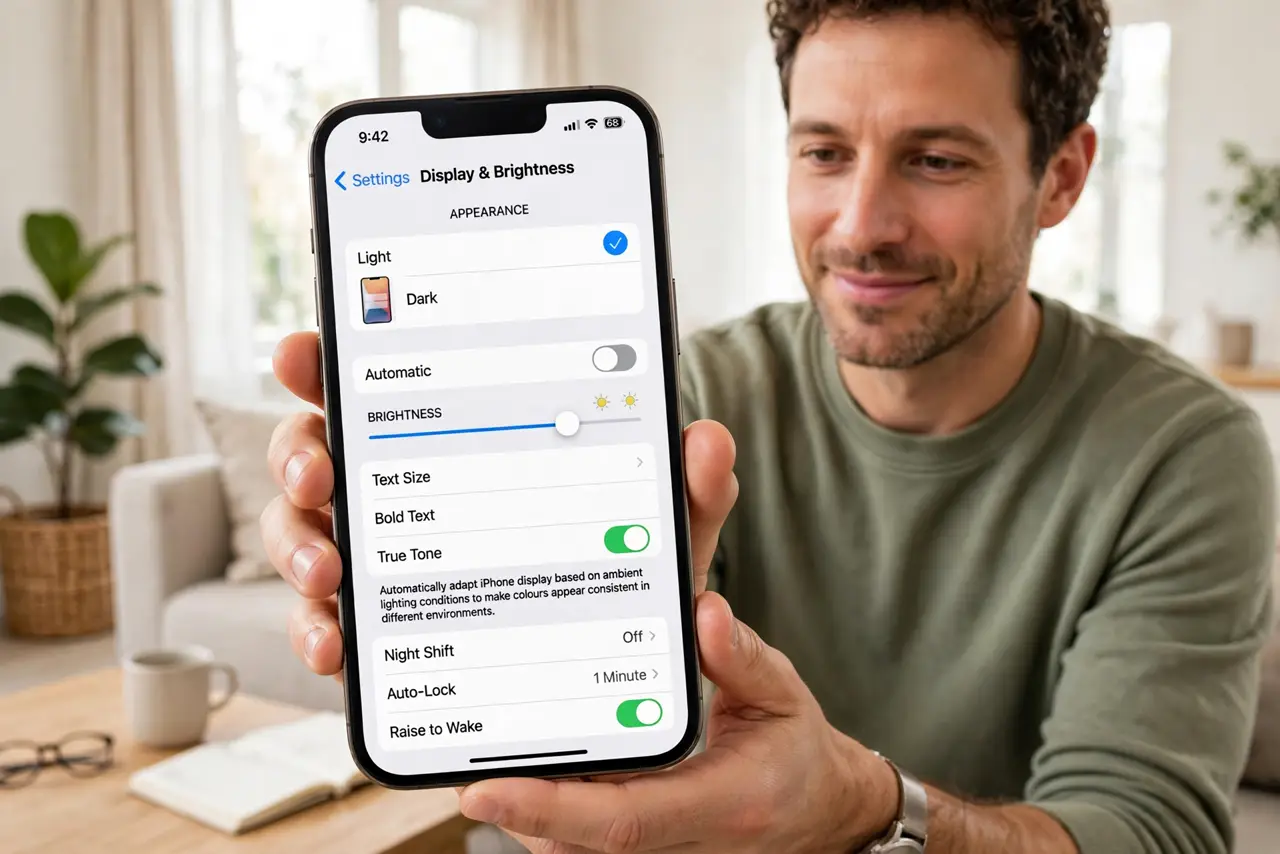
Quick fix: on iPhone open Settings, Display and Brightness, Text Size, and drag the slider right — enable Larger Accessibility Sizes for the biggest type. On Android open Settings, Display, Font size, and move the slider up. Most apps resize instantly; restart any that ignore it.
Follow these steps
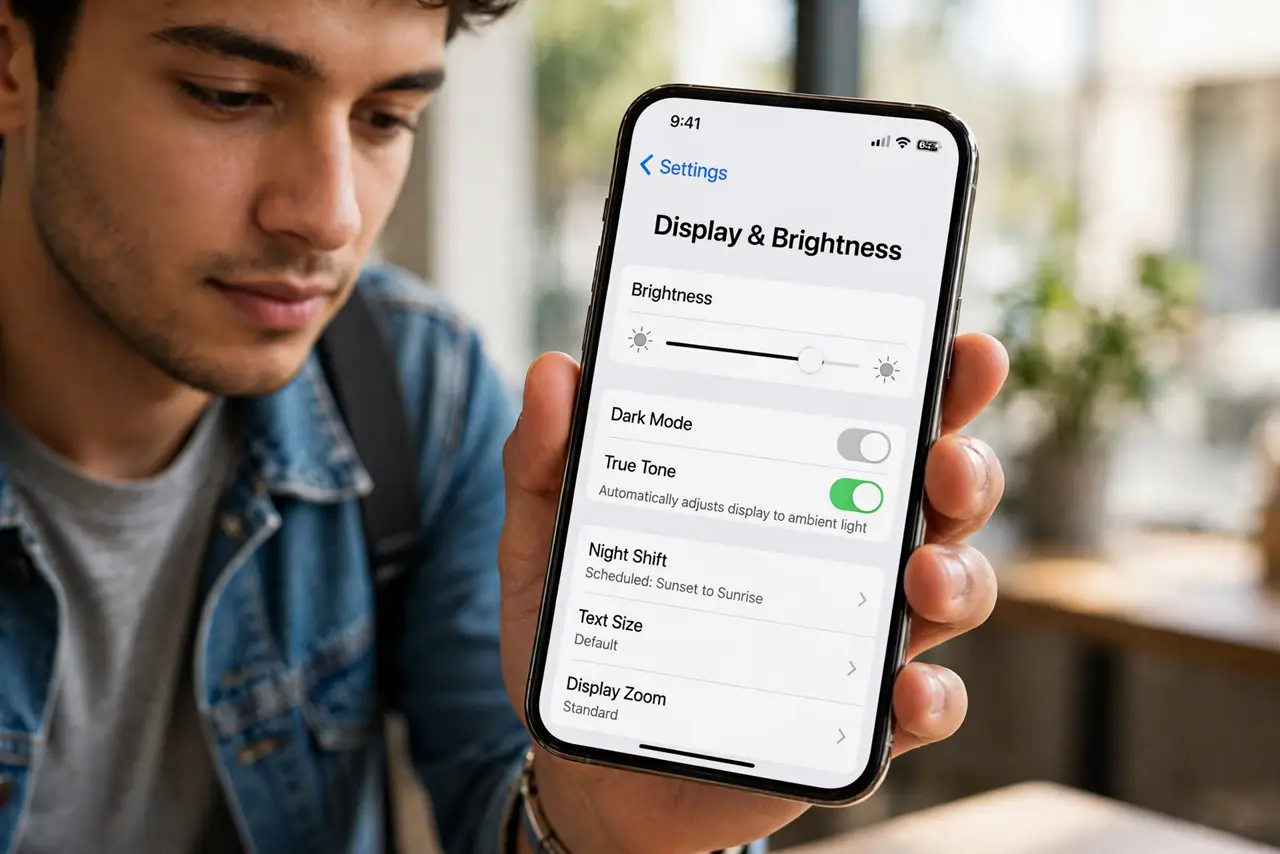
- Open the display settings on iPhone. Go to Settings, then Display and Brightness, then Text Size. Drag the slider to the right and watch the sample text grow — what you see is what every app gets.
- Unlock the biggest sizes on iPhone. Below the slider, tap Larger Text and turn on Larger Accessibility Sizes. This unlocks extra steps for anyone who needs truly large type.
- Open the font settings on Android. Go to Settings, then Display, then Font size (on some phones it lives under Accessibility first). Move the slider toward Large or Largest.
- Try Display size too on Android. Right next to font size sits Display size, which scales buttons and icons as well. If text is big but buttons are still tiny, this is the missing half.
- Restart apps that ignore the change. Most apps pick up the new size instantly, but a few only read it at launch. Close and reopen any app whose text stayed small — see one app stays tiny for the stubborn cases.
- Check Bold Text as a companion. If larger text still feels hard to read, bold text adds weight that makes the same size dramatically more legible.
What NOT to do
- Do not install a third-party 'font changer' app to do this. The built-in setting is safer, free, and works system-wide.
- Do not crank everything to maximum at once. Huge text plus huge display size can break layouts — raise one step at a time.
- Do not assume a broken app will respect the setting. Some apps hard-code their text size; that is the app's fault, not your phone's.
- Do not confuse text size with zoom. Full-screen zoom magnifies everything including images — text size only grows the words.
Frequently asked questions
Why is text still small in one app?
Some apps ignore the system text size and set their own. Check that app's own settings for a text or font option, or contact its maker — the phone did its part.
Will bigger text break my apps?
Rarely. Modern apps reflow around larger text. Very old apps may clip a button label, which is why raising the size gradually beats jumping to maximum.
Does larger text drain the battery faster?
No meaningful difference. Text rendering costs the same whether the letters are small or large.